
Hover 3D Effect Block for Gutenberg
On this page
What It Does
The Hover 3D Effect block adds a beautiful 3D tilt hover effect to images in the WordPress block editor (Gutenberg).
See it working on a live page before adding it to your own site:
Why It Matters
A static image can feel flat next to sections that use motion. A subtle 3D tilt on hover gives an image card a more premium, interactive feel without leaving the block editor for a page builder.
What You Get
- Two pre-defined visual styles
- Title, Description and image fields for the card
- Fine-grained tilt animation control (Style 1 only)
- A linkable card with separate tablet and mobile link toggles
Benefits
- Works natively in Gutenberg, no page builder plugin required
- The tilt, speed, perspective and scale are all independently tunable
- Responsive link and content alignment control
Capabilities
- Style: two pre-defined layout styles, chosen from a dropdown
- Content: Title, Description and a Select Image field
- Animation (Style 1 only): Max Tilt, Speed, Perspective and Scale fields controlling the hover tilt
- Extra Options: a URL field, separate Tablet Link and Mobile Link toggles, and responsive Content Alignment
- Style tab: further visual customization of the block
How It Works
On Style 1, the block tracks the pointer position over the image and tilts the card in 3D in response, using the Max Tilt, Speed, Perspective and Scale values you set to control how strong and how fast the effect feels. The URL, Tablet Link and Mobile Link settings decide whether, and on which devices, the whole card becomes a clickable link.
How to Use It
Required Setup
- Nexter Blocks FREE Plugin installed & activated.
- You need to have the WDesignKit plugin installed and activated.
- Make sure you’ve created an account and logged into it.
- Make sure you’ve downloaded the Hover 3D Effect block.
How to Activate the Hover 3D Effect Block
Go to
- WDesignKit → Widgets.
- Search the block name and select Gutenberg as the Page Builder.
- Click on the Download icon.
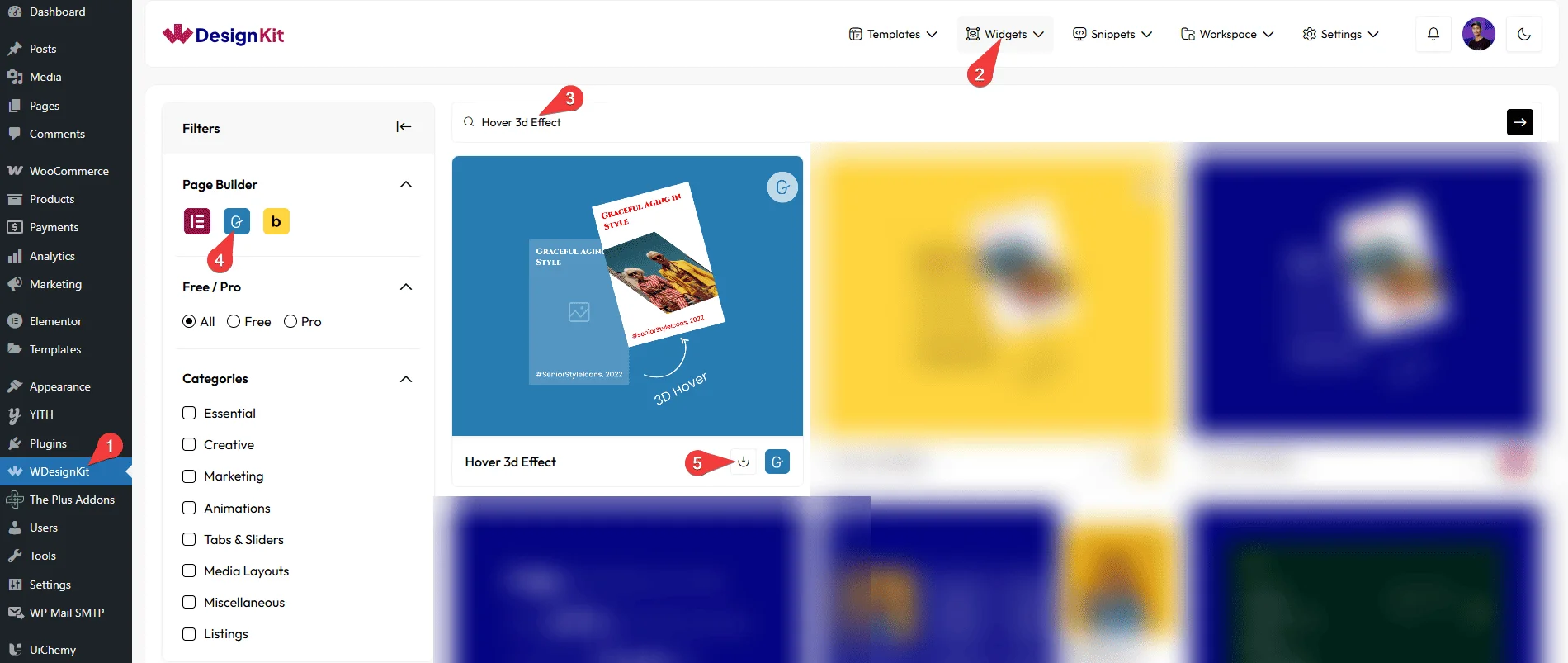
Using the Block in WordPress
Add the Hover 3D Effect block to the page.
Layout
From the Style dropdown, you can select two pre-defined styles.
Content
In the Title field, you can add a title.
You can add a description from the Description field.
Then, from the Select Image section, you have to add an image.
Animation
You’ll find some settings in this tab for Style 1 only.
From the Max Tilt field, you can adjust the image tilt on hover.
From the Speed field, you can control the tilt and scaling speed.
You can adjust the perspective of the image on hover from the Perspective field.
Then, from the Scale field, you can manage image scaling on hover.
Extra Options
From the URL field, you can add a link.
By enabling the Tablet Link option, you can activate a link specifically for tablet devices.
By enabling the Mobile Link option, you can activate a link specifically for mobile devices.
Then, from the Content Alignment section, you can align the content for responsive devices.
From the Style tab, you can further customize the style.
Use Cases
- Feature or service cards that should feel more interactive than a plain image
- Portfolio or project thumbnails with a distinctive hover effect
- Clickable promo cards linking to a landing page, with device-specific link control
Limitations
- The Animation tab’s Max Tilt, Speed, Perspective and Scale controls apply to Style 1 only; Style 2 does not expose these settings.
- The block carries a runtime dependency (registered as a
wdkit/wb-*block/widget) that must be present on any site the layout is copied to; pasting content between sites without WDesignKit active on the destination breaks the effect.
Troubleshooting
No FluentSupport tickets specific to this widget were found at the time of writing; the items below are workflow-derived, not ticket-sourced.
- Animation settings not visible: confirm Style 1 is selected in Layout; the tilt/speed/perspective/scale controls only appear for that style.
- Card not clickable on mobile: enable the Mobile Link toggle under Extra Options; the URL field alone does not activate the link on every device.
- “Your site doesn’t include support for the ‘wdkit/wb-…’ block” error: this happens when content using this block is copied to a site where WDesignKit (and the specific downloaded block) isn’t installed/active. Install and activate WDesignKit and re-download the Hover 3D Effect block on the destination site before pasting the content.