
Gradient Stroke Text Widget for Elementor
On this page
The Gradient Stroke Text widget applies a normal or animated gradient to text, as either a solid fill or a stroke outline.
1. What It Does
Renders a line of text in a gradient color, either as a static or animated fill, or as a stroke outline instead of a solid fill.
2. Why It Matters
Gradient text is a common headline treatment in modern web design, and having both fill and stroke options in one widget covers most of the common gradient-text looks without custom CSS.
3. What You Get
A Text field, a Type choice between Normal and Animated, a Gradient choice between Fill and Stroke, and full gradient color controls on the Style tab.
4. Benefits
Skipped, already covered above: the value is the fill and stroke gradient options described in Why It Matters and What You Get, restating it here would not add anything new.
5. Capabilities
- Text field for the heading content
- Type dropdown: Normal for a static gradient, Animated for a moving gradient
- Gradient dropdown: Fill to color the text body, Stroke to color only its outline
- Gradient color stops and other styling on the Style tab
6. How It Works
Type controls whether the gradient stays still or animates across the text, and Gradient controls whether that gradient paints the letterforms themselves or only their outline. Both settings apply to the whole Text field at once.
7. How to Use It
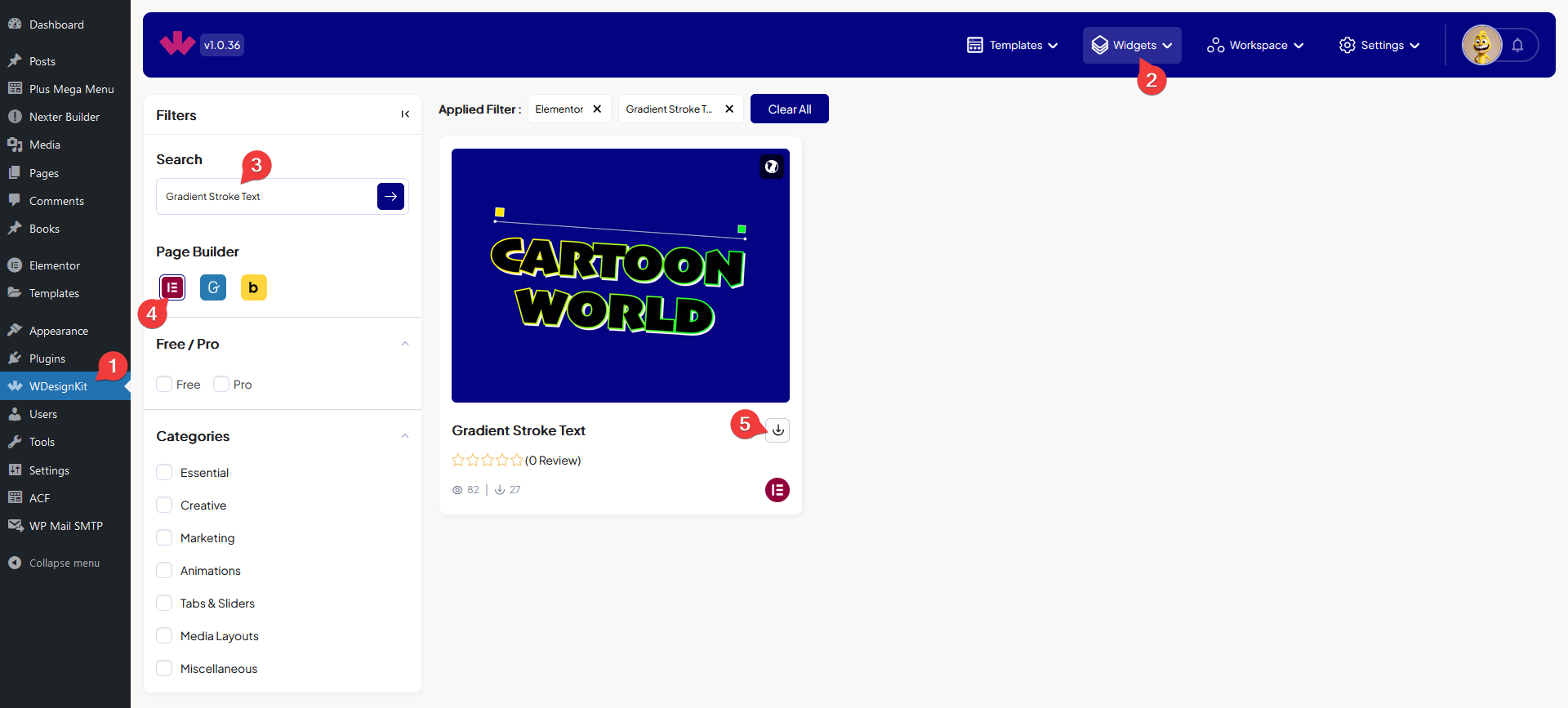
- Activate the Gradient Stroke Text widget from WDesignKit’s Ready Widgets.
- Drag the widget onto the page and set the Text field.
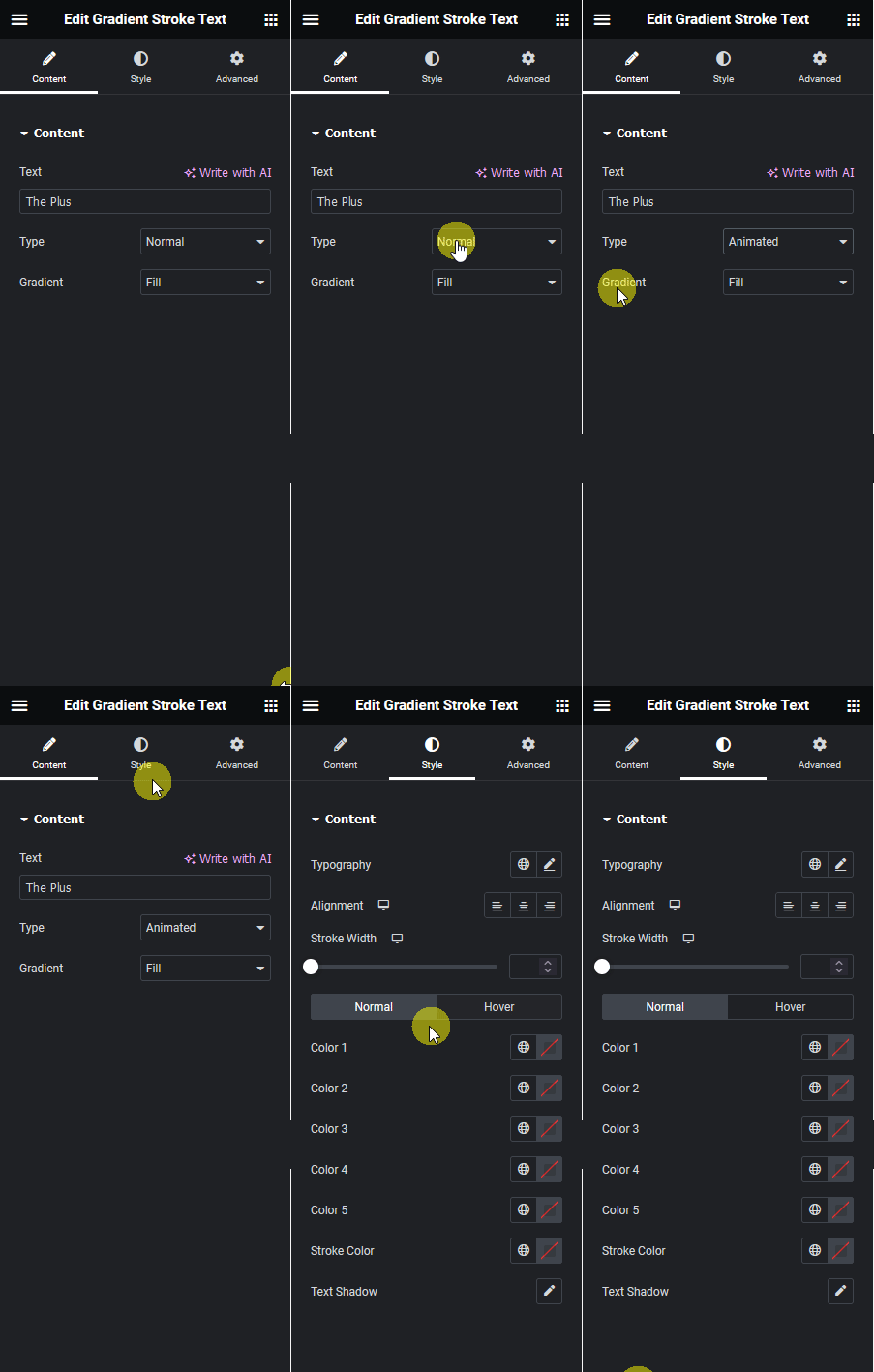
- Choose Normal or Animated from Type, then Fill or Stroke from Gradient.
- Set the gradient colors and other styling on the Style tab.
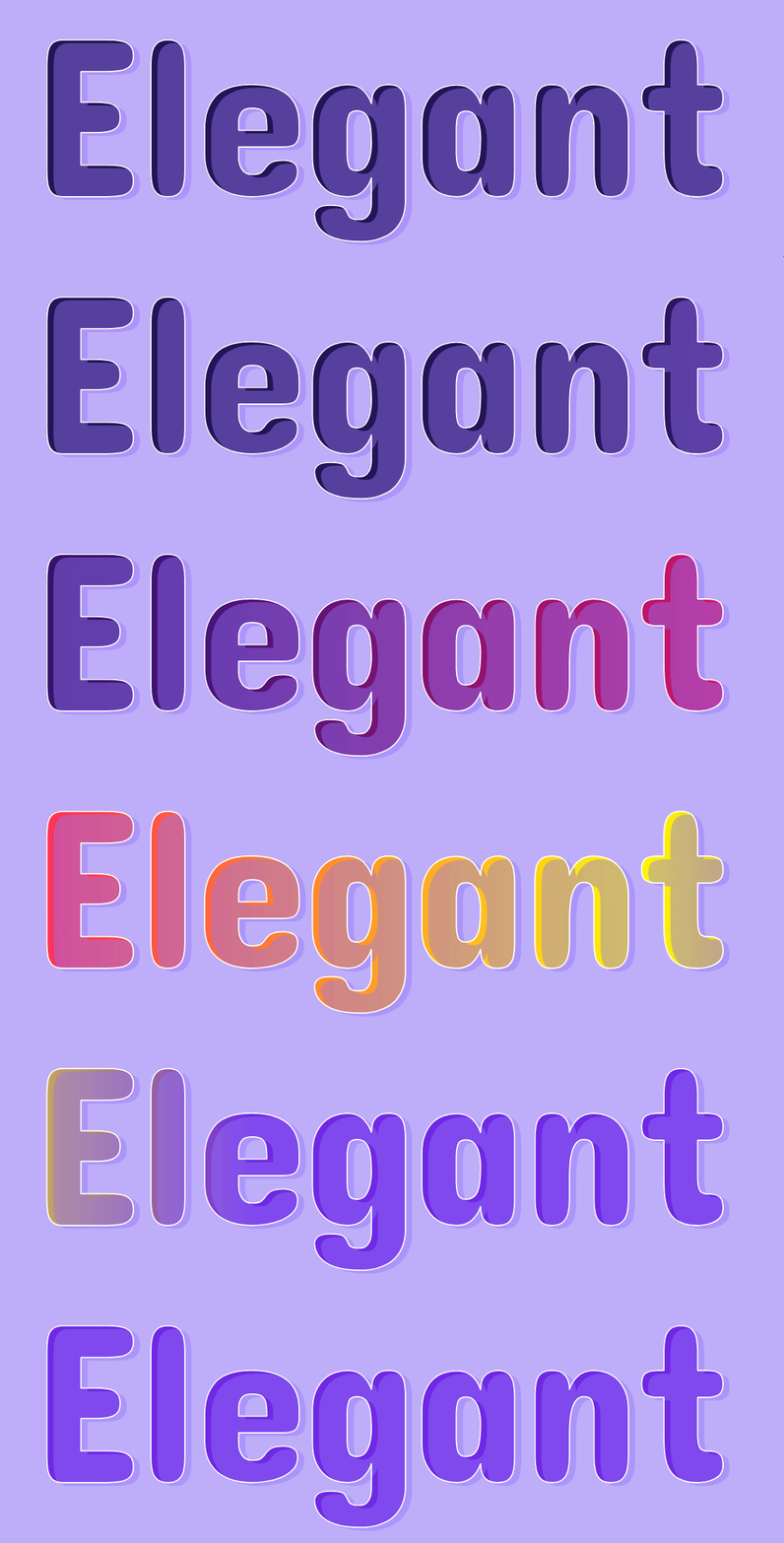
8. Use Cases
- A gradient-fill hero headline as a brand accent
- An animated stroke-only heading over a solid background
9. Limitations
- Type and Gradient apply to the entire Text field, individual words or characters cannot use different settings.
- Stroke mode removes the solid fill entirely, it cannot combine a filled body with a separately colored outline.
10. Troubleshooting
- Text appears solid instead of gradient: confirm gradient colors are actually set on the Style tab, not left at a single default color.
- Animated gradient looks static: check Type is set to Animated, Normal never animates.
- Stroke text looks too thin or too thick: adjust the stroke width on the Style tab.