On this page
- Table of Contents
- Why Most “Elementor Blog Templates” Results Are Noise
- The Templates a Blog Actually Runs On
- How Elementor Builds a Blog: Theme Builder, Loop Grid and Posts Widget
- Single Post Template
- Blog Archive Template
- Loop Grid vs. Posts Widget
- What a Real Elementor Blog Template Needs
- The Free Route: Blog Layouts in the Block Editor
- What WDesignKit Ships for Blog and Content Sections Today
- Modern Hover Post Slider
- Post News Ticker
- How to Add WDesignKit Blog Widgets to Your Layout
- Plan the Blog Before You Pick a Template
- Blog Template Checklist Before You Publish
- Suggested Reading
- Frequently Asked Questions
Key Takeaways
- Elementor Pro places the Theme Builder and Posts widget behind Pro, so a fully templated Elementor blog depends on Pro.
- Single Post Template creates a default design for every post using Post Title, Featured Image and Post Content, and it allows different display conditions for tutorials or news posts.
- Blog Archive Template requires publishing an empty page, selecting it as the Posts page under Settings, Reading, and then building the archive in Theme Builder.
- Loop Grid, introduced as a Pro feature in version 3.8, repeats a single-item template and adds pagination, alternating templates and taxonomy filtering.
- WDesignKit lists 14 “blog” widgets as of 14 September 2026, including Modern Hover Post Slider, Post News Ticker and Tag Cloud.
Table of Contents
Search for Elementor blog templates and most of what comes back is a marketplace listing of landing page kits with “blog” added to the title, or a roundup linking to templates that no longer exist. A blog template is a narrower and more demanding thing than a landing page. It has to handle a post grid, a single post layout, an author area and category headers, and it has to keep working as you publish your hundredth post, not just look good in a screenshot.
This guide covers what a usable Elementor blog template needs, how Elementor actually builds blog pages, the free block editor route if you do not have Elementor Pro, and what WDesignKit ships today for blog and content sections. The WDesignKit numbers were pulled live from its marketplace on 14 September 2026.
Why Most “Elementor Blog Templates” Results Are Noise
Most third-party template marketplaces sell a homepage design and treat the blog as an afterthought: one post grid section, no single post template, no author bio and no related posts logic. You end up designing the parts that actually carry your content, the post header, the byline and the read next block, yourself. That is backwards, because a blog visitor spends far more time on single posts than on the homepage.
The other problem is structural. A section you paste into one page is static. A real blog layout has to be a template that WordPress applies to every post and every archive automatically, which is a different mechanism entirely. Understanding that mechanism is what separates a blog that stays consistent from one that needs manual fixes every week.
The Templates a Blog Actually Runs On
| Template | What it controls | Where visitors see it |
|---|---|---|
| Blog archive | The main list of posts, with cards, pagination and filters | Your blog page |
| Single post | Title, byline, featured image, post content, author box and related posts | Every individual article |
| Category and tag archive | The heading and post list for one topic | Every category and tag page |
| Author archive | An author’s bio and their posts | Author pages linked from bylines |
| Search results | The layout for search matches and the empty state | Site search |
If a template only covers the first row, you still have four layouts to design. That is the gap most “blog template” downloads leave open, and it is the first thing to check before you import anything.
How Elementor Builds a Blog: Theme Builder, Loop Grid and Posts Widget
Elementor’s own Pro vs. Free comparison places both the Theme Builder, which covers post templates and archive templates, and the Posts widget in Elementor Pro. So a fully templated Elementor blog is a Pro build. Here is how the pieces fit together.
Single Post Template
Elementor’s single post documentation describes a site part that creates a default design for your posts. You go to Templates, Theme Builder, click the plus sign by Single Post, optionally pick a design from the Template Library, then build the layout with dynamic widgets such as Post Title, Featured Image and Post Content. When you publish, you add a condition that decides which posts use it. You can use one template for every post, or different templates for different types of posts, such as one for tutorials and another for news.
Blog Archive Template
The blog page is technically an archive. Elementor’s archive documentation starts with a WordPress step that trips people up: publish a blank page, then go to Settings, Reading and choose it as the Posts page. After that, you create an Archive template in Theme Builder, design it and set display conditions. The same documentation notes you can keep writing posts in the standard WordPress editor while Elementor handles the archive layout, which many blogs prefer, and that custom fields on categories can drive details such as a unique banner for each category.
Loop Grid vs. Posts Widget
There are two ways to display a list of posts inside those templates. The Posts widget is the quicker option. Elementor’s documentation lists three skins, Classic, Cards and Full Content, with settings for columns, posts per page, image position, excerpt length and a read more link. The Loop Grid is the flexible option. Elementor introduced the Loop Builder as a Pro feature in version 3.8, and it works differently from most widgets: when you drag a Loop Grid onto the canvas, you are asked to create a template for a single item, which Elementor then repeats for every post in the query.
The practical rule: use the Posts widget when a standard card layout is enough, and use the Loop Grid when each card needs custom fields, a different layout or extra dynamic content. The Loop Grid documentation also covers pagination, alternate templates within the same grid and a taxonomy filter, which makes it the better fit for large blogs.
What a Real Elementor Blog Template Needs
- An archive grid with featured image, category label, excerpt, and pagination or load more.
- A single post layout with title, byline, publish date, featured image, and a body area that inherits your global typography instead of overriding it.
- An author block that pulls the real author’s name, avatar and bio instead of a hardcoded name.
- A category and tag header, so topic pages do not reuse the generic blog header.
- A related posts or read next section, one of the most useful additions for keeping readers on the site and one that many free templates skip.
- Readable measure. A body column around 65 to 75 characters wide, which is easy to lose when a template stretches content to full width.
The Free Route: Blog Layouts in the Block Editor
If you are not ready to pay for Elementor Pro, WordPress itself can build a solid blog layout. The core Query Loop block displays posts based on parameters you set, which WordPress’s documentation describes as a PHP loop without the code. It is made of nested parts: a Post Template that repeats for each post, optional Pagination, and an optional No Results message for empty queries.
Inside the Post Template you can place Title, Excerpt, Date, Featured Image, Read More, Author, Categories and Tags blocks, and switch between list and grid layouts. With the query type set to Custom, filters let you show posts by category, tag, author or keyword, and an exclude option keeps the current post out of a related posts section. That covers the core of a blog without any page builder, and WDesignKit’s library includes 1,635 Gutenberg templates if you want a designed starting point on that side.
Also Read: Switching Page Builders in WordPress Without Losing Your Design if you are deciding between Elementor and the block editor for a content site.
What WDesignKit Ships for Blog and Content Sections Today
WDesignKit’s marketplace currently lists 239 widgets across Elementor, Gutenberg and Bricks. Searching it for “blog” on 14 September 2026 returned 14 widgets. These are the ones built for content sites:
| Widget | Builders | Tier | Use on a blog |
|---|---|---|---|
| Modern Hover Post Slider | Elementor, Bricks | Pro | Featured posts row on the blog page |
| Swipe Post Slider | Elementor, Bricks | Pro | Swipeable post carousel on mobile |
| Post News Ticker | Elementor, Bricks, Nexter Blocks | Pro | Latest headlines strip for news-style sites |
| Tag Cloud | Elementor | Free | Topic navigation in a sidebar or footer |
| Animated Subscribe Button | Elementor, Bricks | Free | Newsletter call to action after posts |
| Inline AJAX Search Bar | Bricks | Free | Search inside a content-heavy header |
| Typographic CTA | Elementor, Bricks | Pro | End of post call to action |
To be clear about scope: these are components, not a complete archive and single post system. The archive and single post templates themselves still come from Elementor Pro’s Theme Builder or the block editor’s Query Loop. WDesignKit adds the pieces that make a blog feel designed rather than default, such as a featured posts slider above the archive, a news ticker for timely content, and a subscribe button at the end of each article.
Modern Hover Post Slider
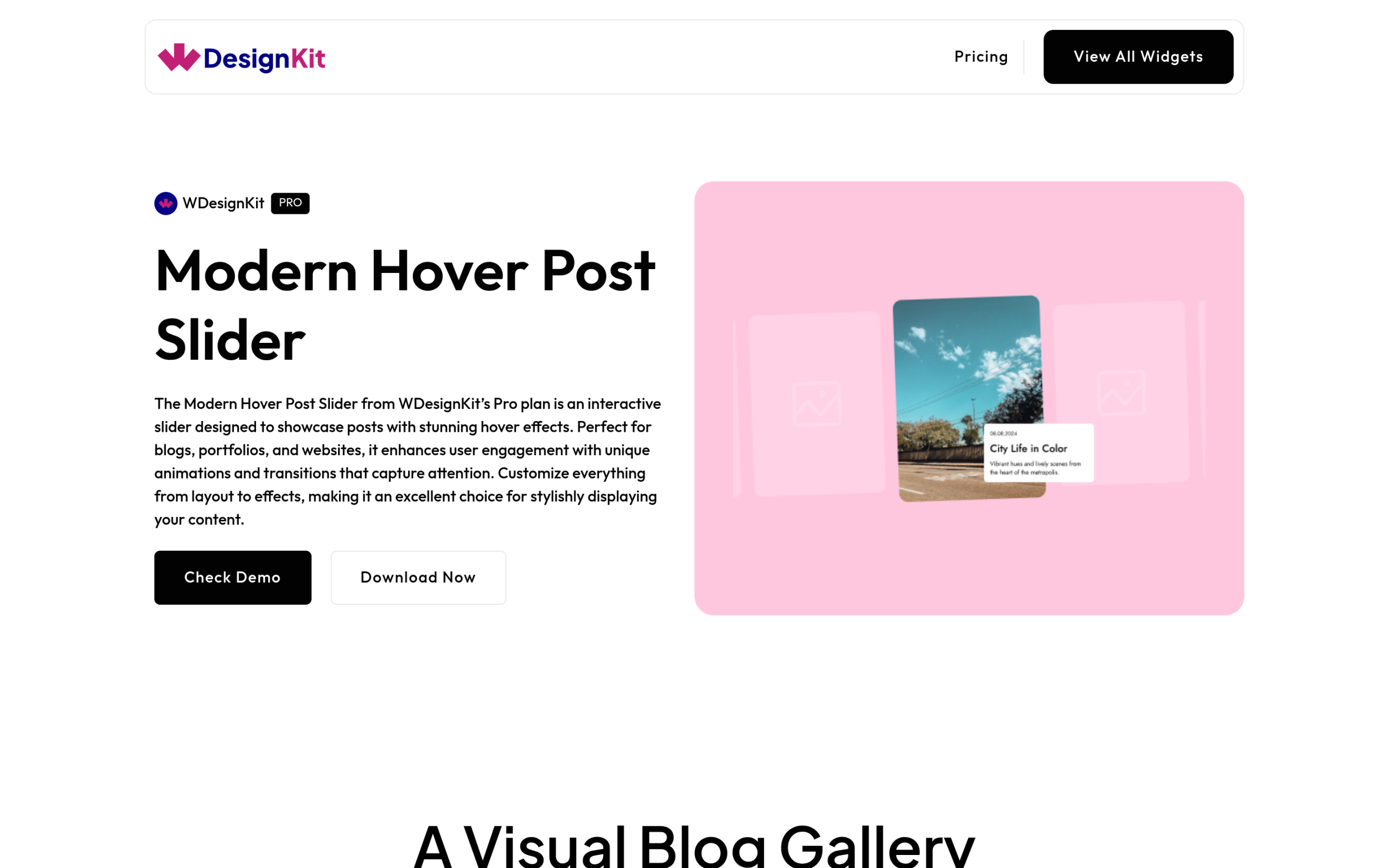
The Modern Hover Post Slider is a Pro widget that WDesignKit describes as an interactive slider for showcasing posts with hover effects, suited to blogs and portfolios. It works well as a featured row at the top of a blog archive, where a static grid would make every post look equally important.
Post News Ticker
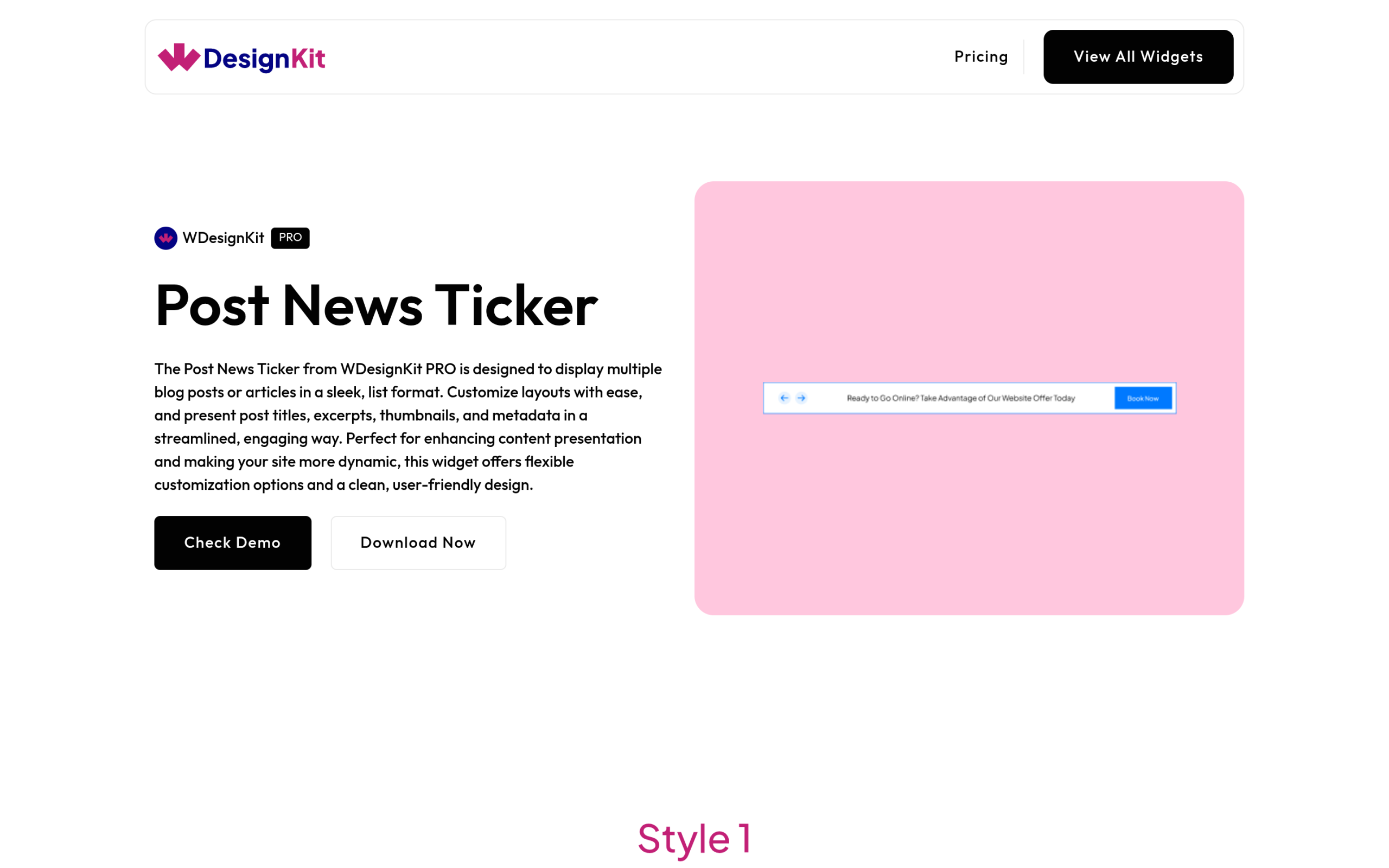
The Post News Ticker is available for Elementor, Bricks and Nexter Blocks, which makes it one of the few blog widgets you can reuse across all three builders. WDesignKit describes it as a way to display multiple blog posts or articles in a sleek list format with post titles, excerpts, thumbnails and metadata. It suits news sites, changelogs and any blog where recency matters, and it takes up very little vertical space above the main content.
How to Add WDesignKit Blog Widgets to Your Layout
- Build your Single Post and Archive templates first, in Elementor Pro’s Theme Builder or with the block editor’s Query Loop.
- With the free WDesignKit plugin active, open its Widget section, go to Browse Widgets and search for “post” or “blog”.
- Download the widgets you need. They install into your local WDesignKit widget library and appear in the editor’s widget panel. Pro widgets need an active WDesignKit Pro plan.
- Place them where they add value: a post slider above the archive grid, a subscribe button after the post content, a tag cloud in the sidebar.
- Check each widget’s content settings to see whether it lists your posts automatically or uses items you enter, so you know how it will update as you publish.
- Preview a real post, a category page and the blog page on mobile before publishing. Most layout problems show up on the single post view, not on the archive grid.
Plan the Blog Before You Pick a Template
Template choice gets much easier once a few content decisions are made, because you are matching a template to a plan instead of bending your content to fit whatever the template assumed:
- Decide your categories first. A short list of clear categories keeps archive templates, navigation and internal linking simpler than dozens of overlapping ones.
- Pick one featured image ratio, such as 16:9, and use it on every post, so grids line up and cards do not jump in height.
- Write real excerpts. Both Elementor’s Posts widget and the block editor’s Query Loop can display excerpts, and a written summary reads far better on a card than a cut-off first paragraph.
- Decide what ends every post. An author box, related posts, a subscribe prompt, or all three, built once into the single post template instead of added by hand to each article.
- Choose where search lives. On a site with a large archive, search placed in the header is easier to find than search tucked into a sidebar or footer.
- Know which builder maintains which part. Many sites write posts in the block editor and design only the archive and single templates in Elementor, which keeps day-to-day publishing simple.
Ten minutes on these decisions before you import anything will save hours of rework later, especially once the blog has enough posts that changing a card layout means checking hundreds of entries.
Blog Template Checklist Before You Publish
- The Posts page is set in Settings, Reading, and the archive template has a display condition.
- The single post template shows the correct author, date and featured image on at least three different posts.
- A post without a featured image still looks intentional, not broken.
- Category pages show the category name as their heading.
- Related posts exclude the current post.
- Pagination works past page two, and an empty search shows a helpful message.
- The heading structure inside posts starts at H2, since the post title is the H1.
Run through this list once with real content and you will catch almost every problem a blog template can cause, long before readers do.
Also Read: Elementor Header Templates, Free and Ready to Import for the header that sits above every one of these layouts.
Suggested Reading
- Best Free Elementor Templates in 2026 (Tested)
- Elementor Landing Page Templates: Free Kits to Launch Your Site Faster
- Elementor Header Templates, Free and Ready to Import
- Portfolio Website Templates for WordPress: 5 Kits Compared by Page Count
Frequently Asked Questions
Why do most Elementor blog templates fall short for real blogs?
Most of them are built like homepage kits with a blog section bolted on, so they miss the parts that actually carry a content site. The page calls out missing single post templates, author bios, related posts logic, and archive structure. That matters because readers spend more time on individual articles than on the homepage, and a blog needs to stay consistent as you publish more posts.
What pages does a real Elementor blog template need to cover?
A real blog setup has to cover more than the main post grid. The page lists blog archive, single post, category and tag archive, author archive, and search results. If you only design the archive, you still leave key parts of the site unmanaged, especially author pages and topic pages that visitors reach from bylines and category links.
Does Elementor Pro handle both single posts and blog archives?
Elementor Pro is the build path for a fully templated blog because its Theme Builder covers post templates and archive templates, and its Posts widget is also in Pro. The page shows the single post template uses dynamic widgets like Post Title, Featured Image, and Post Content, while the archive template is tied to the WordPress Posts page setting. That split is why Pro is the cleanest route for consistent blog layouts.
Should I use Loop Grid or Posts Widget for a blog layout?
Posts Widget is the faster choice when a standard card layout is enough. Loop Grid is better when each card needs custom fields, a different layout, or extra dynamic content. The page also notes Loop Grid supports pagination, alternate templates within the same grid, and taxonomy filtering, so it fits larger blogs better when the listing needs more control.
What should I check before publishing an Elementor blog template?
The biggest checks are structural, not visual. The page recommends confirming the Posts page is set in Settings, Reading, that the archive template has a display condition, that related posts exclude the current post, and that pagination works past page two. It also says headings inside posts should start at H2 because the post title already serves as H1. WDesignKit Learning Center frames this as a final content-site sanity check before readers see broken layouts.
Last reviewed: September 14, 2026
Author

Sagar is the Founder & CEO of POSIMYTH Innovations, with 10+ years building WordPress products trusted by 100,000+ websites globally. He has led the development of The Plus Addons for Elementor, Nexter, WDesignKit, and UiChemy, all built hands-on from concept to launch. His work focuses on making website building faster, more flexible, and accessible for creators and businesses worldwide.
Share this article