
Elementor Landing Page Templates: Free Kits to Launch Your Site Faster
Contents
- Table of Contents
- What Makes a Landing Page Template Actually Work
- Full Pages, Sections, or Page Kits: What You Are Actually Importing
- How to Import a Template in Elementor (Step by Step)
- A Few Kits Worth Looking At
- Free vs Pro: What Changes
- Customizing After Import
- Suggested Reading
- Frequently Asked Questions
- Author
Key Takeaways
- WDesignKit's library filters templates by Template Type, Category, and Free vs Pro, with 20 categories including Agency, SaaS, Business, Portfolio, and Technology.
- Landing page templates work best when they have one page, one job, above-the-fold clarity, and built-in proof such as testimonial blocks, logo strips, or stat counters.
- Importing a WDesignKit template in Elementor adds it to the page being edited, does not overwrite existing content, and leaves text, images, colors, and layout fully editable.
- Free kits import with no account gate, while Pro kits such as Galen Medical and Rome Technology require an active Pro license and unlock more built-out niche-specific designs.
Table of Contents
I have lost count of how many times I opened a blank Elementor canvas, stared at it for ten minutes, and closed the tab. A landing page is the one page on a site where ‘I will just build it from scratch’ quietly eats an entire afternoon: one hero section, three iterations of a headline, a CTA button that never looks quite right. A good template kills that afternoon before it starts.
This is the case for starting from a template instead of a blank canvas, what actually separates a landing page template from a decorative one, and how to import and customize one in Elementor using WDesignKit’s library.
What Makes a Landing Page Template Actually Work
Most ‘landing page template’ roundups are really just pretty-screenshot roundups. A template earns the name only if it gets three structural things right before you touch a single color:
- One page, one job. A landing page template built for a SaaS free trial and one built for an event RSVP should not look interchangeable. The CTA, the proof section, and the form all serve a different single goal.
- Above-the-fold clarity. The headline, the sub-line, and the primary CTA need to survive without scrolling. If a template buries the CTA under three hero slides, it is a homepage template wearing a landing-page label.
- Built-in proof, not just placeholder text. Testimonial blocks, logo strips, or stat counters that are actually wired into the layout, not an afterthought section you have to build yourself.
Full Pages, Sections, or Page Kits: What You Are Actually Importing
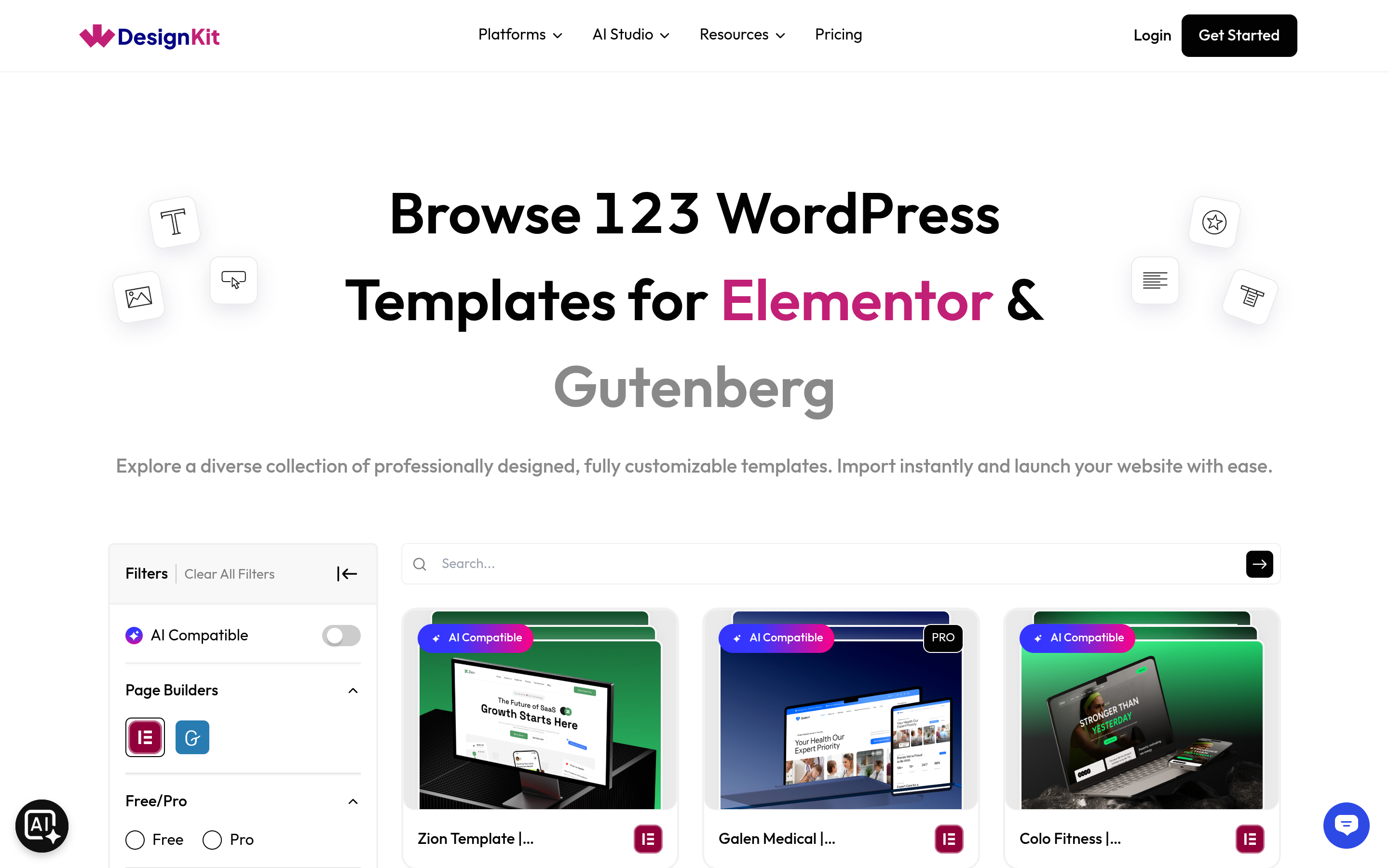
WDesignKit does not file templates under a single ‘landing page’ category, worth knowing before you go looking for one (see what template kits, sections, and full pages actually are in the library for the full breakdown). Instead, its library is filtered three ways: Template Type (Full Pages, Sections, or Page Kits), Category (20 of them, including Agency, SaaS, Business, Portfolio, and Technology), and Free vs Pro.
For a landing page specifically, that means two real paths. First, import a Full Page from a category that fits your use case (Agency, SaaS, and Business kits are the closest thing to a dedicated landing-page shelf), then trim it down. Second, build one from Sections: hero, feature grid, testimonial strip, pricing table, CTA, picked individually and assembled in the order your page actually needs.
The second path takes longer but avoids the single biggest complaint about template libraries: a ‘landing page’ that is really a homepage with six sections you will delete anyway.
How to Import a Template in Elementor (Step by Step)
Straight from WDesignKit’s own workflow: browse the template library, pick a design, and click Import. It drops straight into the Elementor editor ready to customize. A few things worth knowing before you do:
- It will not overwrite your existing page. Importing adds the template to the page you are editing; it does not silently overwrite other content on your site.
- Everything is editable after import. Text, images, colors, and layout are standard Elementor elements once imported, not locked template chrome.
- AI-assisted import exists for templates flagged ‘AI Compatible’ in the library, which can rewrite template copy to match your business before you manually edit anything.
- Pro kits require an active Pro license; free kits import with no account gate.
A Few Kits Worth Looking At
Pulled directly from WDesignKit’s live library, not a fixed ‘top 5’. The library rotates, so treat this as a snapshot of what is there now, not a permanent ranking.
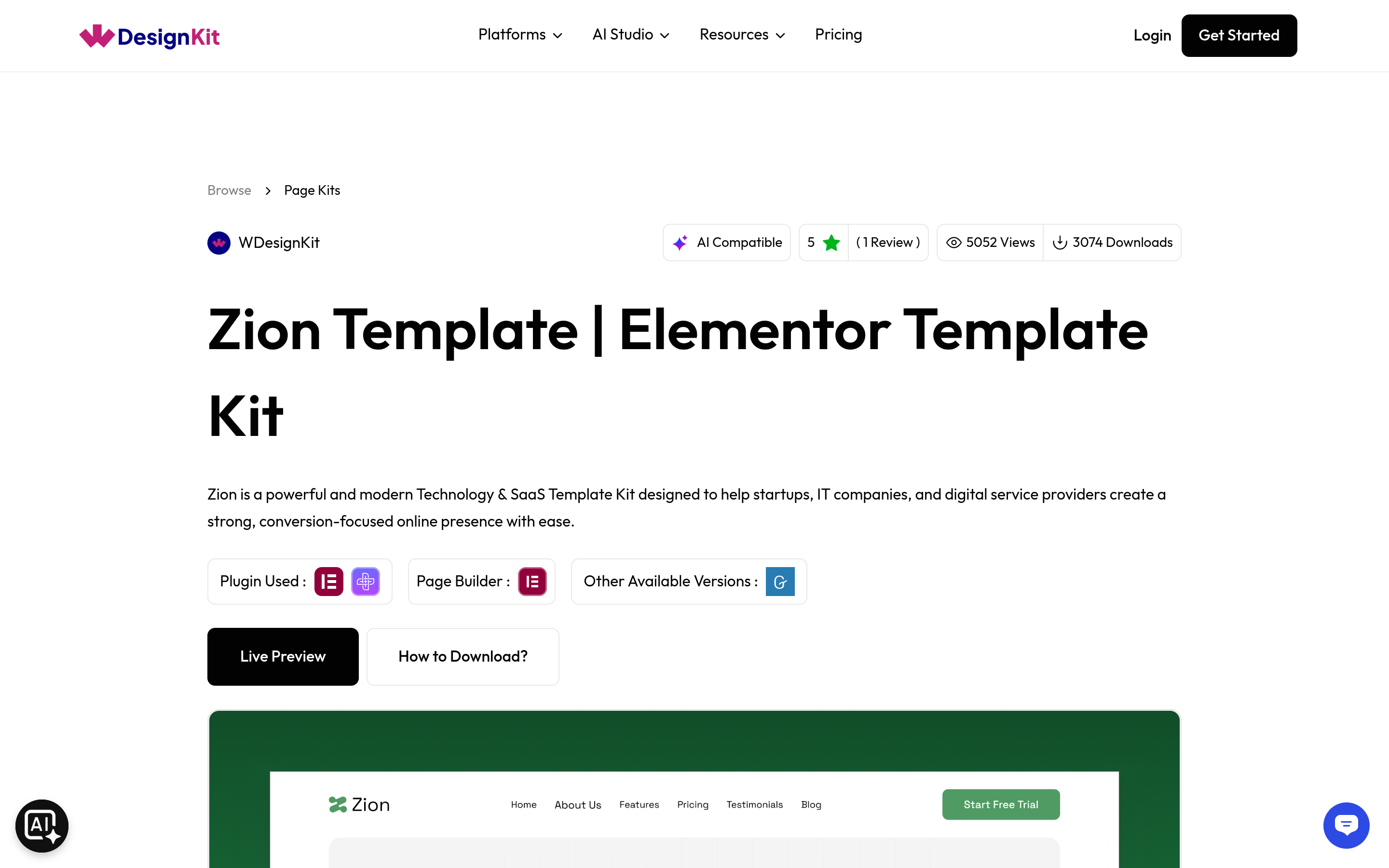
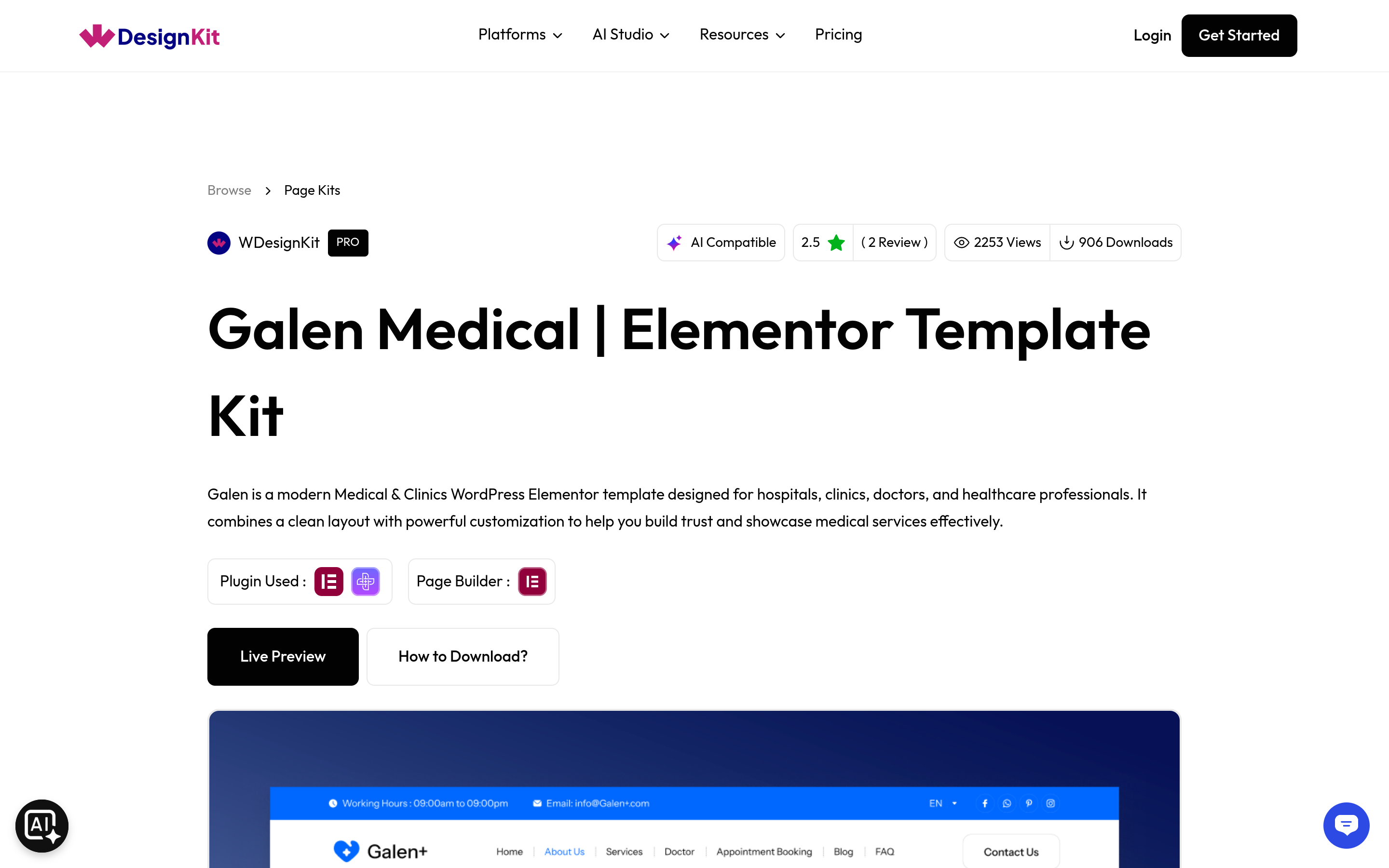
Also worth a look in the same browse session: Rome Technology (Pro), a tech/SaaS-leaning kit useful when your landing page needs a product-feature grid over a service pitch, and Colo Fitness, built around a single conversion goal (sign up or book a class), a good reference for what ‘one page, one job’ looks like in practice. Filter by Category and Free/Pro in the library to find the closest match for your niche.
Also Read: Elementor Blog Templates if the site behind this landing page also needs a blog.
Free vs Pro: What Changes
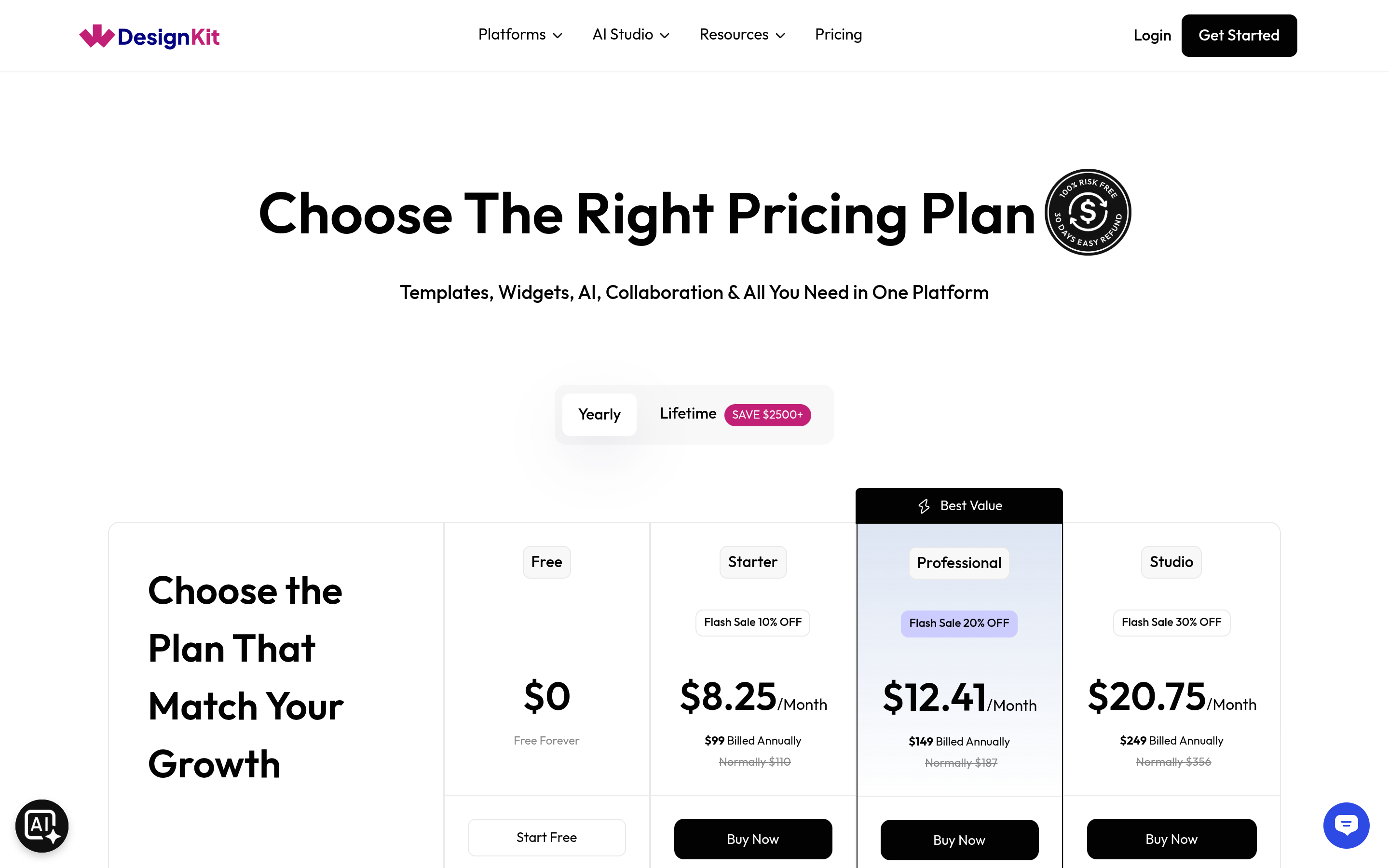
The short version: free templates import with no account gate and cover a real slice of every category, not just a token handful. Pro kits (like Galen Medical and Rome Technology above) unlock the more built-out, niche-specific designs and require an active Pro license to import. Check the live pricing page for current plan details before committing to a Pro kit.
Customizing After Import
- Swap the color scheme to your brand’s before touching copy. This alone changes how ‘off the shelf’ a page reads.
- Replace placeholder testimonials and logos first. Empty-feeling social proof is the fastest way a visitor clocks a template.
- Cut sections before adding. Most kits ship slightly heavier than a single landing page needs.
- Re-check mobile view after edits. A section that looked fine at desktop width is the most common thing people forget to recheck.
Also Read: How to Speed Up an Elementor Website once the page is customized and you want it to load fast on mobile.
Suggested Reading
- What Are Template Kits, Sections, and Full Pages in the WDesignKit Templates Library?
- WDesignKit Templates: Make WordPress Site Building Fast and Easy
- Compare WDesignKit Free vs Pro Plans
Frequently Asked Questions
Why does my Elementor landing page still feel like a homepage after using a template?
A landing page only works when it has one job, clear above-the-fold messaging, and built-in proof. If the template has multiple hero slides, buried CTA placement, or generic sections that do not support one conversion goal, it reads like a homepage with a landing-page label. WDesignKit Learning Center frames this around CTA, proof sections, and forms that all point to one action.
Should I import a full page or build my landing page from sections?
Full pages are faster when you want a close starting point, especially from Agency, SaaS, or Business kits. Sections make more sense when you want control over the exact order of hero, feature grid, testimonial strip, pricing table, and CTA. The tradeoff is speed versus precision: full pages save time, while sections avoid deleting extra homepage-style content later.
Will importing an Elementor template overwrite my existing page content?
Importing adds the template to the page you are editing instead of silently replacing other content on your site. That matters because it lets you test a layout without risking the rest of the page structure. WDesignKit Learning Center also notes that everything stays editable after import, so text, images, colors, and layout remain standard Elementor elements.
What kind of landing page templates work best for SaaS, booking, or fitness pages?
The best fit depends on the conversion goal. Zion is a lean general-purpose starting point for SaaS or agency pages. Galen Medical is built for appointment and booking flows. Rome Technology leans tech and SaaS with a product-feature grid. Colo Fitness centers on one action like sign up or book a class, which makes it useful when the page needs a single conversion path.
What should I change first after importing an Elementor template?
Start with brand colors before rewriting copy, then replace placeholder testimonials and logos right away. That order matters because color changes make the page feel less off-the-shelf fast, while empty social proof is usually what gives away a template instantly. WDesignKit Learning Center also recommends cutting sections before adding more and re-checking mobile view after edits.
Last reviewed: September 29, 2026
Author

Sagar is the Founder & CEO of POSIMYTH Innovations, with 10+ years building WordPress products trusted by 100,000+ websites globally. He has led the development of The Plus Addons for Elementor, Nexter, WDesignKit, and UiChemy, all built hands-on from concept to launch. His work focuses on making website building faster, more flexible, and accessible for creators and businesses worldwide.
Keep reading
Widget Builder vs Hand-Coding a Custom Elementor Widget: Time Comparison
Key Takeaways Elementor developer docs list 14 methods for a custom widget class, including register_controls(), render() and content_template(). WDesignKit Widget Builder opens with three panels, a Code Editor with HTML, CSS and JavaScript tabs, a Layout panel and a Controller panel. WDesignKit docs say the Create Widget popup asks for four items: builder, widget name, …
12 min read
Interior Design Website Templates: 5 WordPress Kits Compared
Interior design website template picks from WDesignKit: two free PlanPro kits and three Pro Space-Creators kits, compared by portfolio, process and page count.
12 min read
Construction Website Templates: 3 WordPress Kits Compared
Construction website template options from WDesignKit: BuildIQ Elevate, BuildIQ Nexus and Skyframe, compared by real page counts and the contractors each suits.
12 min read