On this page
- Table of Contents
- What a WDesignKit Workspace is
- Workspace vs My Templates
- Why teams share Elementor templates through a workspace
- Workspace vs other ways to share templates
- How to create a WDesignKit Workspace
- Add members
- Add templates, widgets and snippets
- Roles and permissions
- What you can store in a workspace
- Templates
- Custom widgets
- Code snippets
- Workspace limits by plan
- How agencies use workspaces
- One workspace per client
- An internal starter kit
- A testing workspace
- Moving an existing library into a workspace
- Workspace best practices
- Get started
- Frequently Asked Questions
Every agency hits the same wall sooner or later. The header your designer perfected for one client lives in one WordPress install, the pricing table widget your developer built lives in another, and the CSS snippet that fixes the mobile menu lives in someone’s notes app. When a new project starts, the team rebuilds what it already owns.
A WDesignKit Workspace fixes that. It is a shared cloud space where your team stores templates, custom widgets and code snippets once, then pulls them into any connected WordPress site. Each member gets a role, so you decide who can edit and who can only view. This guide covers how Workspaces work, how to set one up, what each plan includes and how agencies use them day to day.
Key Takeaways
- WDesignKit Workspace stores page and section templates, custom widgets, and code snippets in the WDesignKit cloud, so any logged-in team member can import them into any connected WordPress site with the WDesignKit plugin installed.
- Workspace roles include Owner, Editor, and Subscriber, with Owners managing members, billing, content, and settings, Editors creating and changing assets, and Subscribers viewing only.
- WDesignKit Workspace keeps assets isolated by workspace, so templates, widgets, and snippets saved in one workspace do not appear in another.
- Workspace limits depend on plan: Free includes 2 websites, 1 team workspace, and 2 users per workspace; Starter includes 3 websites and 12 users per workspace; Professional includes 10 websites and 10 users per workspace; Studio includes unlimited websites and unlimited team workspaces with up to 100 users per workspace.
- Cloud credits price workspace content at 2 credits per template, 5 credits per widget, 1 credit per snippet, and 10 credits for creating a workspace.
Table of Contents
What a WDesignKit Workspace is
A workspace is a named container inside your WDesignKit account. It holds three kinds of assets: page and section templates, custom widgets built with the WDesignKit Widget Builder, and code snippets. Everything in it is saved to the WDesignKit cloud, not to a single WordPress database, so any team member with access can import it into any site where the WDesignKit plugin is installed and they are logged in.
The workspace dashboard lists every workspace you belong to, with a count of members, templates, widgets and snippets on each card. From there you open a workspace to manage its content or its people.
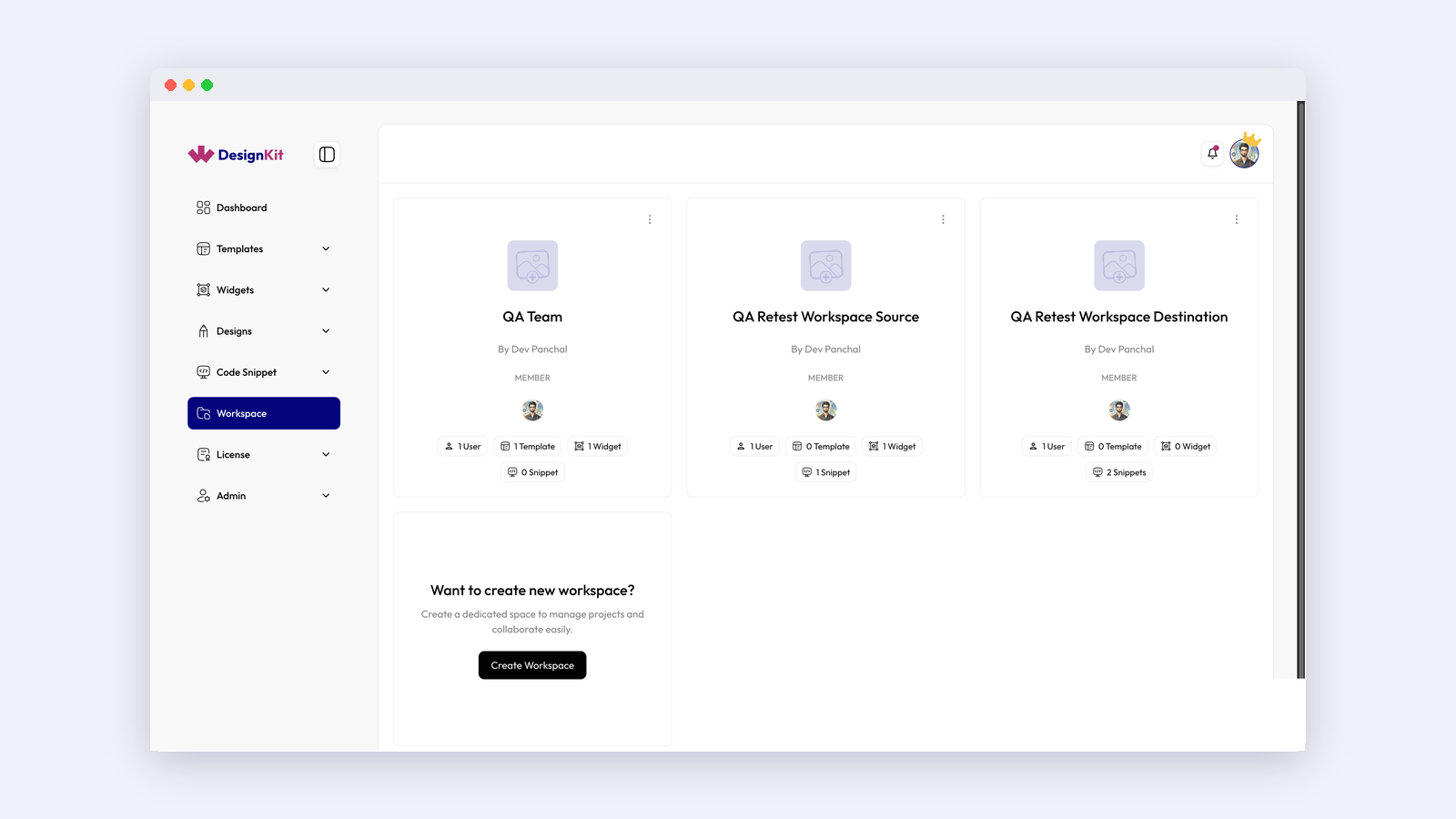
Each workspace works on its own. Templates, widgets and snippets saved in one workspace do not appear in another. That separation is the point: you can keep one workspace per client, one per website, or one for internal experiments, and nothing leaks between them.
Workspace vs My Templates
Templates you export to WDesignKit from Elementor or Gutenberg are private by default and appear under My Templates. That is your personal library. A workspace is the shared layer on top: you place assets there when other people need them too.
In short: My Templates is seen and edited only by you and holds templates. A workspace is seen by every member, edited by Owners and Editors, and holds templates, widgets and snippets. Use My Templates for personal reuse and a workspace for team and client projects.
Why teams share Elementor templates through a workspace
The usual alternatives each break in a familiar way. Exporting JSON files and passing them around in chat works until someone imports last month’s version. Keeping a “master” WordPress site as a library means logging in to it, exporting, and importing again for every reuse. Elementor’s own cloud templates are tied to Elementor Pro plans and only store Elementor content.
A workspace removes those steps. The asset is saved once, it has one current version, and the import happens from inside the plugin on the site you are building. Because WDesignKit supports Elementor, Gutenberg and Bricks, a mixed team does not need a different sharing method per builder.
- One source of truth. The latest header, footer or pricing section lives in one place.
- Faster project starts. New sites begin from approved sections, not a blank canvas.
- Controlled access. Roles stop a client or junior member from overwriting shared work.
- Widgets and code travel too. Custom widgets and snippets are stored next to the templates that use them.
Workspace vs other ways to share templates
Here is how the common methods compare for a team that reuses work across client sites.
| Method | Version control | Access control | Builders covered | Widgets and snippets |
|---|---|---|---|---|
| JSON exports in chat or a drive | Manual, easy to lose track | Anyone with the file | One file per builder | No |
| A “library” WordPress site | One copy, but every reuse is export and import | WordPress user roles on that site | Whatever that site runs | Only by hand |
| Elementor Pro cloud templates | One copy in the cloud | Tied to the Elementor account | Elementor only | No |
| WDesignKit Workspace | One copy in the cloud | Owner, Editor, Subscriber roles | Elementor, Gutenberg, Bricks | Yes |
Elementor Pro plans include a fixed number of cloud templates (10 on Essential and 20 on Advanced Solo, per the Elementor pricing page on 9 November 2026). That is useful for a single Elementor site, but it does not cover Gutenberg or Bricks projects, and it has no separate place for custom widgets or code.
How to create a WDesignKit Workspace
You need a WDesignKit account and the WDesignKit plugin installed on the sites where you will use the assets. Then:
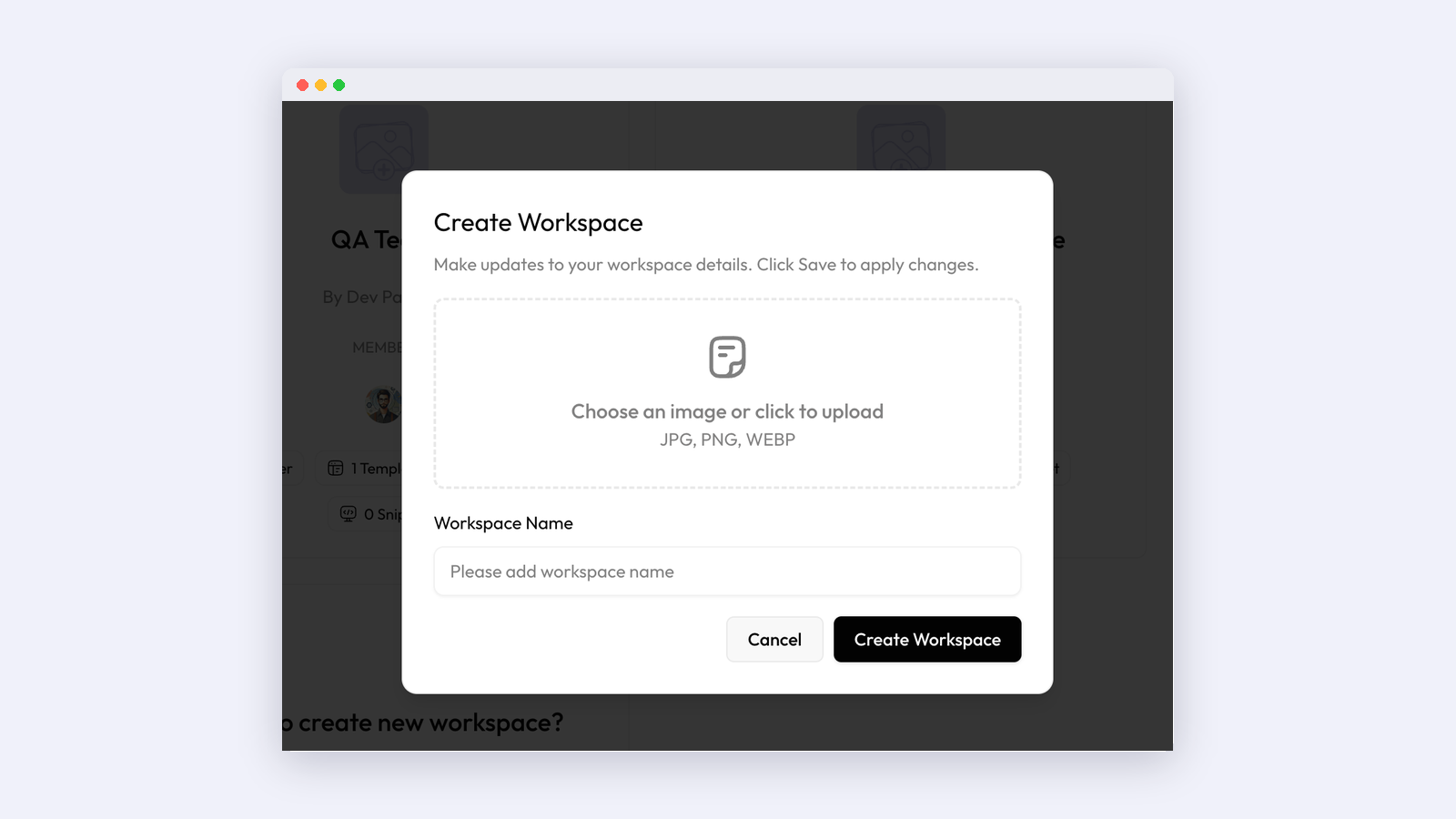
- Log in to WDesignKit and open Workspace from the left sidebar. This is the Workspace Dashboard.
- Click Create Workspace.
- Enter a Workspace Name that says what it is for, such as the client or project name. Optionally upload an image so the card is easy to spot.
- Click Create Workspace. The new workspace appears on your dashboard.
Add members
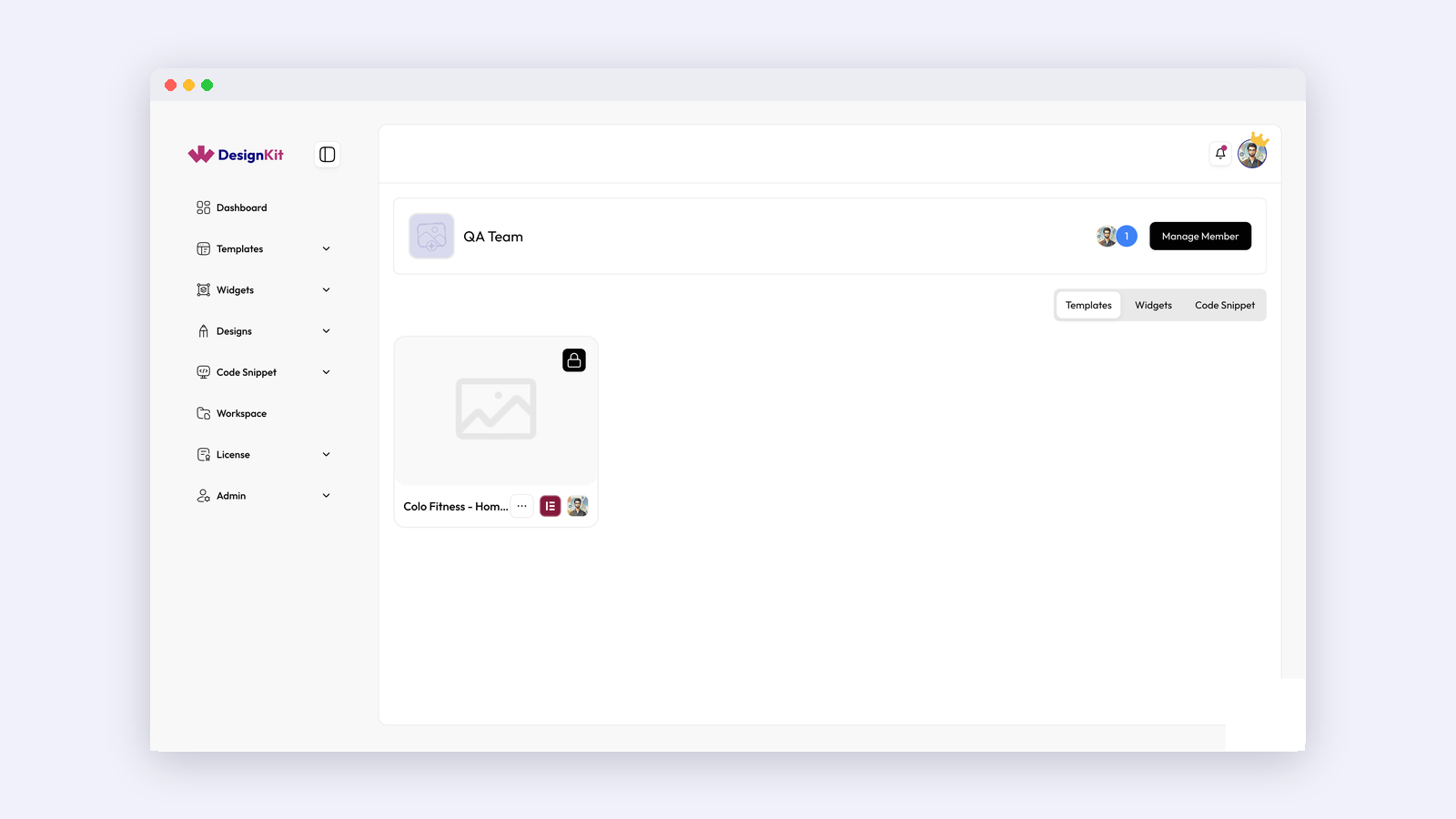
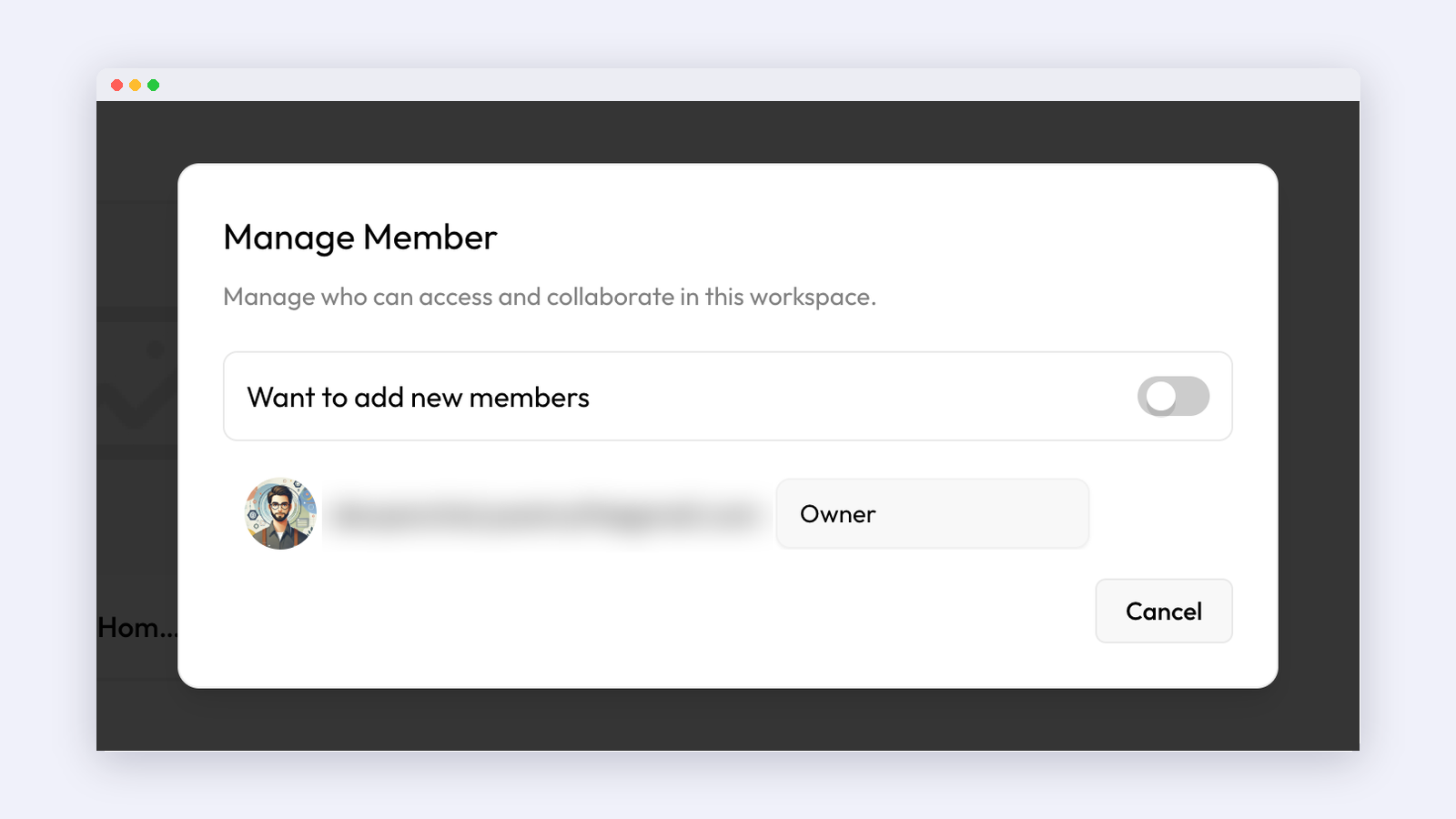
Open the workspace and click Users. In Manage Members you can view current members, add new ones, assign or change roles and remove people who no longer need access. Changes apply as soon as you click Save.
Add templates, widgets and snippets
Inside the workspace, each asset type has its own section. Use Add Template, Add Widget or Add Snippet, fill in the details and save. For a snippet you give it a name and paste the code. Existing items can be edited or deleted from the same section.
Roles and permissions
Every member has one of three roles. Pick the lowest role that lets a person do their job.
| Role | What they can do | Typical person |
|---|---|---|
| Owner | Full control: members, billing, content and settings | Agency owner or project lead |
| Editor | Create and change templates, widgets and snippets; cannot manage members | Designers and developers on the project |
| Subscriber | View only; receives updates; no editing | Clients, reviewers, freelancers who only import |
To change a role, open the three-dot menu on the workspace card, choose Manage Members, pick the role from the dropdown next to the person and click Save.
What you can store in a workspace
Templates
Full pages and sections from Elementor, Gutenberg or Bricks. Headers, footers, hero sections and pricing blocks are the usual candidates because they repeat across projects. If you are building a library from scratch, the Elementor header templates guide is a good place to find starting sections.
Custom widgets
Widgets you build with the WDesignKit Widget Builder, including ones generated with AI. Storing them in the workspace means the developer who built a widget does not have to install it on every site by hand. See how the AI Widget Builder works if you have not built one yet.
Code snippets
PHP, CSS and JavaScript snippets with a name, so fixes and small features are reusable instead of copied from old projects. The WordPress code snippets guide covers the snippet side in detail.
Workspace limits by plan
Workspace and member limits depend on your plan. These figures are from the WDesignKit pricing page on 9 November 2026.
| Plan | Websites | Team workspaces | Users per workspace |
|---|---|---|---|
| Free | 2 | 1 | 2 |
| Starter | 3 | 1 | 2 |
| Professional | 10 | 10 | 4 |
| Studio | Unlimited | Unlimited | Up to 100 |
Cloud storage uses cloud credits: a template costs 2 credits, a widget 5, a snippet 1 and creating a workspace 10. A freelancer sharing with one client can start on Free. An agency running separate workspaces per client will want Professional or Studio. The WDesignKit Free vs Pro comparison goes through the rest of the differences.
How agencies use workspaces
One workspace per client
Create a workspace named after the client, add your designers and developers as Editors and the client as a Subscriber. The client can see what is being prepared without being able to change it, and when the contract ends you remove the members without touching other clients’ work.
An internal starter kit
Keep one workspace for the sections, widgets and snippets you reuse on every build: cookie banner styling, a contact section, a standard footer. Every new project starts by importing from it.
A testing workspace
Because workspaces are isolated, a separate one for experiments keeps half-finished widgets out of client work until they are ready.
Moving an existing library into a workspace
Most teams already have reusable work scattered across sites. A simple way to move it over without stopping current projects:
- List the ten sections, widgets and snippets your team reuses most. Start with those, not with everything.
- On the site where each one lives, export it to WDesignKit from the builder. It lands in My Templates as private.
- Add it to the right workspace and give it a clear name, such as “Header, dark, sticky” rather than “header-final-2”.
- Ask one Editor to import each item on a test site and confirm it looks and works the same.
- Tell the team that the workspace copy is now the one to use, and retire the old copies.
Doing this in small batches keeps cloud credit use predictable and means the workspace is useful from the first day instead of after a long migration.
Workspace best practices
- Assign roles by responsibility, and keep Owner access to a small, trusted group.
- Review members regularly and remove people who have left the project.
- Use clear names for templates, widgets and snippets so others can find them without asking.
- Keep a backup of assets that matter, such as an export of key templates.
- Use one workspace per client or site rather than one large shared space.
Get started
If your team already reuses templates, widgets or snippets, a workspace takes a few minutes to set up and saves that time again on every project. Create your first one from the Workspace section of your WDesignKit account, invite one teammate as an Editor, and move your most reused header and footer into it. For the full reference, see the WDesignKit documentation, and share how your team organises workspaces in the WDesignKit Facebook group.
Frequently Asked Questions
Why are my Elementor templates not showing up for the whole team in WDesignKit?
That usually means the asset is still sitting in My Templates, which is private by default. A workspace is the shared layer, and only assets saved there are visible to every member with access. WDesignKit Learning Center separates personal reuse from team reuse, so templates, widgets, and snippets need to live in the workspace if other people should import them into connected WordPress sites.
Can I use one shared library for Elementor, Gutenberg, and Bricks projects?
A WDesignKit Workspace is built for mixed-builder teams. The page says it supports Elementor, Gutenberg, and Bricks, so one shared cloud space can hold templates from all three instead of forcing separate sharing methods. That matters when an agency works across different stacks, because the same workspace can store the page or section assets alongside widgets and code snippets.
What is the best way to share Elementor templates with a client without giving them full access?
Use a workspace and assign the client the Subscriber role. Subscribers get view-only access and receive updates, while Editors can create and change content and Owners control members, billing, content, and settings. WDesignKit Learning Center also notes that one workspace per client keeps projects isolated, so removing a client later does not affect other workspaces.
What do most teams get wrong when setting up a shared template library?
They mix everything into one pile or keep copying files around in chat. The page points out that each workspace is isolated, so templates, widgets, and snippets saved in one workspace do not appear in another. A cleaner setup is one workspace per client or site, with clear names like “Header, dark, sticky” so people can find the right asset fast.
How many workspaces and users do you get on each WDesignKit plan?
The limits depend on plan: Free includes 2 websites, 1 team workspace, and 2 users per workspace; Starter includes 3 websites, 1 team workspace, and 2 users per workspace; Professional includes 10 websites, 10 team workspaces, and 4 users per workspace; Studio includes unlimited websites and unlimited team workspaces with up to 100 users per workspace. WDesignKit Learning Center also says cloud storage uses credits for templates, widgets, snippets, and creating a workspace.
Last reviewed: November 9, 2026
Author

Sagar is the Founder & CEO of POSIMYTH Innovations, with 10+ years building WordPress products trusted by 100,000+ websites globally. He has led the development of The Plus Addons for Elementor, Nexter, WDesignKit, and UiChemy, all built hands-on from concept to launch. His work focuses on making website building faster, more flexible, and accessible for creators and businesses worldwide.
Share this article