On this page
Most WordPress sites need a few lines of custom code sooner or later: hide the version number, stop automatic updates, allow SVG uploads or change the login logo. The usual advice is to paste the code into your theme’s functions.php file, which breaks when the theme updates and can take the site down with one typo.
WordPress code snippets solve that. A snippet is a small piece of PHP, CSS, JavaScript or HTML that runs from a manager instead of your theme files. In WDesignKit you can browse ready-made snippets, install them in one click, manage your own and, with an AI tool connected over MCP, generate new ones from a prompt.
What WDesignKit Code Snippets does
The WDesignKit snippet documentation describes the feature as one place to create, manage, import, export, organize and reuse custom code, instead of editing theme files or installing a separate plugin for each small change. It covers:
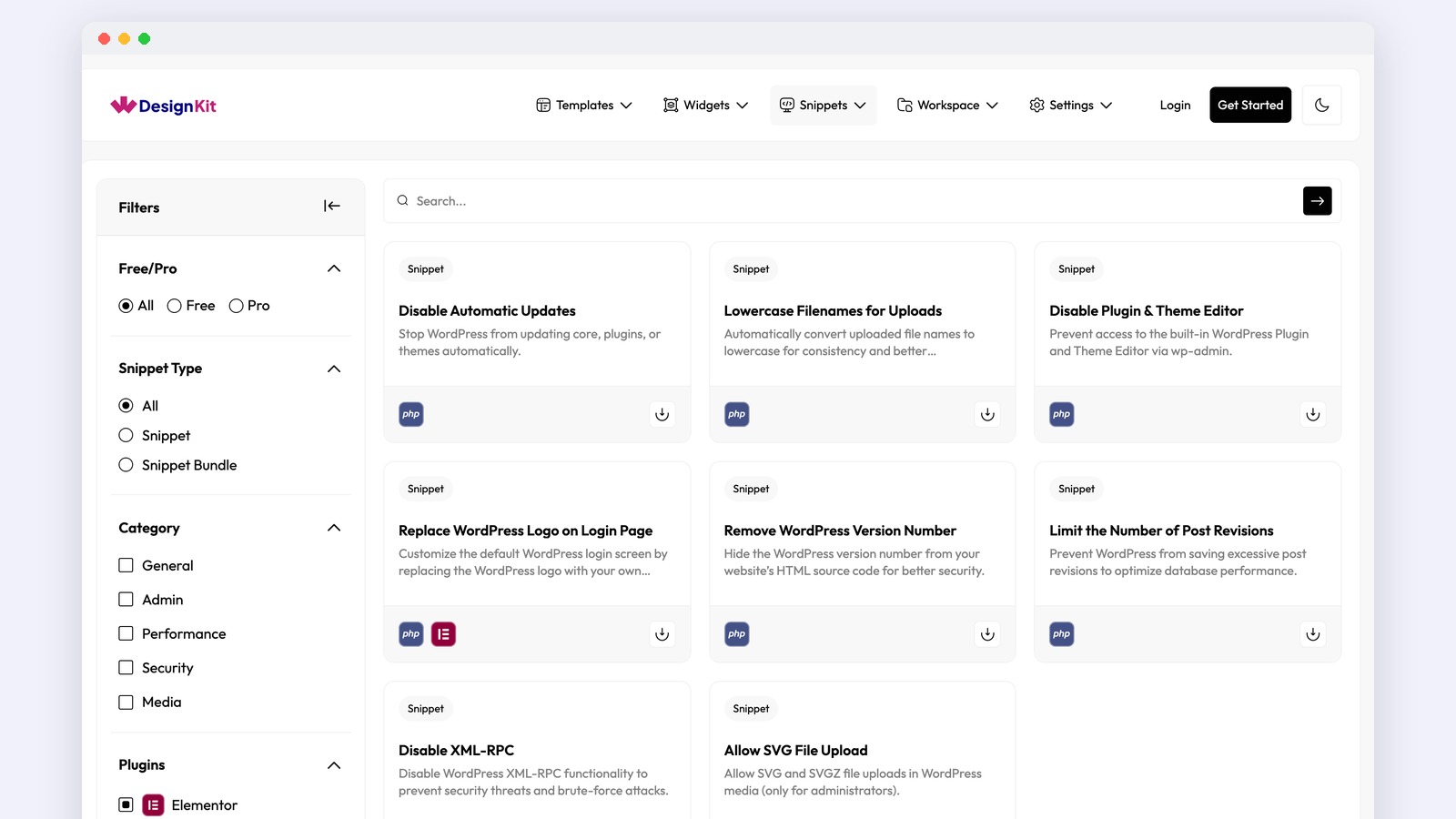
- A snippet library. Ready-made snippets you can filter by Free or Pro, snippet type, category and related plugin.
- Single snippets and bundles. A single snippet does one job. A bundle groups several snippets for one purpose, such as a security hardening set.
- Your own snippets. Add, edit and organize your code under My Snippet, then reuse it on other projects.
- Cloud and workspaces. Save snippets to your WDesignKit cloud and share them with your team through a workspace.
- AI snippets over MCP. Generate PHP, CSS, JS and HTML snippets from your AI tool.
Snippets run through the Nexter Extension plugin. The docs note that if it is not active yet, WDesignKit activates it automatically when you download your first snippet.
Browse WordPress code snippets in the library
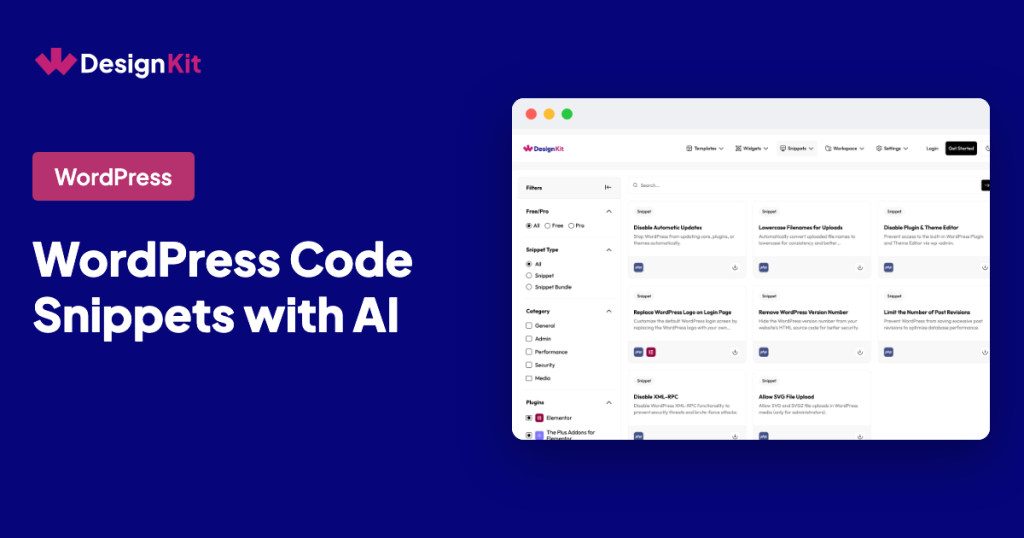
In WordPress, go to WDesignKit and open Snippets. The library has four filters:
- Free/Pro: show free snippets, Pro snippets or both.
- Snippet Type: single snippets or snippet bundles.
- Category: General, Admin, Performance, Security and Media.
- Plugins: snippets tied to a plugin, such as Elementor, The Plus Addons for Elementor, Nexter Blocks, Nexter Extension Pro or WooCommerce.
The public snippet library currently lists 8 free PHP snippets:
| Snippet | What it does |
|---|---|
| Disable Automatic Updates | Stops WordPress from updating core, plugins or themes automatically |
| Lowercase Filenames for Uploads | Converts uploaded file names to lowercase |
| Disable Plugin & Theme Editor | Blocks the built-in Plugin and Theme Editor in wp-admin |
| Replace WordPress Logo on Login Page | Shows your own logo on the login screen |
| Remove WordPress Version Number | Hides the WordPress version from your page source |
| Limit the Number of Post Revisions | Stops WordPress from saving too many revisions |
| Disable XML-RPC | Turns off XML-RPC to reduce brute-force attempts |
| Allow SVG File Upload | Allows SVG and SVGZ uploads, for administrators only |
Install a snippet in one click
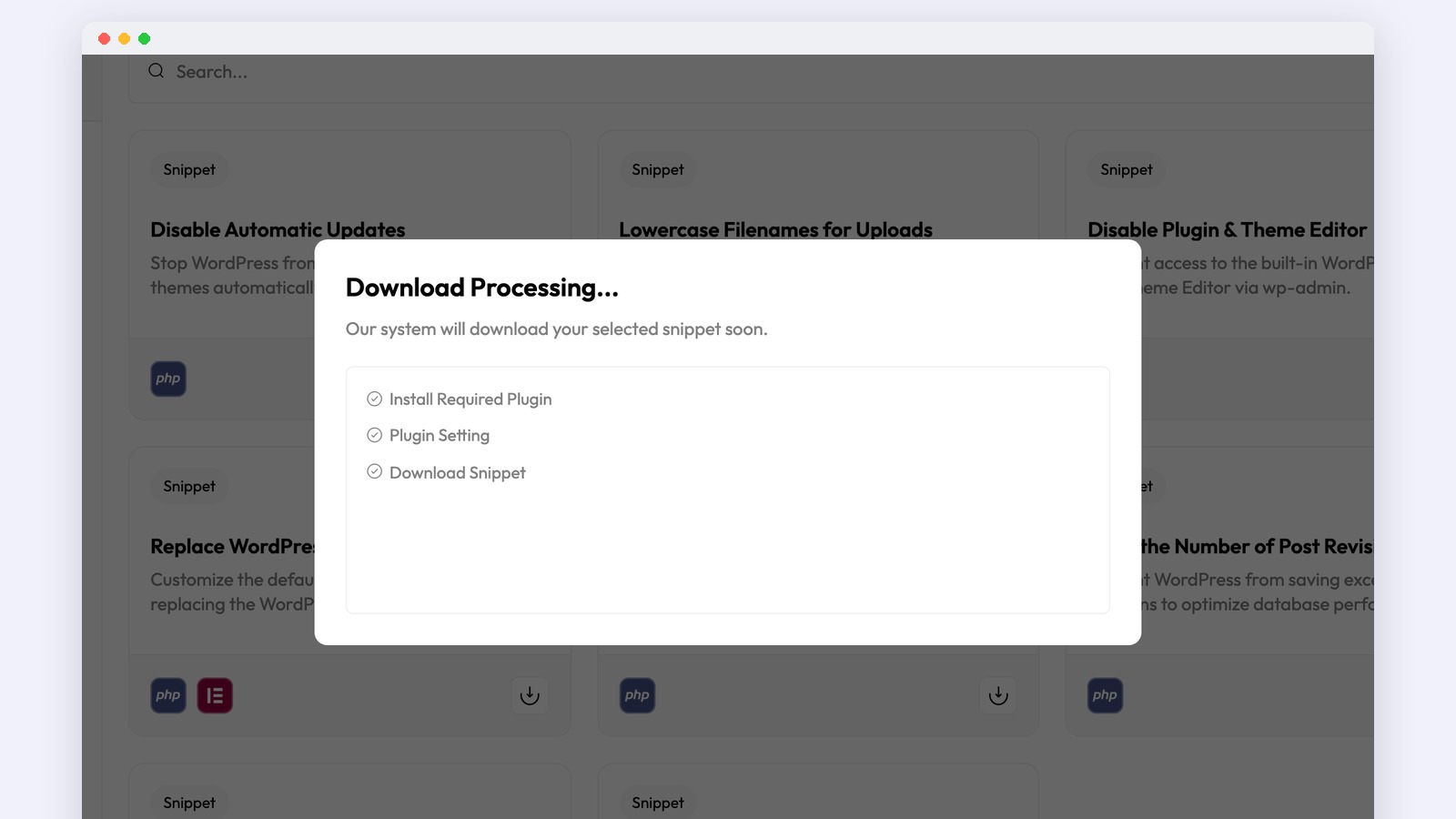
Click a snippet card or its download icon. WDesignKit runs three steps: it installs the required plugin, applies the plugin setting and downloads the snippet to your site.
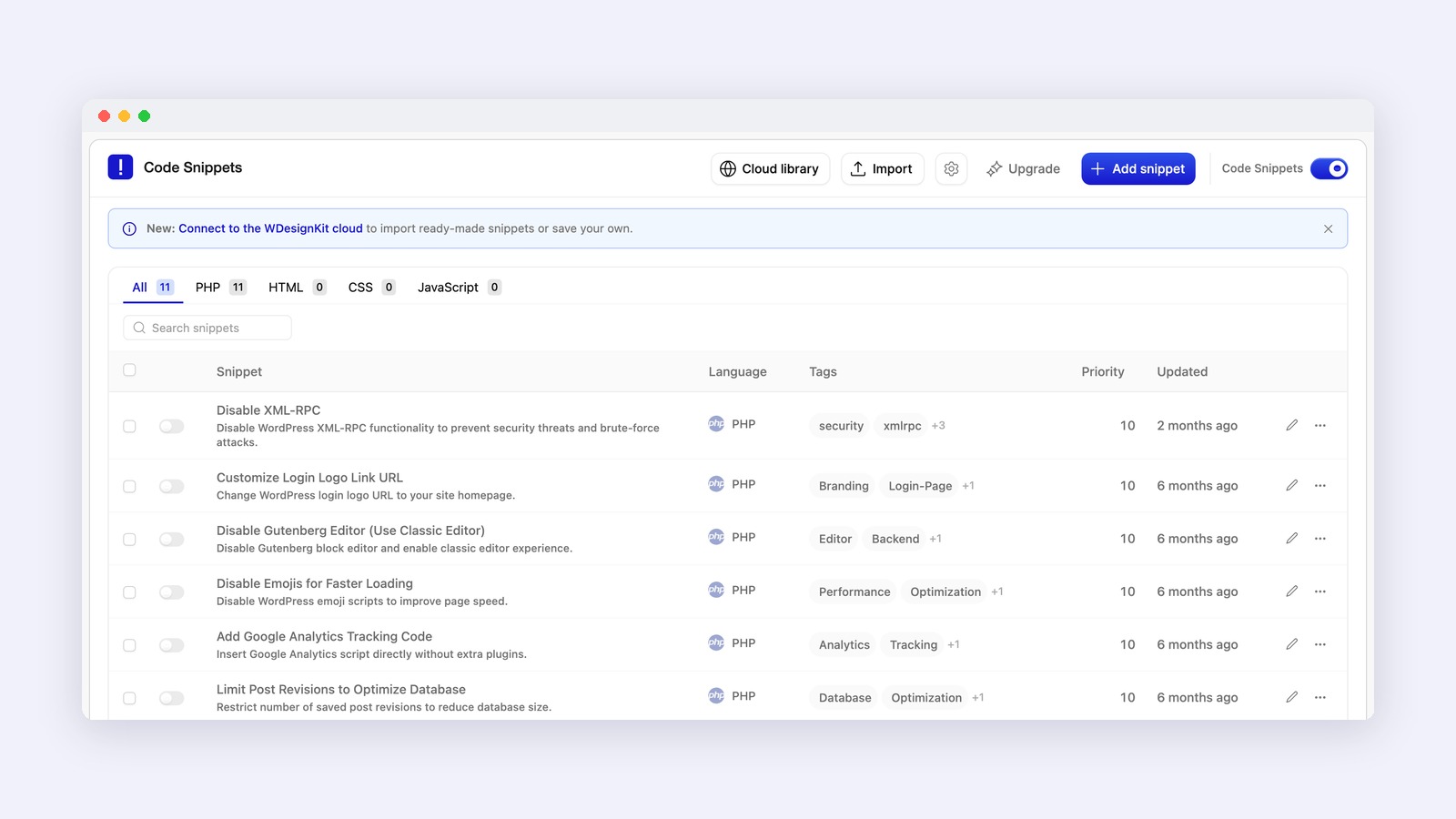
The snippet then appears in the Code Snippets manager, where each entry shows its language, tags, priority and when it was last updated. You can filter by PHP, HTML, CSS or JavaScript, search your snippets, import a file or add a new snippet by hand. In our test the downloaded snippet arrived switched off, so you decide when it runs: review the code, then turn it on.
Generate new snippets with AI
When the library does not have what you need, you can ask an AI tool to write it. The WDesignKit AI Code Snippet page describes the setup:
- Install the WordPress MCP plugin on your site.
- Connect WDesignKit.
- Enable permissions.
- Add the MCP configuration to your AI assistant, such as Claude or Cursor.
- Start generating snippets in PHP, CSS, JS or HTML.
The live WDesignKit MCP has 14 snippet actions an AI tool can call. They include browsing and downloading library snippets, importing a snippet into your site, listing the snippets already installed, renaming a snippet, saving it to your WDesignKit cloud and copying or moving it between workspaces. Free snippets download without logging in; Pro snippets need a WDesignKit cloud login and an active licence. When an import uses a name that already exists, it is declined by default, so you do not overwrite a snippet by accident.
Some prompts that work well:
- “Add a snippet that limits post revisions to 5.”
- “Create a CSS snippet that hides the Elementor page title on the blog archive.”
- “Write a PHP snippet that redirects logged-out users from /members to the login page.”
If you build widgets the same way, see our guide to the AI widget builder for WordPress.
Keep snippets safe
An active snippet runs on your live site, so treat it like any other code change:
- Test on a staging site first, especially PHP snippets that change logins, uploads or redirects.
- Read AI-written code before you switch it on. Check what it changes and that it only runs where it should.
- Give each snippet one job and a clear name, so you can turn off the one that causes a problem.
- Keep secrets out of snippets. Do not paste API keys into the code; store them in wp-config.php and reference them by name.
Snippets or a custom widget?
Use a snippet when the change is site-wide behaviour: a setting, a filter, a redirect or a few lines of CSS. When you need something editors place on a page and change visually, such as a card or a pricing table, build a widget instead with the WDesignKit Widget Builder.
Share the snippets you use most in the WDesignKit Facebook group.
Author

Sagar is the Founder & CEO of POSIMYTH Innovations, with 10+ years building WordPress products trusted by 100,000+ websites globally. He has led the development of The Plus Addons for Elementor, Nexter, WDesignKit, and UiChemy, all built hands-on from concept to launch. His work focuses on making website building faster, more flexible, and accessible for creators and businesses worldwide.
Share this article