On this page
- Key Takeaways
- Table of Contents
- AI Templates: From One Line To A Full Website
- How To Build Your First Site With It
- Prompts You Can Start From
- Watch It In Action
- Imports That Survive A Slow Host
- Six AI-Compatible Kits To Try It On
- Galen Medical
- Rome Technology (Gutenberg)
- Forge Agency
- RelaxNest
- AgriCraft
- Rome Technology (Elementor)
- Build The Widget No Template Has
- How It Works
- Widget Prompts To Try
- Four Widgets Worth Adding This Month
- Content Scroll Animation
- Column Scroll
- Book Shelf 3D
- Scroll to Top
- Let Your AI Assistant Find The Template
- Tool Of The Month: Coolors
- Frequently Asked Questions
- What Is New In WDesignKit In October 2026?
- Which Builders Do AI Templates Support?
- Can I Try An AI Template Without Touching My Live Site?
- What Happens If An Import Is Interrupted?
- Which Builders Can I Build AI Widgets For?
- Do I Need To Update The Plugin?
- That Is October
Picture a Monday morning request: a dentist wants a website by Friday. A month ago, you would pick a kit, import it, then spend most of the week swapping demo copy about a fictional agency for real words about a real clinic.
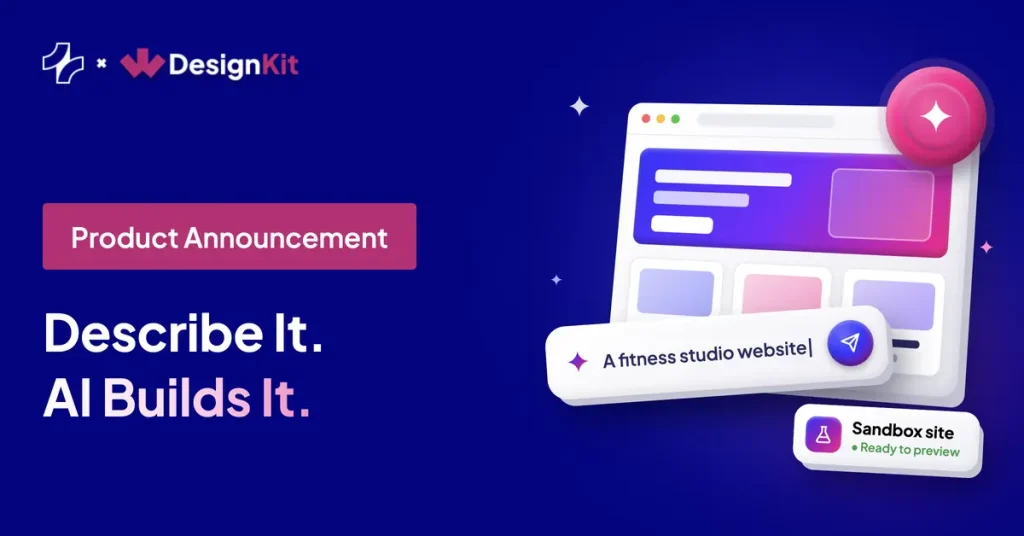
In October we went after that week. You can now describe a site in one line, answer a few questions and import a kit that already talks about the business, with page copy, blog posts and, for store kits, WooCommerce products written for it. The import runs on our server and recovers if something interrupts it. And when the page still needs an element no template has, your AI tool can build it.
Here is everything that shipped, how to use it, and where to start.
Key Takeaways
- AI Templates now start from one line about your site. You pick Elementor or Gutenberg, answer a few questions, set colours, fonts and features, then import.
- The new Smart AI Content step writes the kit’s page copy, blog posts and WooCommerce products for your business.
- You can try the result on a temporary sandbox site before it touches your real one.
- Kit imports run on our server in resumable steps, and WooCommerce kits import more reliably.
- Your AI tool can now build widgets for Elementor, Gutenberg and Bricks over MCP, and search the template library for you.
- Six AI-compatible kits, four widgets and one free tool (Coolors) are worth your time this month.
Table of Contents
AI Templates: From One Line To A Full Website
Until now, AI Templates started with a kit. That still works, and a real kit is still the foundation. What changed is everything around it: the flow now starts with your brief, so every step after it knows what you are building.
How To Build Your First Site With It
- Pick your builder and describe the site. Choose Elementor or Gutenberg, then write one line. “A website for a family dental clinic in Austin” is plenty.
- Choose an AI-compatible kit. You start from a real design, not a blank layout.
- Answer a few quick questions. Skip any that do not apply. One sentence of real detail beats a one-word reply, because your answers shape the copy.
- Set colours, fonts and features. Make the big design calls before the import, so the site looks like yours on first load.
- Test it or import it. Try it on a temporary sandbox site first, or send it straight to one of your connected WordPress sites. The import runs on our server, with live progress.
Prompts You Can Start From
Swap in your own business and go:
- Create a complete website for a used car dealership.
- Build a modern website for a boutique fitness studio.
- Create a professional website for a real estate agency.
- Build a clean, premium website for a digital agency.
Watch It In Action
These two videos show the full flow, from the first line to the finished import.
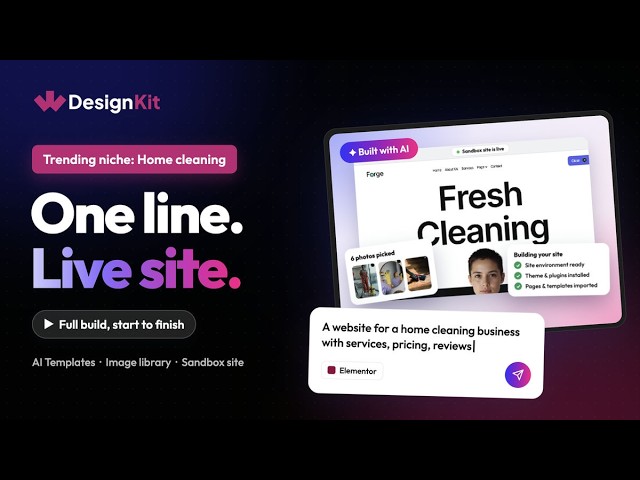
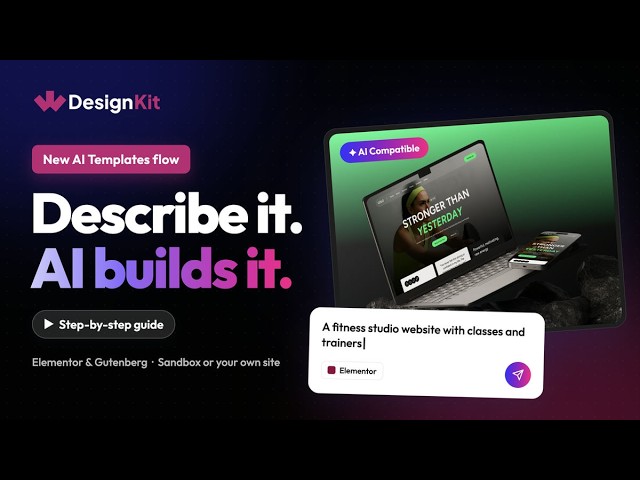
For screenshots of every step, read New In WDesignKit: AI Templates Now Start With One Line About Your Site. Ready to try it? Start from the WDesignKit home page.
Imports That Survive A Slow Host
Anyone who has imported a large kit on budget hosting knows the feeling: the progress bar stops, the tab times out, and you are left with half a site and no clear way back.
October’s imports work differently:
- The kit imports on our server in small, resumable steps, so a timeout or a closed tab no longer leaves a half-built site.
- Copy is generated in one request and images load in the background, so the import is much faster.
- Full kit imports resume after plugin installation and report any plugin that could not be installed.
- Inside the Elementor editor, a template drops in as one step with a single Undo.
WooCommerce kits got their own round of fixes. The import no longer stalls at “Installing Plugins & Theme”. The imported Shop page keeps its design instead of showing unstyled text, product template skins point to your imported templates rather than the demo site, and popups and Coming Soon pages keep their Mailchimp subscribe form.
To get every fix, update WDesignKit from your WordPress dashboard. The release-by-release detail is in the official changelog.
Six AI-Compatible Kits To Try It On
The fastest way to understand the new flow is to run it on a real kit. These six cover very different businesses, so you can see how the AI copy adapts.

Elementor
Galen Medical
Built for hospitals, clinics, doctors and healthcare teams. A good first test for the one-line brief: try “a family dental clinic” and see how the services pages change.
Gutenberg
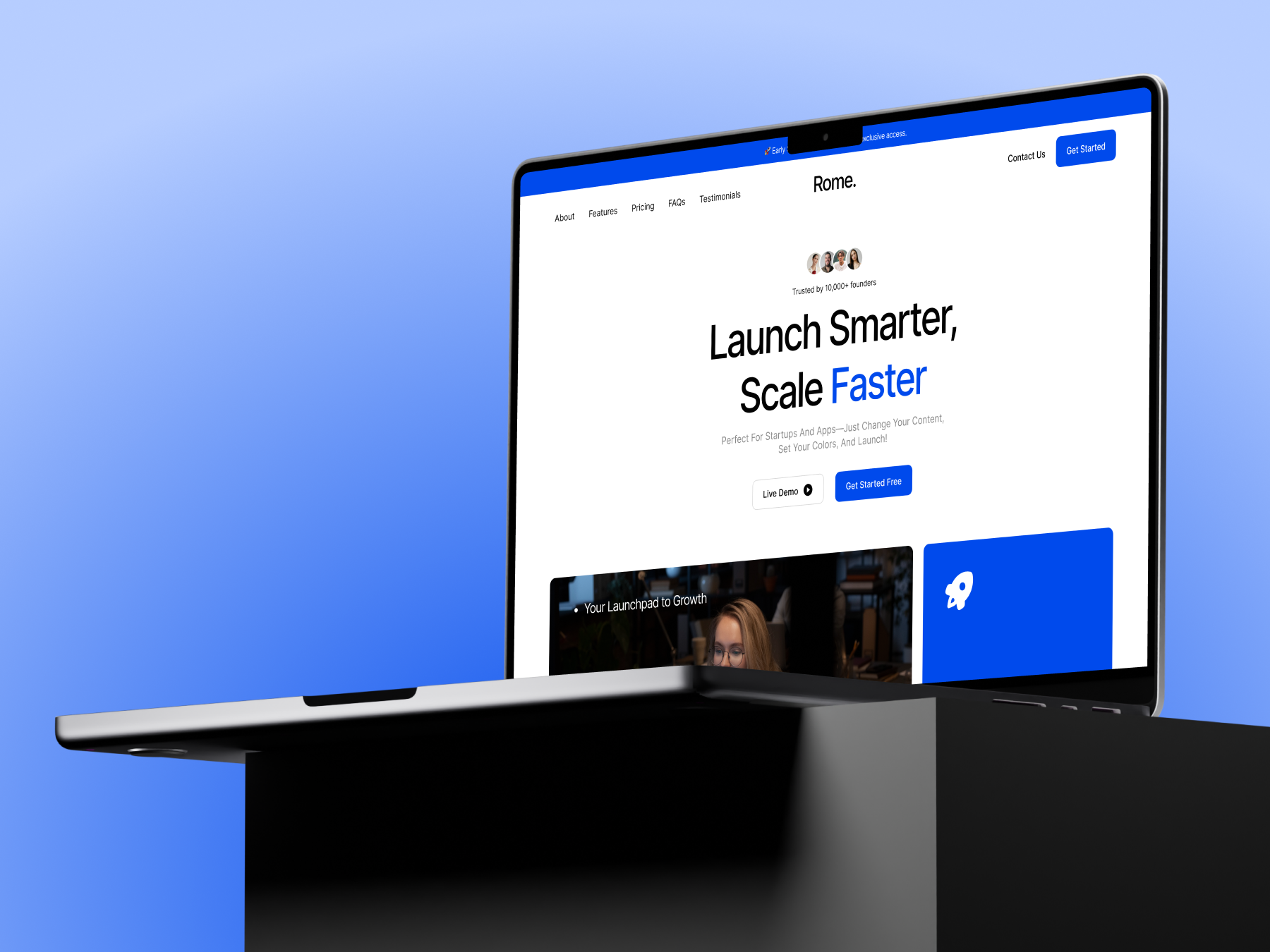
Rome Technology (Gutenberg)
For technology companies, SaaS products and digital service providers.

Elementor
Forge Agency
For cleaning, handyman, plumbing and home repair businesses. This is the kind of site built in the cleaning business video above.


Elementor
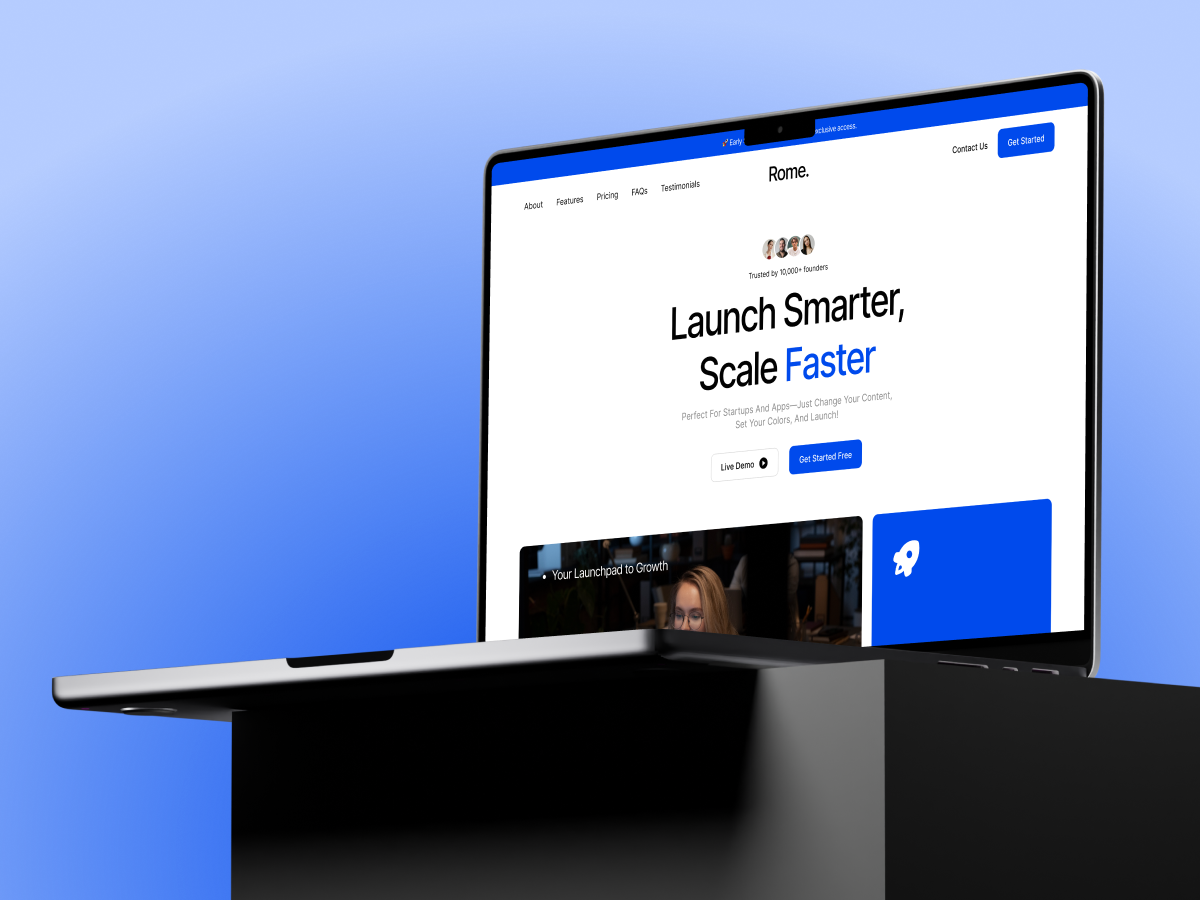
Rome Technology (Elementor)
The same Rome design for Elementor users, so you can compare how each builder handles the import.
Want more options? Browse the full AI-compatible template library.
Build The Widget No Template Has
Templates get you most of the way. Then a client asks for a pricing toggle with a specific layout, or a scroll effect they saw somewhere else, and no kit has it.
With AI Widgets, you connect WDesignKit to your AI tool through MCP and build the widget right there, ready to use in Elementor, Gutenberg or Bricks.
How It Works
- Connect your site over MCP. The MCP Workflows page walks you through it.
- Describe the widget in plain language. The more specific you are about layout, spacing and animation, the closer the first result.
- Use it in your builder. The widget is generated for the builder you work in.
Widget Prompts To Try
- A three-column feature grid with icons, short titles and a subtle hover animation.
- A stats counter with four columns and a count-up animation.
- A testimonial carousel with photos, names, star ratings and smooth sliding.
- A FAQ accordion with clean expand and collapse animation.
Curious how this compares with writing the widget yourself? We timed both in Widget Builder vs Hand-Coding a Custom Elementor Widget.
Four Widgets Worth Adding This Month
Not every page needs a new section. Sometimes one good interaction is what makes it feel finished. Here are four ready-made picks across all three builders.
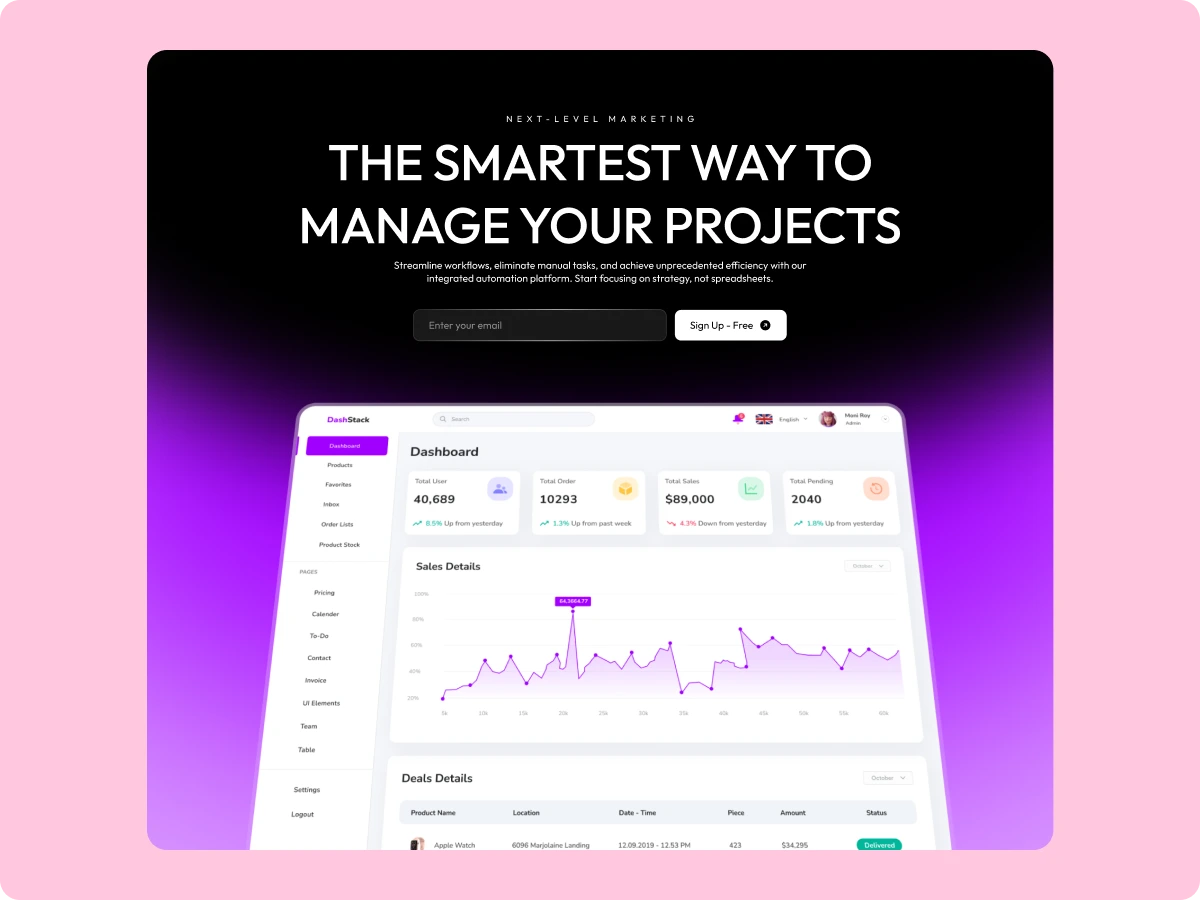
Elementor
Content Scroll Animation
Smooth motion effects that play as visitors scroll. Use it to give a long About or feature page some rhythm.

Bricks
Column Scroll
Columns that scroll at different speeds for a layered look. Works well for portfolios and image-heavy showcases.
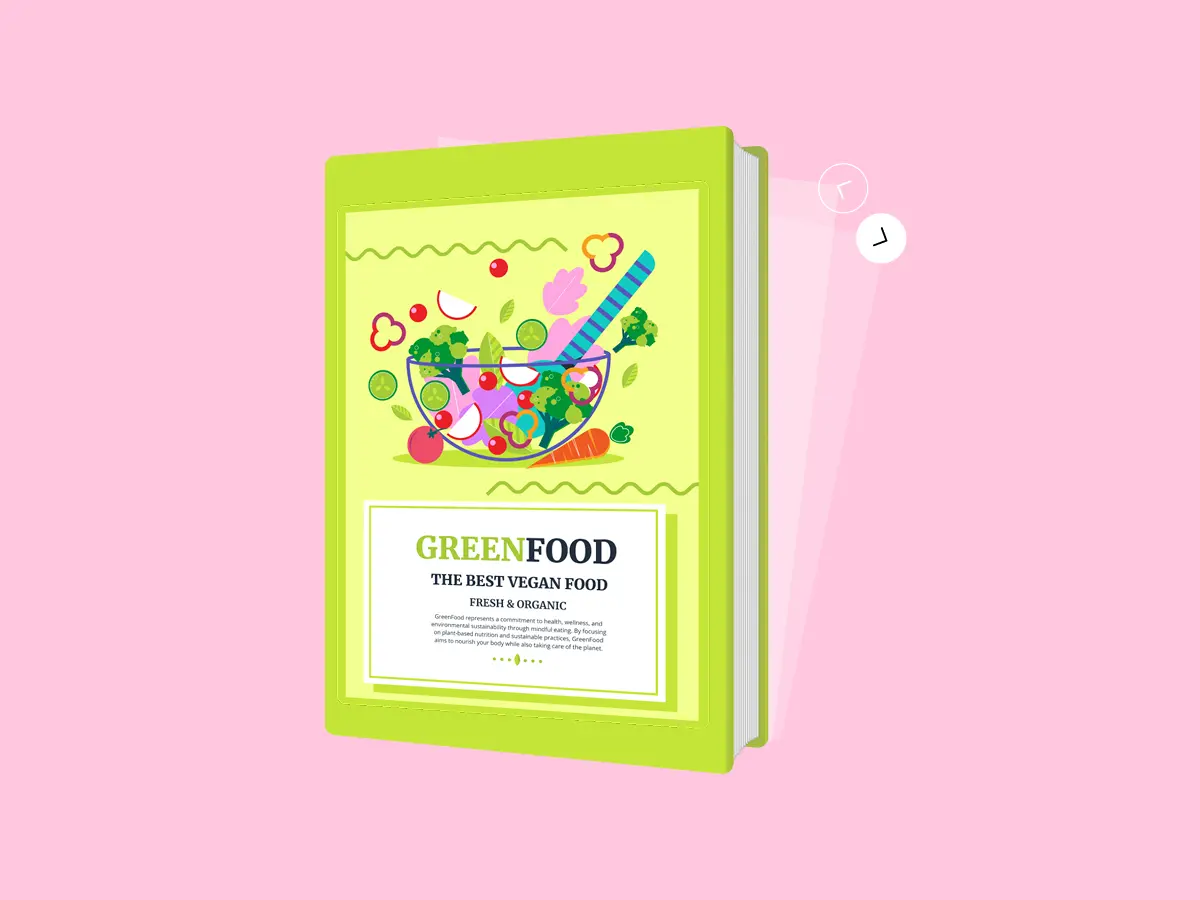
Elementor
Book Shelf 3D
Shows books, guides or digital products on a 3D shelf. Made for authors, publishers and anyone selling downloads.
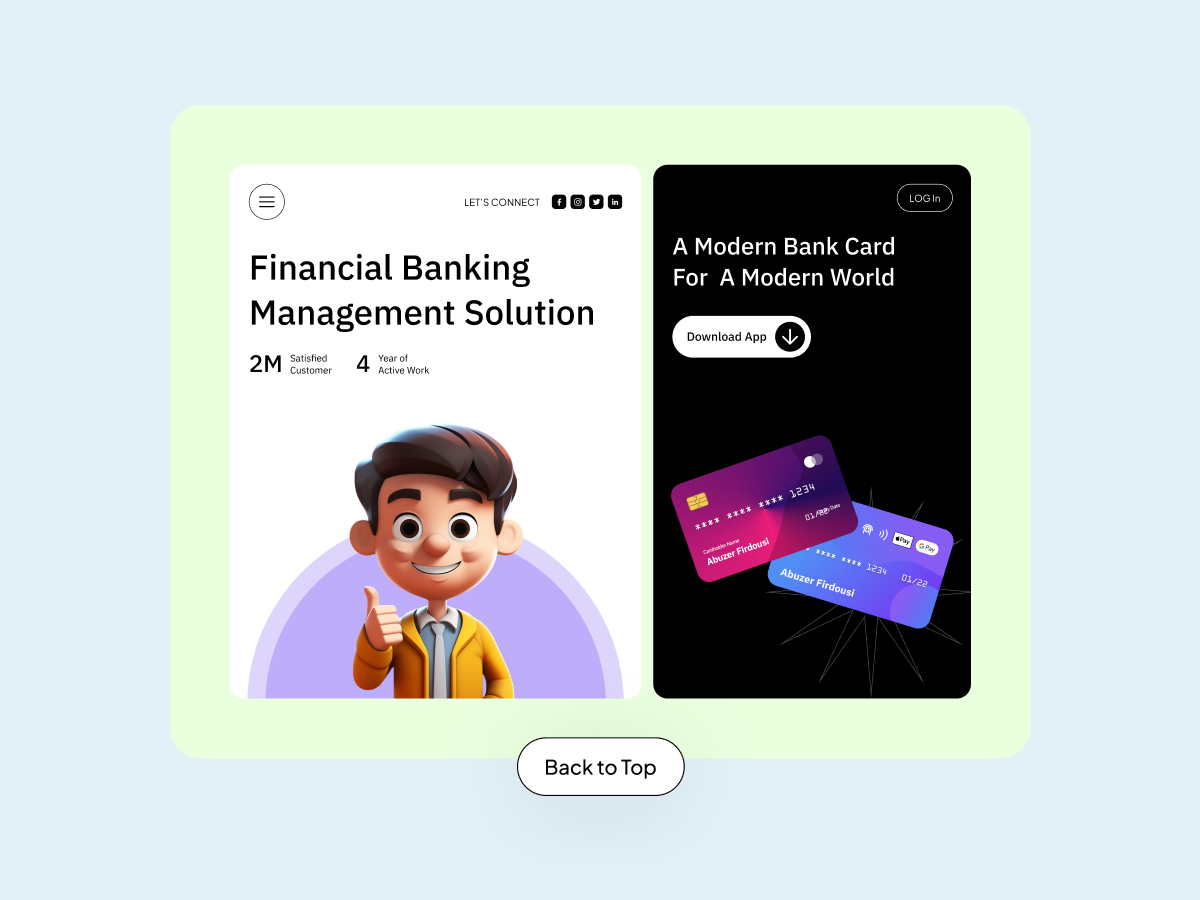
See everything in the widgets library.
Let Your AI Assistant Find The Template
If you already work with Claude, Cursor or another AI tool connected to WDesignKit over MCP, you no longer need to browse the library yourself. Ask for what you need and your assistant searches the marketplace and imports the pages or sections you pick.
A few requests to try:
- “Find a pricing section with three plans and import it to my homepage.”
- “Show me hero sections for a restaurant website.”
- “Import a full-page About layout that suits a law firm.”
Search results are clearer too. If nothing matches the plan you selected, exact matches from other plans now show up instead of an empty list.
New to WDesignKit? After your first kit import, a short “What next?” guide now points you to importing a full kit, trying AI widgets and saving to your Cloud Workspace.
For setup, see the WDesignKit MCP Integration guide.
Tool Of The Month: Coolors
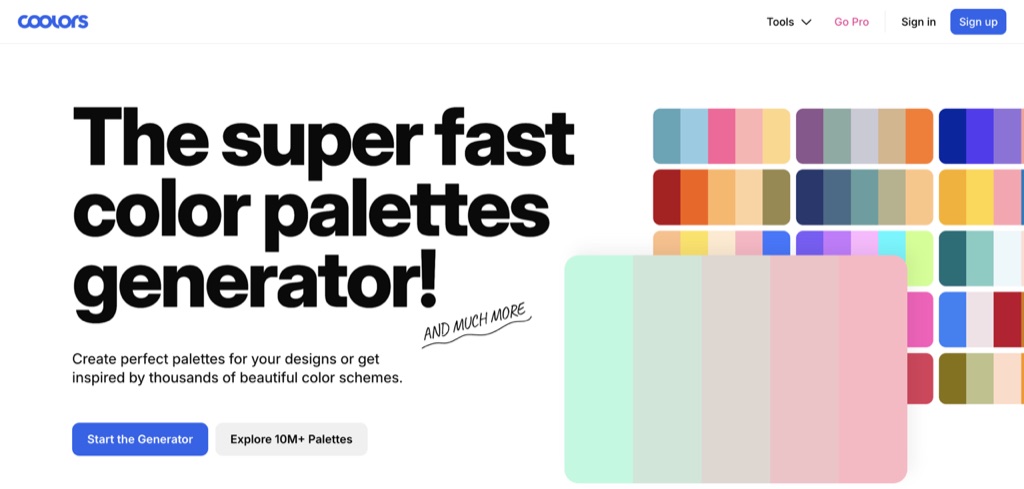
Coolors is a free colour palette generator. Press the space bar for a new palette, lock the colours you like and keep going until it feels right, then copy the hex codes. You can also browse millions of palettes other designers have saved.
How we would use it with WDesignKit: build your palette in Coolors first, then paste the hex codes into the colour step of AI Templates. Your new site starts on-brand from the first import, instead of being recoloured afterwards.
Frequently Asked Questions
What Is New In WDesignKit In October 2026?
AI Templates now start from a one-line description of your site, with a Smart AI Content step that writes page copy, blog posts and WooCommerce products. Imports run on our server in resumable steps, WooCommerce kits import more reliably, and AI tools connected over MCP can build widgets and search the template library.
Which Builders Do AI Templates Support?
Elementor and Gutenberg. You choose your builder at the start of the flow.
Can I Try An AI Template Without Touching My Live Site?
Yes. You can test the result on a temporary sandbox site first, then import it to one of your connected WordPress sites when you are happy with it.
What Happens If An Import Is Interrupted?
The import runs on our server in resumable steps, so it continues from where it stopped instead of leaving a half-built site. Full kit imports also report any plugin that could not be installed.
Which Builders Can I Build AI Widgets For?
Elementor, Gutenberg and Bricks. You connect WDesignKit to your AI tool through MCP, describe the widget and use it in your builder.
Do I Need To Update The Plugin?
Yes. Update WDesignKit from your WordPress dashboard to get the import and WooCommerce fixes. The official changelog lists every change.
That Is October
October was about one idea: less time on setup, more time on the parts of a website that only you can do. Your words, your photos, your offer.
Try it on your next site. Describe it in one line, see what WDesignKit builds, then tell us where it got the brief right and where it missed. We read every message, and your replies shape what we improve next.
Try AI Templates · Browse The Template Library
See you next month.
Previous: September 2026 Updates
Author

Sagar is the Founder & CEO of POSIMYTH Innovations, with 10+ years building WordPress products trusted by 100,000+ websites globally. He has led the development of The Plus Addons for Elementor, Nexter, WDesignKit, and UiChemy, all built hands-on from concept to launch. His work focuses on making website building faster, more flexible, and accessible for creators and businesses worldwide.
Share this article