On this page
- Table of Contents
- What Elementor AI means in 2026
- What Angie can build
- Full pages from a prompt
- Design systems from a screenshot
- Forms and dynamic loops
- Angie Code: custom widgets and snippets
- The Elementor MCP
- Elementor AI pricing and credits
- How to start with Elementor AI
- Writing prompts that work
- Check before you publish
- Limits to know before you rely on it
- Elementor AI compared with other AI options
- Who should use Elementor AI
- A good fit if
- Look at other options if
- Frequently Asked Questions
Elementor AI is no longer a writing assistant that sits inside a text widget. In 2026 Elementor’s AI work is built around Angie, an agent that builds pages, design systems, forms and custom widgets as real Elementor content, plus an Elementor MCP that lets outside AI tools such as Claude, Cursor and Codex build on your site directly.
That is a big change in what “AI in a page builder” means, and it raises practical questions for anyone choosing tools: what Angie actually builds, what needs Elementor Pro, how the free credits work, and when another tool is the better fit. This guide answers those questions using Elementor’s own product pages as the source, checked on 9 November 2026.
Key Takeaways
- Angie builds full pages, design systems, forms and loops as editable Elementor content, and Elementor says prompt-based edits to existing pages are coming soon.
- Angie Code turns plain-language prompts, screenshots or URLs into custom Elementor widgets, WordPress admin snippets, custom post types, CSS and JavaScript snippets, and front-end apps.
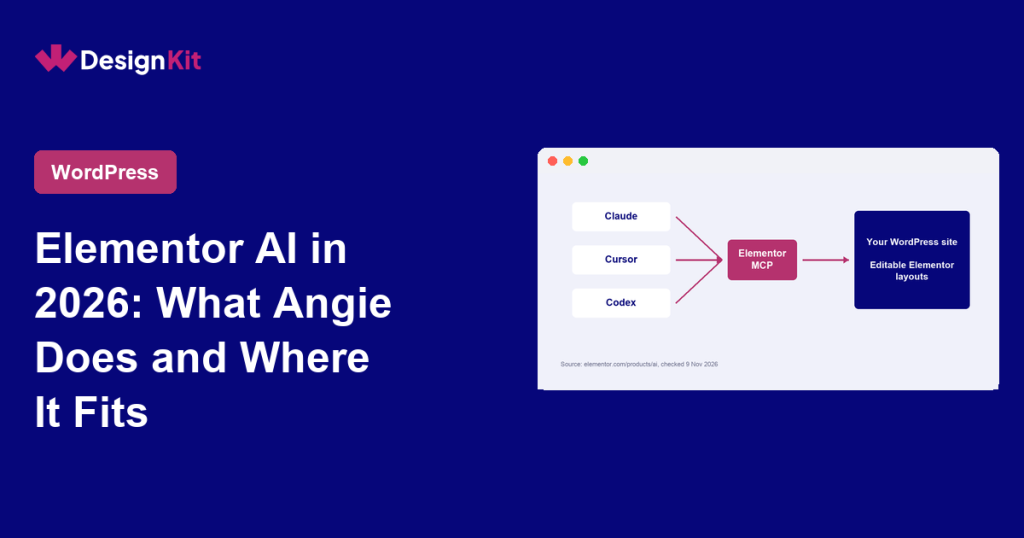
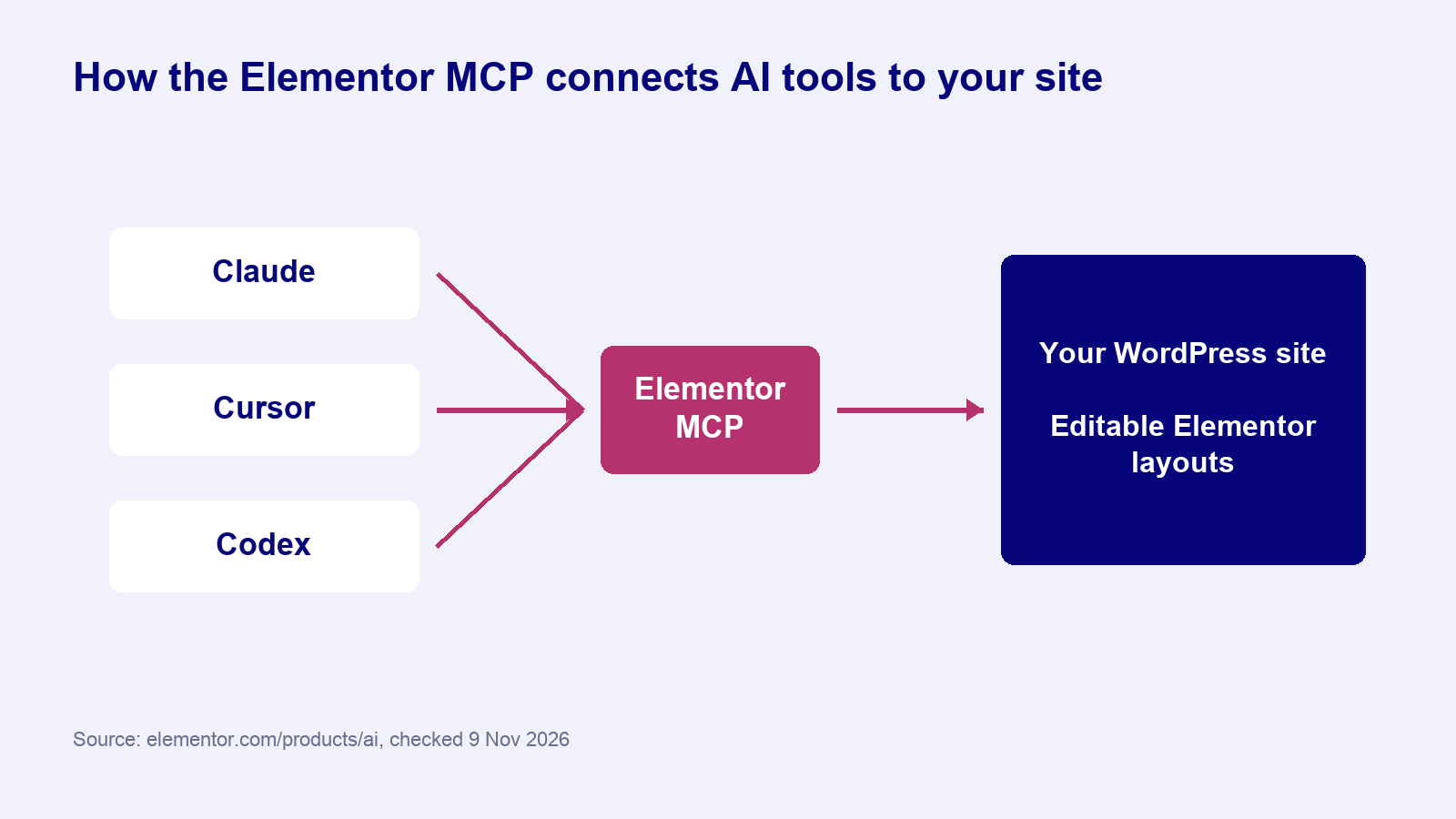
- Elementor MCP connects Claude, Cursor and Codex to an Elementor site so outside AI tools build editable layouts directly on the site.
- Angie has a free plan with AI credits that renew daily, but extra Angie credits cannot be bought during that period and Atomic Forms and Loops require Elementor Pro.
- Elementor’s setup uses three steps: install Angie and Elementor, prompt Angie in the Editor, then review and refine the generated content before publishing.
Table of Contents
What Elementor AI means in 2026
When people search for Elementor AI today they usually mean one of three things, and they are worth separating because they work differently.
| Part | What it is | Where it runs |
|---|---|---|
| Angie | An agentic AI that builds pages, design systems, forms and loops as editable Elementor content | Inside the Elementor Editor, as a WordPress plugin |
| Angie Code | Generates custom Elementor widgets, admin snippets, custom post types and front-end code | Inside WordPress, previewed in a test environment first |
| Elementor MCP | Connects outside AI tools to your Elementor site | Claude, Cursor, Codex and other MCP clients |
All three sit under Elementor One, the bundle Elementor now sells for creating, optimising and managing WordPress sites. The shared idea is that the AI produces native Elementor content, not a locked export or a screenshot of a design.
What Angie can build
According to Elementor’s AI product page, Angie handles four main jobs.
Full pages from a prompt
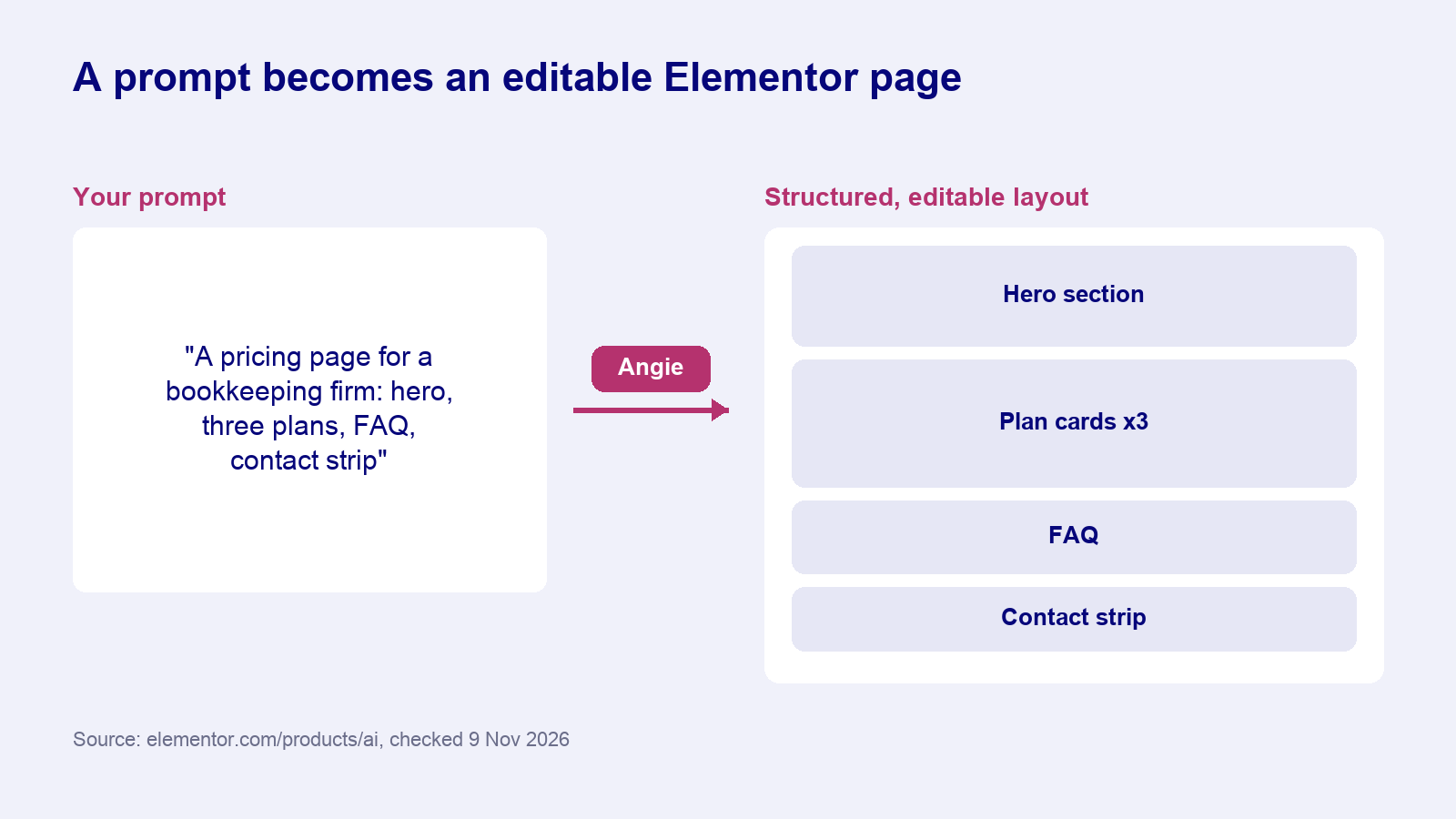
You describe the page and Angie builds the complete layout, including sections, content and styling, live on the canvas. You then review and refine it by hand in the Editor. Elementor says that describing a change and having Angie make it directly is coming soon, so for now edits after the first build are manual.
Design systems from a screenshot
Give Angie brand information or a screenshot and it creates a starting design system of Classes and Variables: colours, fonts and reusable styles. This is the part most likely to save time on a new build, because a consistent design system is tedious to set up by hand.
Forms and dynamic loops
Angie can build an Atomic Form from a description of fields and layout, and a Loop with its layout, items and pagination for dynamic archives. Both of these require Elementor Pro.
Angie Code: custom widgets and snippets
Angie Code is the developer side. It turns plain-language prompts, screenshots or URLs into code that runs inside WordPress. Elementor lists these outputs:
- Custom Elementor widgets, built from scratch or extending existing widgets with new controls
- WordPress admin snippets that change dashboard views or add settings panels
- Custom post types and fields
- Website CSS and JavaScript snippets for animations, hover effects and interactive elements
- Front-end apps such as quizzes, calculators, custom 404 pages and store locators
Angie works in a secure test environment, so you can preview and iterate before anything goes live. Everything it generates stays editable in the Editor or through more conversation with Angie.
If custom widgets are the main reason you are looking at AI, it is worth comparing approaches. A visual widget builder gives you controls you can see and adjust without reading code, which suits designers. We cover that route in our guide to the AI widget builder for WordPress.
The Elementor MCP
The Elementor MCP connects AI tools you already use, including Claude, Cursor and Codex, to your Elementor site. You describe what you want, attach references, and get editable Elementor layouts that match your brand. For developers and agencies who already work inside an AI coding tool, this means building pages without switching into a separate assistant.
MCP (Model Context Protocol) is quickly becoming the standard way for AI agents to act on WordPress. If you want the background, our explainer on WordPress MCP covers how it works and which tools support it.
Elementor AI pricing and credits
Angie has a free plan with AI credits that renew daily, so you can try it without paying. Elementor states that during this period you cannot buy extra Angie credits, which means heavy users are capped by the daily allowance rather than by a bill.
Some features depend on your Elementor plan rather than on credits. Atomic Forms and Loops need Elementor Pro, and the Pro plans themselves differ in what they include. On the Elementor pricing page, for example, Essential covers one site with 57 Pro widgets and 10 cloud templates, while Advanced Solo covers one site with 85 Pro widgets, 20 cloud templates, the Popup Builder and custom code.
| Need | What you need from Elementor |
|---|---|
| Try Angie for pages and design systems | Free Angie plan, an Elementor account |
| AI-built forms and loops | Angie plus Elementor Pro |
| Use Claude, Cursor or Codex on the site | The Elementor MCP |
| Use Angie without the Elementor Editor | Possible on any WordPress site, but login needs an Elementor account |
Exact credit amounts and paid Angie pricing were not published on the pages we checked, so confirm them in your Elementor account before you plan a project around them.
How to start with Elementor AI
Elementor describes a three-step setup. It installs like any other plugin and needs no configuration beyond connecting your account.
- Install the plugins. In your WordPress dashboard go to Plugins, then Add New, search for Angie and Elementor, then install and activate both.
- Prompt. Open the Editor, click Angie and describe the page or design system you want. Angie builds it on the canvas as structured Elementor content.
- Review and refine. Check what Angie built and adjust it in the Editor before you publish.
Writing prompts that work
Prompt-built pages are only as good as the brief. A few habits make the first result much closer to what you need, whichever AI tool you use:
- Name the page type and audience. “A pricing page for a two-person bookkeeping firm” beats “a pricing page”.
- List the sections in order. Hero, three plan cards, comparison table, FAQ, contact strip.
- Give real content where you have it. Plan names, prices and the main call to action save a round of replacing placeholder text.
- Attach a reference. A screenshot of a layout or brand page gives the design system something concrete to match.
- Build one page, then reuse. Get the design system right on one page before generating the rest, so every page shares the same Classes and Variables.
Check before you publish
Treat a generated page like a first draft from a new team member. Check headings are in order, images have alt text, buttons go where they say, the page works on mobile, and any generated code does only what you asked. Our guide to speeding up an Elementor website is a useful checklist for the performance side.
Limits to know before you rely on it
- Edits after the first build are manual for now. Prompt-based changes to an existing page are listed as coming soon.
- Some outputs need Pro. Forms and loops require Elementor Pro.
- The daily credit cap. On the free plan you cannot buy more credits, so a big build may span several days.
- An Elementor account is required. Even on sites that do not use the Elementor Editor.
- Review still matters. Elementor itself frames Angie’s output as something you review and approve. Generated code and layouts should be checked for accessibility, performance and brand fit like any other work.
Elementor AI compared with other AI options
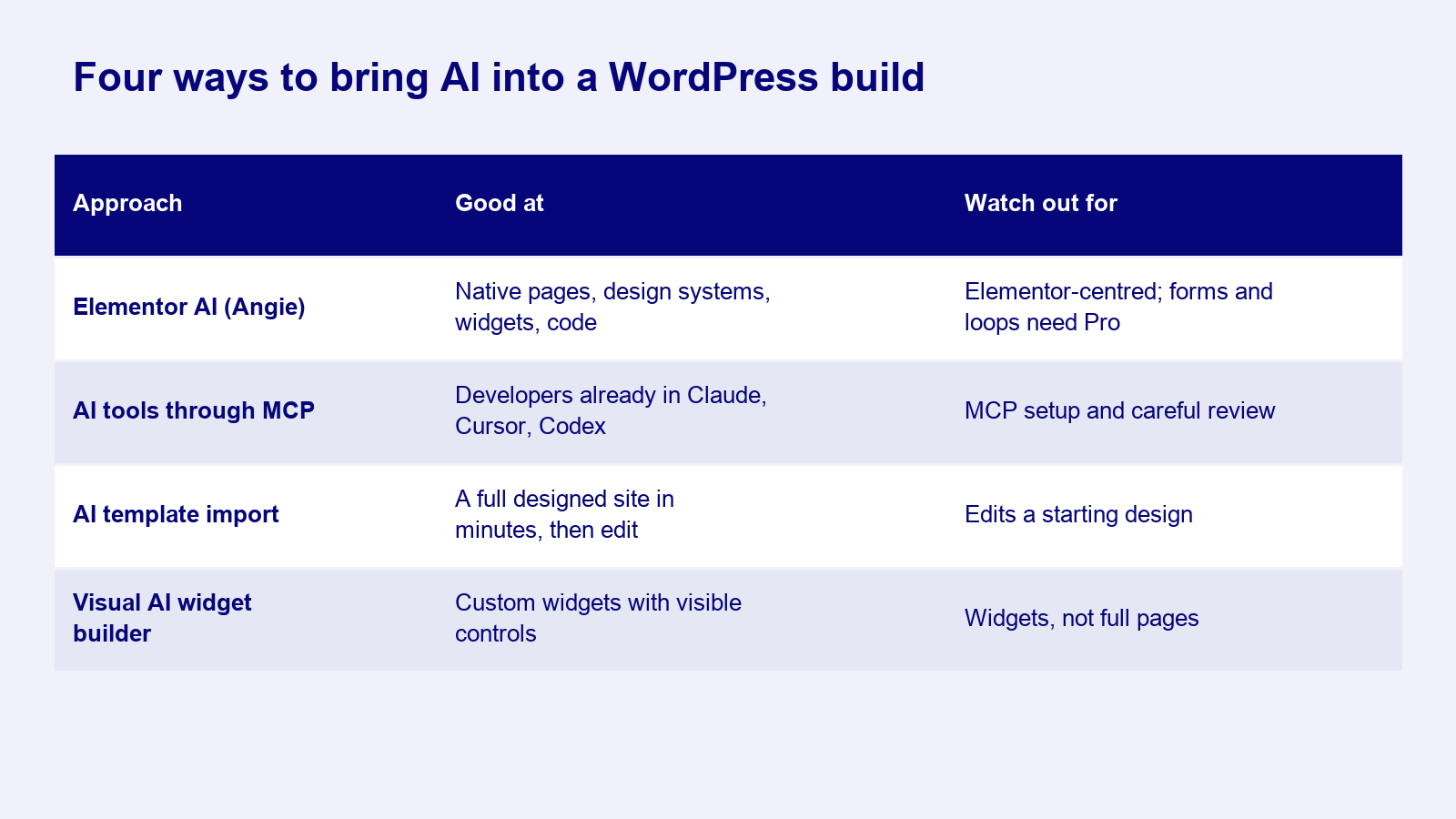
Angie is not the only way to bring AI into a WordPress build. Which one fits depends on whether you want an agent that writes code, a builder that generates whole sites, or a library of finished designs to start from.
| Approach | Good at | Watch out for |
|---|---|---|
| Elementor AI (Angie) | Native Elementor pages, design systems, generated widgets and code | Elementor-centred; some outputs need Pro |
| General AI tools through MCP | Developers who already work in Claude, Cursor or Codex | Needs MCP setup and careful review of changes |
| AI template import | Starting from a full designed site in minutes, then editing | You edit a starting design rather than generate from nothing |
| Visual AI widget builders | Custom widgets with visible controls, no code reading | Focused on widgets, not full pages |
WDesignKit sits in the last two rows. Its AI Template Import lets you describe a site and import a designed template to edit, and its Widget Builder can generate custom widgets with AI for Elementor, Gutenberg and Bricks. The free plan includes 1,000 AI credits once, and paid plans add a monthly allowance, as listed on the WDesignKit pricing page. If you are comparing AI site builders more broadly, our roundup of the best WordPress AI plugins covers more options.
Who should use Elementor AI
A good fit if
- Your sites are built in Elementor and you want AI output that stays native to it.
- You set up many new design systems and want a faster start.
- You need small custom widgets or snippets but do not have a developer on hand.
- Your team already works in Claude, Cursor or Codex and would use the MCP.
Look at other options if
- You build in Gutenberg or Bricks as well as Elementor and want one workflow for all of them.
- You prefer starting from a finished, designed template over generating layouts from a prompt.
- You need predictable volume now and the daily free cap is too tight.
AI in page builders is moving fast, and the best setup for most teams is a mix: an agent for code and quick layouts, a template library for designed starting points, and a person reviewing what ships. If you are trying different combinations, share what is working in the WDesignKit Facebook group.
Frequently Asked Questions
Is Elementor AI actually worth using in 2026?
Elementor AI is most useful if your site already lives in Elementor and you want the output to stay native instead of exporting a static design. In 2026, the big shift is Angie, which builds pages, design systems, forms, loops, and even custom widgets as editable Elementor content. That matters because you are not starting from a screenshot or locked file. WDesignKit Learning Center frames it as a good fit when you want AI help without leaving the Elementor workflow.
Can Elementor AI build full pages from a prompt?
Angie can build a complete page from a prompt, including sections, content, and styling on the canvas. The useful part is that it gives you a real starting layout inside the Editor rather than a mockup you still have to rebuild. Edits after the first build are manual for now, so the best use case is getting the structure and visual direction right fast, then refining it by hand before publishing.
Does Elementor AI work with Claude, Cursor, or Codex?
The Elementor MCP is built for that exact workflow. It connects outside AI tools such as Claude, Cursor, and Codex to your Elementor site so those tools can build editable layouts directly on your site. That makes sense if your team already works in an AI coding tool and does not want to switch into a separate assistant. WDesignKit Learning Center also points readers to its WordPress MCP explainer for the protocol side.
Why isn't Elementor AI building forms or loops for me?
Forms and dynamic loops are part of Angie’s feature set, but they require Elementor Pro. That is the main gotcha if you expect every AI-generated element to work on the free setup. The free Angie plan gives daily-renewing credits for trying pages and design systems, but Pro controls whether Atomic Forms and Loops are available at all. If those are central to your build, plan around Pro first instead of assuming credits alone cover it.
What should I check before publishing an AI-built Elementor page?
Treat an Angie-generated page like a first draft that still needs review. Check heading order, alt text on images, button destinations, mobile behavior, and whether any generated code does only what you asked. That matters because Elementor frames Angie’s output as something you review and approve, not something to ship blindly. For performance checks, WDesignKit Learning Center links to its speeding up an Elementor website guide.
Last reviewed: November 9, 2026
Author

Sagar is the Founder & CEO of POSIMYTH Innovations, with 10+ years building WordPress products trusted by 100,000+ websites globally. He has led the development of The Plus Addons for Elementor, Nexter, WDesignKit, and UiChemy, all built hands-on from concept to launch. His work focuses on making website building faster, more flexible, and accessible for creators and businesses worldwide.
Share this article