On this page
- Table of Contents
- Why This Direction Is Safer
- Should You Actually Switch?
- Elementor Free or Pro for This Migration
- Estimating the Work Before You Start
- How to Convert Gutenberg to Elementor, Step by Step
- 1. Decide Which Pages Actually Need Elementor
- 2. Take a Backup and Work on Staging
- 3. Set Global Styles Before Building Anything
- 4. Convert One Page and Compare It Side by Side
- 5. Use a Template Instead of Starting From an Empty Canvas
- 6. Check Mobile Before You Publish
- Rebuilding Common Block Patterns in Elementor
- Where Templates Save the Most Time
- Keeping Your Rankings Intact
- A Post-Migration Checklist
- Suggested Reading
- Frequently Asked Questions
Key Takeaways
- Gutenberg content stays in the standard post_content column as HTML wrapped in block comments, so moving to Elementor leaves the original content readable underneath.
- Elementor Pro includes Theme Builder for headers, footers, post templates and archive templates, plus the Posts widget and Loop Builder in Elementor 3.8.
- A migration estimate starts with patterns, not pages, because a site with 30 pages built from 8 patterns is far smaller than 30 unique layouts.
- Global Styles in Elementor set colours, fonts and default spacing before the first page is built, so converted pages can match untouched pages.
- Mobile checks matter because Elementor layouts use explicit containers and columns, so mobile behaviour is configured before a page goes live.
Table of Contents
Almost everything written about WordPress builder migration runs in one direction: getting out of Elementor and into the block editor. The reverse trip gets far less attention, even though plenty of site owners outgrow the block editor’s design controls and decide they want Elementor’s visual editing and template system instead.
The good news is that this is the easier direction, and for a reason worth understanding before you start. Where an Elementor page keeps its layout locked in a private database field, a Gutenberg page keeps its content in the open. That single structural difference decides how much of this migration is genuinely at risk, which is less than most people assume.
Why This Direction Is Safer
Open any block editor page in the database and you will find its content sitting in the standard post_content column, as ordinary HTML wrapped in block comments that look like <!-- wp:paragraph -->. The blocks are annotations on top of real markup. Strip the comments away and you still have valid HTML with your headings, paragraphs, lists and images intact.
Elementor works the other way around. Its layouts live in a post meta field called _elementor_data, as a JSON tree that only Elementor can render. Nothing readable is left in post_content for a page built entirely in Elementor, which is why deactivating that plugin empties pages rather than simplifying them.
So when you move from Gutenberg to Elementor, your original content does not go anywhere. It stays in post_content whether or not Elementor is switched on for that page. You are adding a rendering layer over content that remains readable underneath, and that is a far more forgiving starting position than the reverse migration.
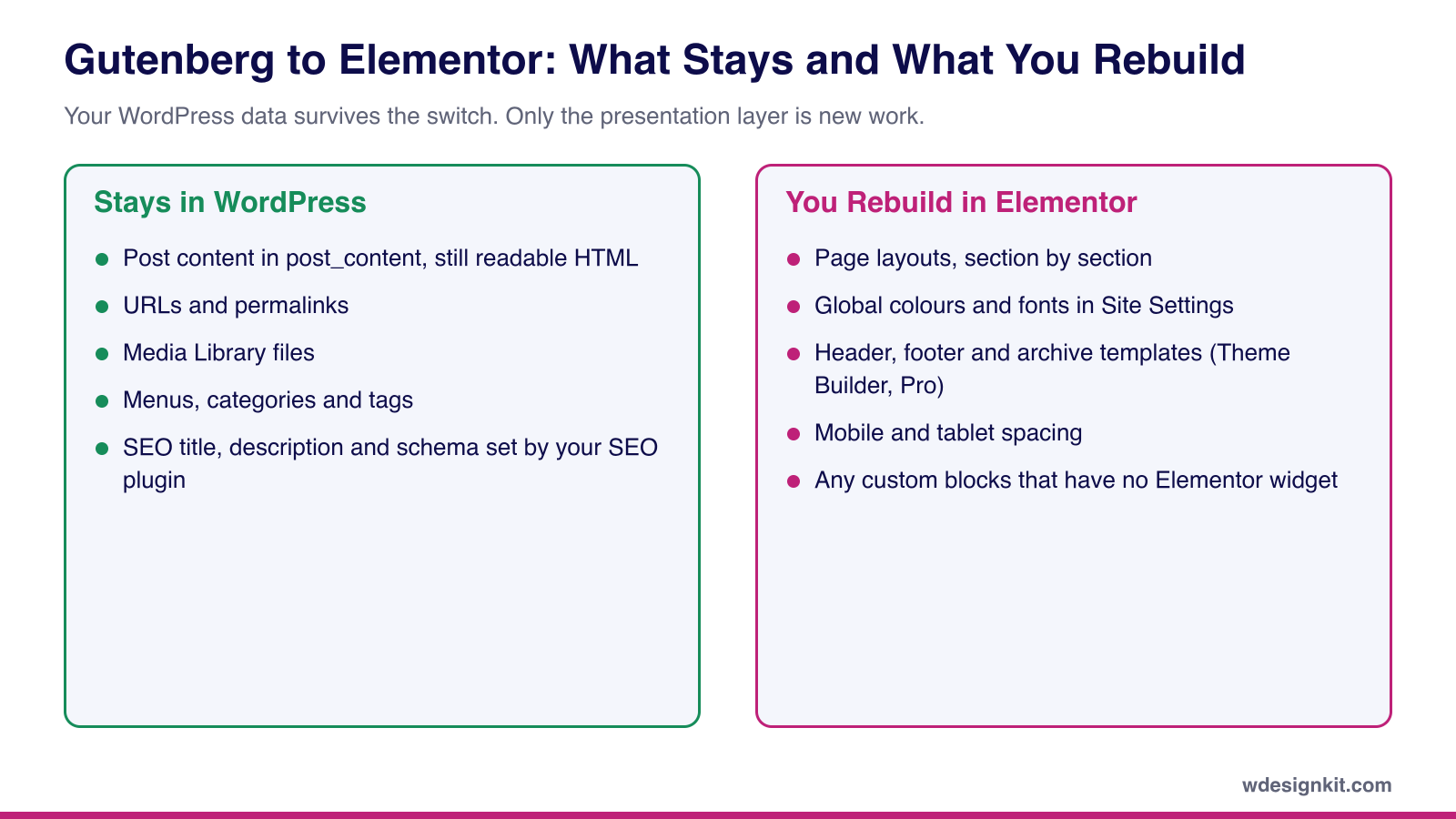
Be clear eyed about the trade you are making, though. The moment a page is genuinely built in Elementor, that page inherits Elementor’s lock in. If you later want to go back, you are facing the harder migration described in our guide on switching page builders without losing your design.
Should You Actually Switch?
Three reasons hold up. You need design control the block editor does not offer without a lot of custom CSS. You need Elementor’s template system for headers, footers, archives and popups across the whole site. Or you are joining a team or client already standardised on Elementor, and consistency is worth more than personal preference.
One reason does not hold up: switching because the block editor feels limited when you have not yet tried a block library. The gap between stock WordPress blocks and a well equipped block library is wide, and closing it is a great deal cheaper than migrating a site. Elementor is a real commitment. Version 4.2.4 sits at more than 10,000,000 active installs with a 90 out of 100 rating from 7,298 reviewers on WordPress.org, so it is a safe, well maintained choice. It is still a dependency you are choosing to take on.
Elementor Free or Pro for This Migration
Before you plan the work, decide which version of Elementor the new site needs, because it changes the scope. Elementor’s Pro vs. Free comparison places the Theme Builder, which covers headers, footers, post templates and archive templates, in Elementor Pro, along with the Posts widget. The Loop Builder, used to design custom post and product listings, arrived as a Pro feature in Elementor 3.8.
| What you are rebuilding | Free Elementor | Elementor Pro |
|---|---|---|
| Individual landing and service pages | Yes | Yes |
| Site-wide header and footer | Needs a companion plugin | Theme Builder |
| Single post and archive templates | No | Theme Builder |
| Post grids and listings | Basic options only | Posts widget and Loop Grid |
If you only want Elementor for a handful of marketing pages and are happy to keep posts in the block editor, free Elementor may be enough. If you want the whole site’s templates in Elementor, budget for Pro. At the time of writing, Elementor’s pricing page lists the Essential plan at $49 a year for one website, with Theme Builder included.
Estimating the Work Before You Start
The honest way to size a Gutenberg to Elementor migration is to count patterns, not pages. Most sites repeat the same handful of layouts, and every pattern you rebuild once can be reused everywhere it appears. Before you open Elementor, walk through the site and note down:
- The pages that genuinely need Elementor, usually the homepage, service or product pages and landing pages, as opposed to posts that can stay in the block editor.
- The repeating patterns across those pages, such as a hero, a feature grid, a testimonial row, a pricing table and a call to action.
- Which patterns already exist as ready sections in a template library, so you only design the ones that do not.
- Anything interactive, including forms, sliders, tabs and custom blocks from block plugins, because these are rebuilt rather than copied.
- How the header and footer will work, since that decision sets whether you need Elementor Pro from day one.
A site with thirty pages built from eight patterns is a far smaller job than thirty unique layouts, and this inventory tells you which one you have. It also gives you a checklist to work through, so progress is visible and nothing is quietly skipped.
How to Convert Gutenberg to Elementor, Step by Step
1. Decide Which Pages Actually Need Elementor
You do not have to convert everything, and you probably should not. Elementor and the block editor coexist page by page in the same install. Landing pages, service pages and anything with a complex layout benefit from Elementor. Blog posts usually do not, and leaving posts in the block editor keeps them lighter and easier to edit.
2. Take a Backup and Work on Staging
This direction is more forgiving, not risk free. Take a full database backup first. If you are converting more than a handful of pages, clone the site and do the work there, so a half-finished page never reaches a visitor.
3. Set Global Styles Before Building Anything
In Elementor, open Site Settings and define your colours, fonts and default spacing before you build your first page. If your block theme already has a colour palette and type scale, copy those values across so the converted pages match the ones you have not touched yet. Doing this later means revisiting every page you have already converted.
4. Convert One Page and Compare It Side by Side
Pick one representative page. Keep the original open in a second tab and rebuild against it, matching heading levels, copy and image placement exactly. Confirm your H1 is still an H1 and that no copy was quietly dropped. Get this page right, then treat it as the pattern for the rest.
5. Use a Template Instead of Starting From an Empty Canvas
An empty Elementor canvas is where migrations stall. Importing a finished layout and replacing its placeholder copy with yours is considerably faster than assembling sections one at a time, and the result is usually more consistent. The next section covers where that saves the most time.
6. Check Mobile Before You Publish
Block editor layouts tend to reflow sensibly on small screens because they are mostly linear. Elementor layouts use explicit containers and columns, which means mobile behaviour is something you configure rather than something you inherit. Check every converted page at mobile width before it goes live.
Rebuilding Common Block Patterns in Elementor
Most block editor pages are built from the same handful of core blocks. Knowing the Elementor equivalent for each one turns the rebuild into a translation exercise instead of a design exercise:
| In the block editor | In Elementor | Note |
|---|---|---|
| Group, Row and Columns blocks | Containers | Set direction and gap on the container rather than nesting extra wrappers |
| Heading and Paragraph blocks | Heading and Text Editor widgets | Keep the same heading levels so the page outline does not change |
| Cover block | A container with a background image and overlay | Check text contrast again on mobile, where the crop changes |
| Buttons block | Button widget | Style it once in Site Settings so every button matches |
| Query Loop or Latest Posts | Posts widget or Loop Grid | Both are Elementor Pro features |
| Navigation block | A header template in Theme Builder | Pro, or a companion header builder plugin on free Elementor |
| Synced patterns | Saved templates | Build repeating sections once and insert them from the template library |
Where Templates Save the Most Time
The slow part of this migration is not the switch. It is rebuilding layouts that already existed. WDesignKit’s library currently holds 3,675 templates, of which 2,040 are built for Elementor, split 896 free and 1,144 pro. Across the whole library there are 243 page kits, 2,401 complete pages and 1,031 individual sections.
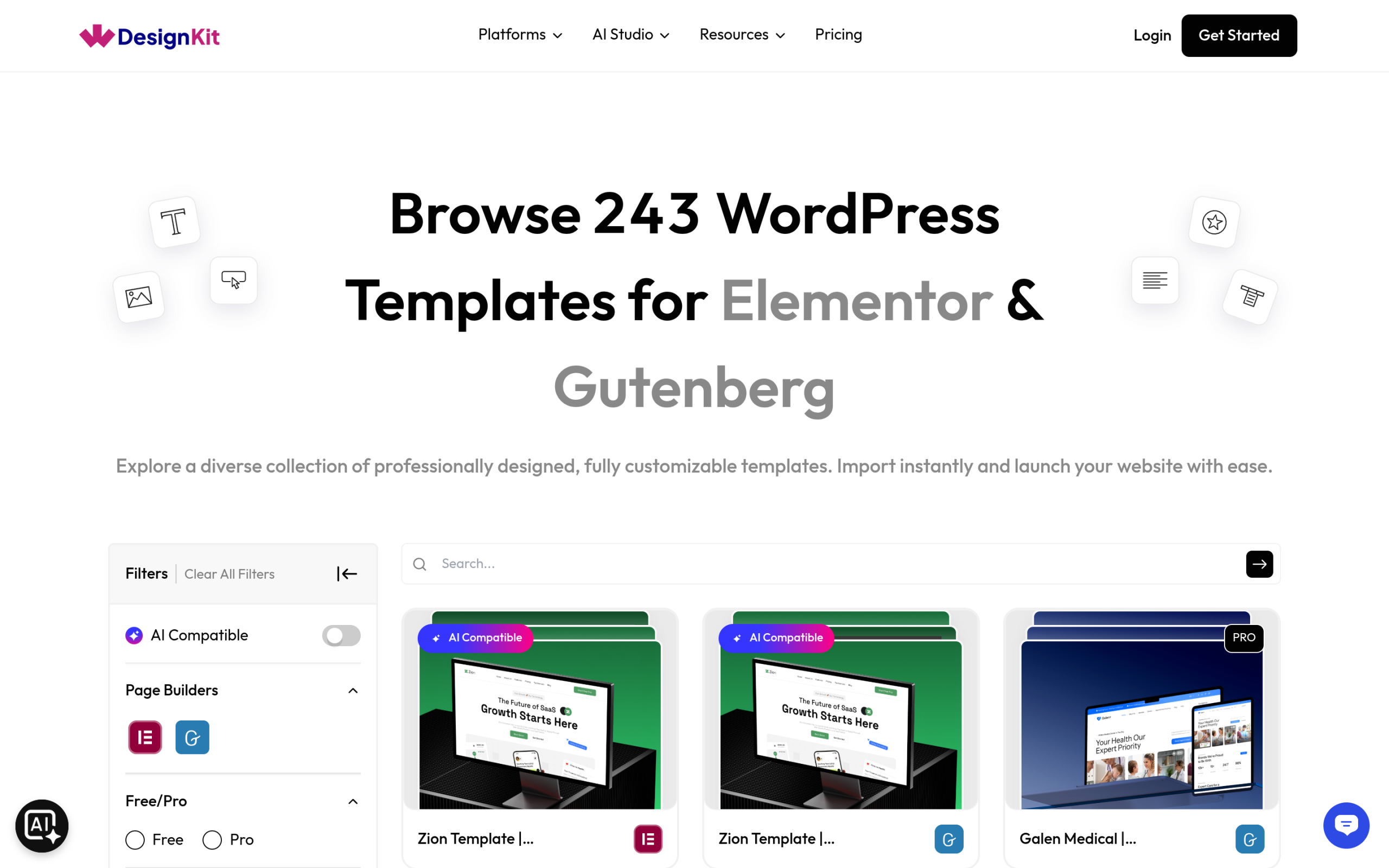
Sections are the underrated option here. If a page is mostly fine and you only need a stronger hero, pricing table or testimonial block, importing a single section beats rebuilding the page. Our explainer on template kits, sections and full pages covers when each one is the right unit of work.
Many kits also come in both builder versions, which is useful on a mixed site. The Zion Template kit, for example, is a technology and SaaS kit built for Elementor with a Gutenberg version also available, and it carries the AI Compatible badge, so WDesignKit’s AI import can rewrite its placeholder copy for your business before you start editing.
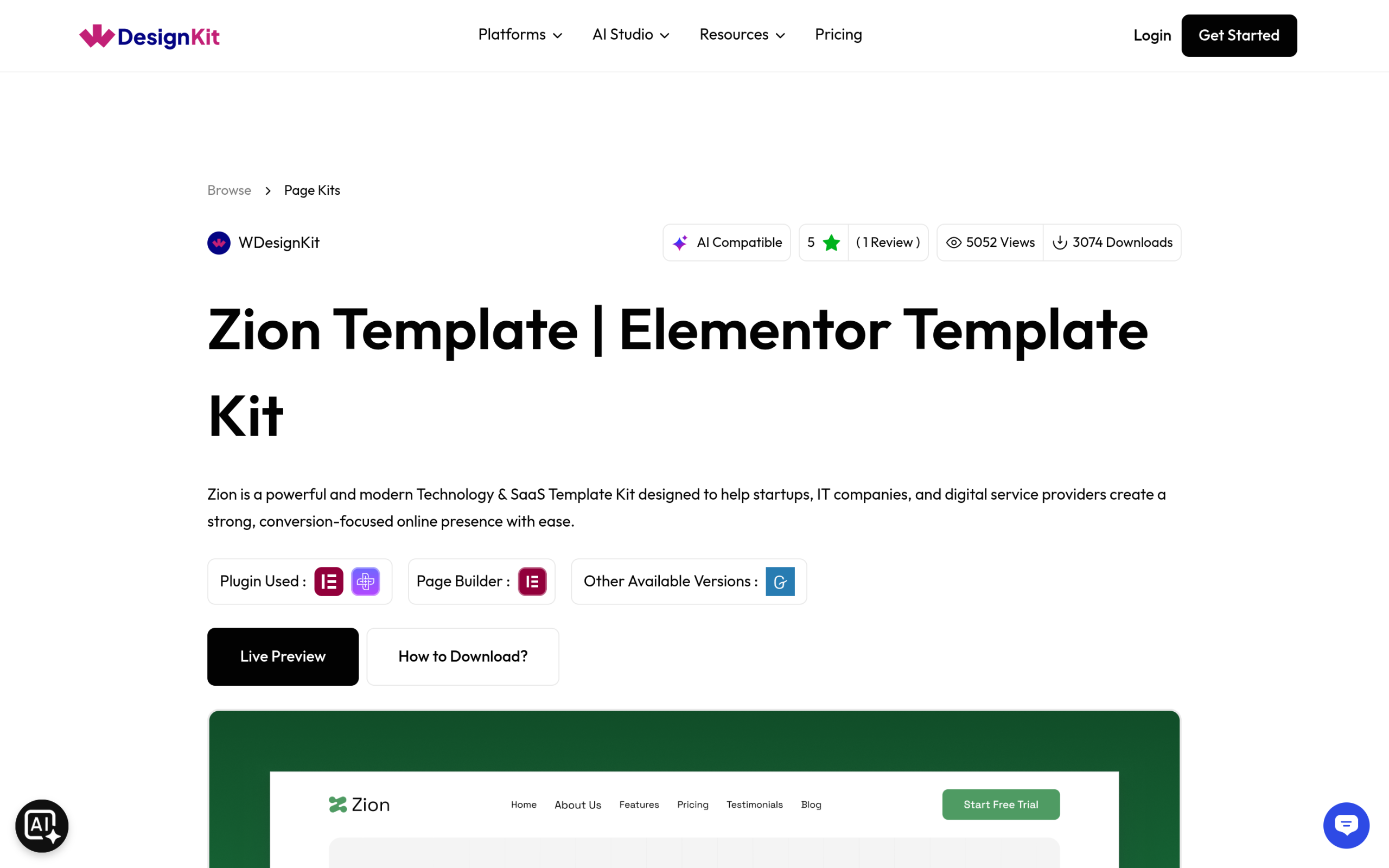
The library also carries 1,635 Gutenberg templates alongside the Elementor set. That matters for a mixed site, which is what most sites become: Elementor on the pages that need it, blocks everywhere else, and one template library covering both.
Keeping Your Rankings Intact
Because your content stays in post_content, this migration rarely causes ranking damage on its own. The risks are the ordinary ones. Keep URLs unchanged. Preserve heading structure. Do not lose internal links while rebuilding. Watch page weight, since an Elementor page usually carries more CSS and markup than the block equivalent, and a slower page can cost you positions even when the content is identical.
Note your top pages and their current positions before you begin, and check them two weeks after launch rather than the next morning. Rankings move around for reasons that have nothing to do with you, and a single day tells you very little.
It also helps to publish converted pages in small batches rather than all at once. Converting five or ten pages, checking them live and watching Search Console for a week makes any problem easy to trace back to a specific change. If a page does slip, WordPress revisions let you compare the earlier version with the new one, so you can see exactly what changed in the copy, headings or links instead of guessing.
A Post-Migration Checklist
- Every converted page keeps its original URL, and any changed URL has a 301 redirect.
- Each page still has exactly one H1, and the heading order matches the original.
- Internal links inside the rebuilt content point to the same destinations as before.
- Image alt text carried over, since rebuilt image widgets start with empty alt fields unless you set them.
- Your SEO plugin still shows the right title and description on each converted page.
- Forms submit and send notifications, because forms are usually the one element rebuilt from scratch.
- Mobile and tablet views have been checked on real devices, not just the editor preview.
Work through that list on your highest traffic pages first. If those are clean, the rest of the site almost always is too.
Suggested Reading
- Switching Page Builders in WordPress Without Losing Your Design
- Elementor to Bricks: What Transfers and What You Rebuild
- Elementor Landing Page Templates: Free Kits to Launch Your Site Faster
- Elementor Header Templates, Free and Ready to Import
Frequently Asked Questions
What should I back up before converting Gutenberg pages to Elementor?
A full database backup is the safe baseline, because the migration changes how pages are rendered even though the original Gutenberg content stays in post_content. WDesignKit Learning Center also recommends working on a staging clone if you are converting more than a handful of pages. That keeps a half-finished rebuild away from visitors and makes it easier to compare the original page with the Elementor version without risking live traffic.
Should I convert every WordPress page to Elementor or only some of them?
Only the pages that actually need Elementor usually belong in the migration. Landing pages, service pages, and other complex layouts benefit most, while blog posts often stay lighter and easier to edit in the block editor. The practical win is keeping the site mixed: Elementor where design control matters, Gutenberg where simple content is faster to maintain.
Do I need Elementor Pro for a Gutenberg to Elementor migration?
Elementor Pro matters when the migration includes site-wide templates. Theme Builder covers headers, footers, post templates, and archive templates, and the Posts widget plus Loop Builder handle custom listings. If you are only rebuilding a few marketing pages, free Elementor may be enough. If the header, footer, or archive layout is part of the job, Pro changes the scope immediately.
What is the safest way to estimate how much work a Gutenberg to Elementor migration will take?
Count patterns, not pages. A site with thirty pages built from eight repeating layouts is much easier than thirty unique designs, because each hero, testimonial row, pricing table, or call to action can be rebuilt once and reused. WDesignKit Learning Center frames this as an inventory problem: identify which pages need Elementor, which patterns repeat, which sections already exist in a template library, and which interactive elements must be rebuilt.
Will converting Gutenberg pages to Elementor hurt SEO rankings?
The migration itself is usually low risk because your content stays in post_content instead of disappearing into a private layout field. The real ranking risks are ordinary ones: changing URLs, breaking heading structure, losing internal links, or making the page heavier with extra CSS and markup. Keeping URLs unchanged and checking top pages two weeks after launch gives you a cleaner read than judging performance on day one.
Last reviewed: September 14, 2026
Author

Sagar is the Founder & CEO of POSIMYTH Innovations, with 10+ years building WordPress products trusted by 100,000+ websites globally. He has led the development of The Plus Addons for Elementor, Nexter, WDesignKit, and UiChemy, all built hands-on from concept to launch. His work focuses on making website building faster, more flexible, and accessible for creators and businesses worldwide.
Share this article