
Figma to Elementor: A Full Design Handoff Workflow
Contents
- Why Most Figma-to-WordPress Handoffs Lose Fidelity
- What Actually Transfers When You Import a Figma File Into WDesignKit
- What to Check in the Figma File Before You Start
- Step-by-Step: Figma to Elementor With WDesignKit
- Turning a Custom Figma Section Into a Reusable Elementor Widget
- Figma Import vs. Starting From an Existing Template Kit
- Agencies and Freelancers: Where This Saves the Most Time
- Common Figma-to-Elementor Handoff Mistakes (and the Fix)
- Frequently Asked Questions
- Does WDesignKit convert any Figma file, or only its own library?
- Do I need the Pro plan to use Figma Kits?
- Does this work with Bricks Builder?
- What happens to custom fonts used in the Figma file?
- Can I turn my own Figma design into a reusable widget, not just a page?
- Suggested Reading
- Author
Key Takeaways
- WDesignKit's Figma Kits library holds 60 editable Figma files, and each entry pairs with a matching Elementor or Gutenberg build before import.
- Figma-to-WordPress handoffs lose fidelity when pixel spacing, typography, and undocumented hover states get rebuilt by eye instead of carried through a shared workflow.
- WDesignKit's template importer pulls builder data directly into the page, so section structure and spacing match the source file on the first pass.
- Elementor Site Settings still need a global reset for colors and typography, while client copy, licensed imagery, and custom interactions stay manual.
- 1-Click Widget Convertor turns a custom Figma-derived section into a reusable widget, so later projects insert it by drag-and-drop instead of rebuilding it from scratch.
A client sends over a polished Figma file and asks for it live on WordPress by Friday. The colors match, the spacing looks close, and then someone zooms in on mobile and the hero section falls apart. Design and WordPress live in two different worlds, and moving between them usually means someone rebuilds the whole thing by eye. WDesignKit’s Figma-to-Elementor path is built to close that gap without the rebuild, and this guide walks through what actually carries over, what still needs a human hand, and where teams lose time when they skip the workflow.
Why Most Figma-to-WordPress Handoffs Lose Fidelity
Figma and WordPress measure things differently, and that gap is where handoffs break. Figma spacing is defined in exact pixels on an infinite canvas. A page builder like Elementor has to translate that into a responsive grid that reflows across desktop, tablet, and phone widths. Nobody tells the designer that a 48px gap looks fine at 1440px wide and cramped at 375px, so the builder either eyeballs a fix or leaves it broken.
Type is the second common failure point. A Figma file might reference a font the target WordPress install never loaded, or use a type scale with six custom sizes that nobody bothered to name consistently. Without a shared naming convention, “Heading/Large” in Figma has no obvious partner in Elementor’s typography panel, so the builder guesses at pixel values instead of reusing a system. Multiply that guesswork across a dozen headings and body styles on a real project, and the finished site drifts from the approved design in ways that are hard to point to individually but obvious once the whole page is compared side by side with the original file.
The third failure is scope creep during the rebuild. A manual Figma-to-Elementor conversion usually starts as “just rebuild the homepage” and quietly expands once someone notices the hover states, the icon set, and the color tokens were never documented anywhere. Each of those becomes a judgment call made under deadline pressure, and judgment calls made under deadline pressure are exactly where visual drift creeps in.
Picture a freelancer who gets a five-section homepage in Figma: hero, feature grid, testimonials, pricing table, and a footer CTA. Rebuilt by eye in Elementor with no reference back to the file, the hero usually lands close because it is the section everyone checks first. The feature grid is where things slip, since Figma’s auto-layout gaps rarely match Elementor’s column and gap controls one-to-one, and by the time the builder reaches the pricing table, the original spacing rhythm from the file is already gone. The client sees a site that is “close enough,” which is a polite way of saying it does not match what they approved.
What Actually Transfers When You Import a Figma File Into WDesignKit
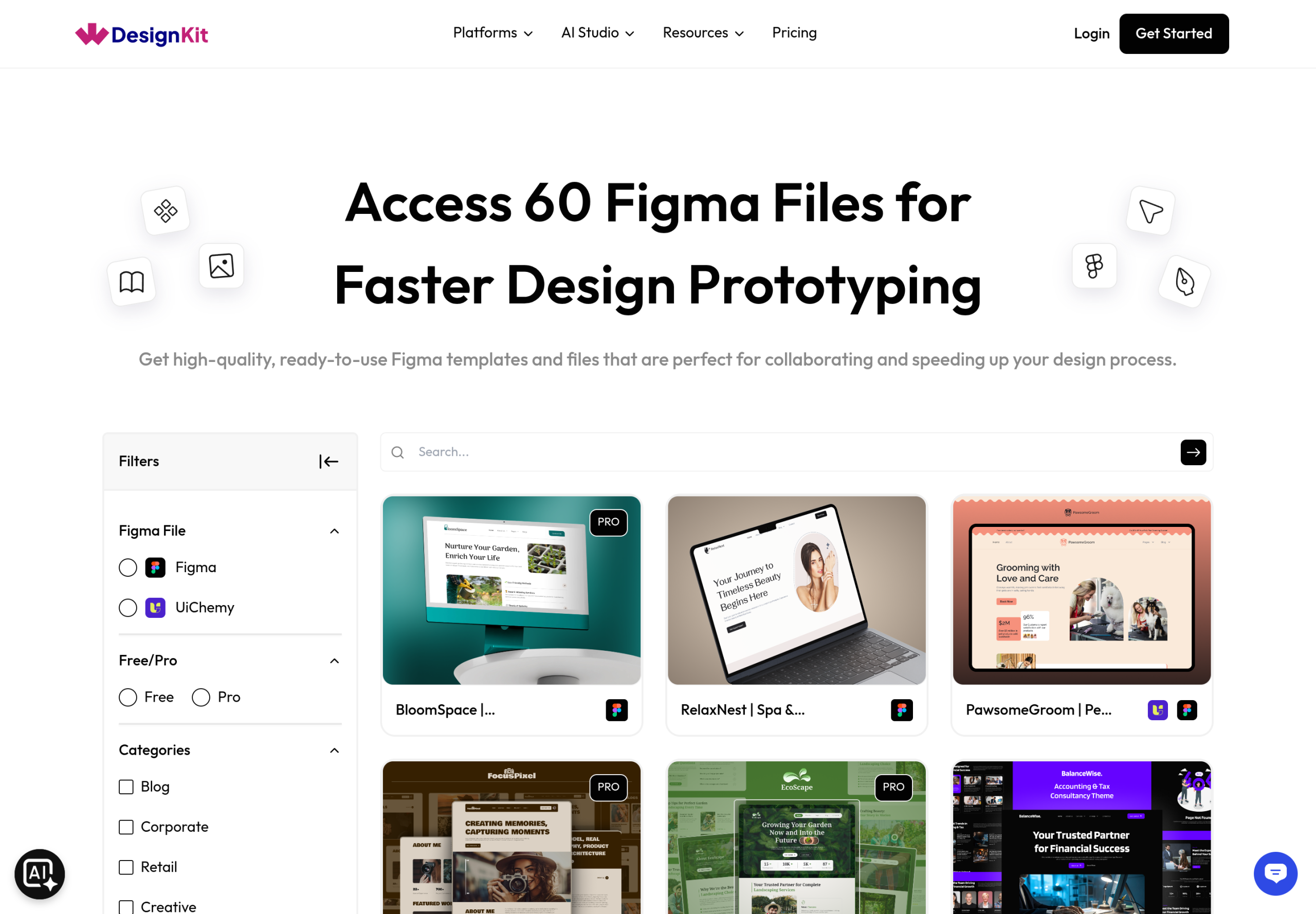
WDesignKit’s Figma Kits library holds 60 files, each one already paired with a matching Elementor or Gutenberg build rather than left as a static export. Every Figma Kits entry in the library shows which builder it targets before you open it, so there’s no guessing whether a file was actually designed with a WordPress build in mind or just dropped into the folder as a mockup.

What carries over cleanly: section structure, layout proportions, and the color palette tied to the file. Because each Figma Kits entry links to its own template record, WDesignKit can set a direct reference between the Figma source and the Elementor or Gutenberg version of the same design, so opening the WordPress template pulls in a layout built from the same proportions the designer used, not a reinterpretation of a flat export.
What still needs a pass by hand: copy specific to the client’s business, imagery licensed for their use, and any custom interaction (a hover animation, a sticky header behavior) that lives outside what the base template ships with. Global type and color settings inside Elementor still need to be set once per project so the imported sections inherit the same values instead of carrying hardcoded styles from the demo content.
What to Check in the Figma File Before You Start
A few minutes reviewing the source file before opening WDesignKit saves a rebuild pass later. Check whether the file already exists in the Figma Kits library under a different name than the client used, since matching by visual layout rather than file name catches more real matches. Note which sections use standard components (buttons, cards, navigation) versus a fully custom layout, since standard components are far more likely to have a direct widget equivalent already built. Confirm the color count: a file built on three or four core brand colors maps cleanly to Elementor’s global palette, while a file with a dozen one-off shades will need cleanup regardless of which import path is used. Finally, check whether the client’s brief actually requires pixel-exact fidelity to the Figma file or whether “close in spirit” is acceptable, since that answer changes how much time is worth spending on the responsive pass.
Step-by-Step: Figma to Elementor With WDesignKit
This is the practical sequence for going from a Figma reference to a live Elementor page without rebuilding sections from scratch.
- Browse the Figma Kits library first, not last. Filter by Free or Pro and by category before opening a client brief in Figma directly. If a close match already exists as a paired Figma-and-Elementor file, that becomes the starting point instead of a blank canvas.
- Open the matching builder template from the same kit page. Every Figma Kits entry that has a linked build shows which builder (Elementor or Gutenberg) it pairs with, so you import the actual page builder template, not just a screenshot reference to eyeball.
- Import the template into the target page. WDesignKit’s template importer pulls the builder data directly into the page, including any bundled demo content, so the section structure and spacing match the source file on the first pass.
- Reset global colors and typography to the client’s brand. Update Elementor’s Site Settings once so every imported section inherits the new palette and type scale, instead of manually recoloring each widget.
- Swap in real copy and licensed imagery. This is the one step WDesignKit does not automate, because it is specific to the client, and skipping it is the fastest way to ship a site that still looks like a demo.
- Convert any one-off Figma section that has no library match into a reusable widget. If the design has a custom component the library does not cover, WDesignKit’s Widget Builder can turn that section into a widget once, so the next project with a similar need does not start from zero either.
Turning a Custom Figma Section Into a Reusable Elementor Widget
Not every Figma section has a ready match in the template library, and that is where the 1-Click Widget Convertor earns its place in the workflow. Instead of treating a one-off design element as a throwaway build, the convertor takes a section already built in the page builder and turns it into a standalone, reusable widget with its own settings panel.
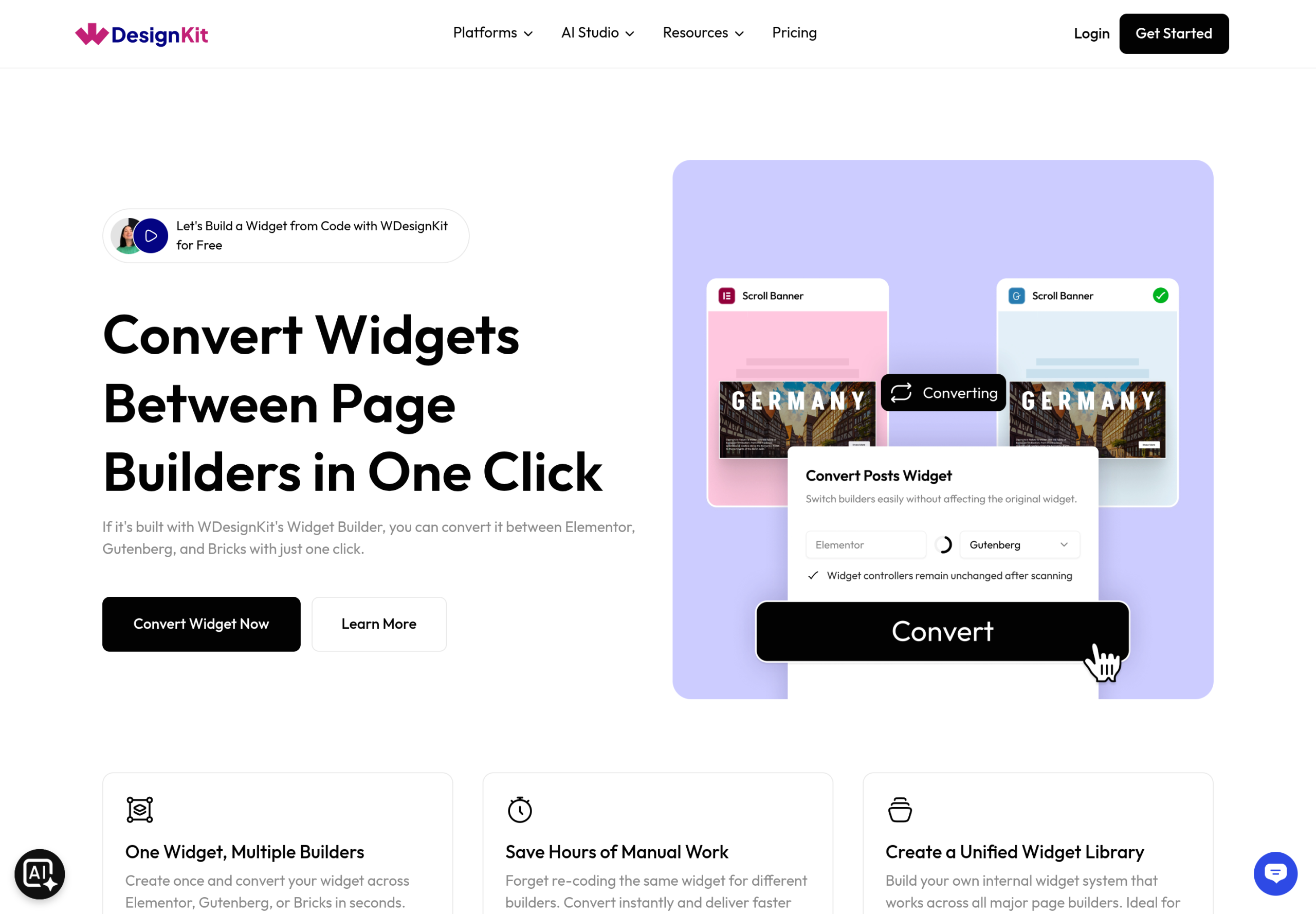
The practical benefit shows up on the second project, not the first. A custom pricing table or testimonial layout pulled from a Figma file and converted once becomes a widget with real controls, so the next time a similar layout is needed, it is a drag-and-drop insert with editable fields instead of a rebuild from the original design file. Agencies handling repeat client types, such as clinics or real estate offices, get the most out of this because the same custom sections keep recurring across briefs.
Figma Import vs. Starting From an Existing Template Kit
Importing a Figma file is not always the fastest path, and knowing when to skip it saves real time. WDesignKit’s template library carries thousands of Elementor and Gutenberg kits that need no Figma step at all.
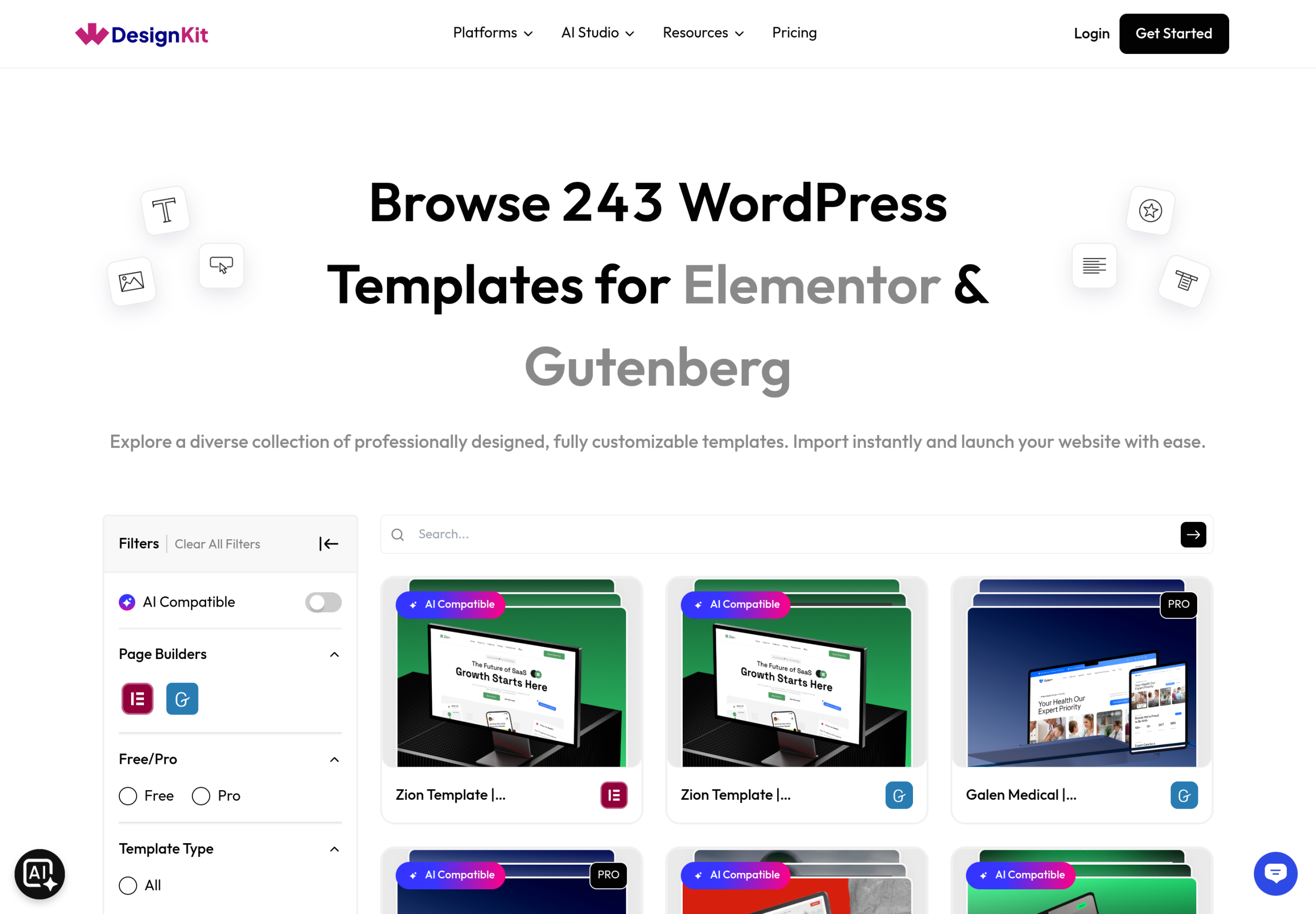
Pick a template kit directly when the client has no fixed brand direction and is open to picking from ready-made options, or when the timeline has no room for a design-approval round in Figma first. Pick the Figma-first route when a designer or the client needs to sign off on layout and color before anything touches WordPress, when the brand has specific spacing or type rules that must be checked at the design stage, or when the project is collaborative across a design team that lives in Figma day to day and WordPress is strictly the output format.
Agencies and Freelancers: Where This Saves the Most Time
The Figma-to-Elementor workflow pays off differently depending on the kind of work a team takes on. A solo freelancer taking one-off client sites benefits most from the Figma Kits library itself, since starting from a file that already has a builder pairing removes the single biggest time cost in a typical project: the first draft of the homepage. Even when the final design diverges from the starting file, having a structurally sound base to edit is faster than building section spacing decisions from nothing.
An agency handling repeat client types gets more value from the widget conversion side of the workflow. A design agency that regularly builds sites for clinics, restaurants, or local service businesses tends to reuse the same handful of custom components (a booking widget, a menu display, a service-area map) across projects with only cosmetic differences. Converting those sections into widgets the first time they show up in a Figma file turns every future occurrence into a configuration task instead of a rebuild, which compounds across a project pipeline in a way a single freelancer working on unrelated briefs will not see as clearly.
Teams that keep both a design side and a build side in-house get the clearest benefit: a linked Figma-to-Elementor file removes the handoff meeting entirely. The designer’s file and the developer’s starting point are the same object, not two separate artifacts that drift apart the moment someone starts editing.
Common Figma-to-Elementor Handoff Mistakes (and the Fix)
Mistake: exporting flat images instead of using a linked template. A designer sends PNG exports of each Figma frame, and the builder recreates every section as a fresh layout with no reference to the original spacing values. Fix: check the Figma Kits library for a matching file first, since a linked template carries structure the export cannot.
Mistake: skipping the global style reset. Sections get imported and recolored one widget at a time instead of updating Elementor’s Site Settings once. Fix: set global colors and type before touching individual widgets, so every future import already matches the brand.
Mistake: treating custom sections as one-off work every time. A unique pricing table or team-bio layout gets rebuilt from the Figma file on every project that needs something similar. Fix: convert it into a widget the first time with the Widget Convertor, so it becomes reusable instead of disposable.
Mistake: no mobile pass after import. A layout that matches the Figma desktop frame pixel for pixel still needs its own check at tablet and phone widths, since Figma auto-layout and Elementor’s responsive breakpoints do not always agree. Fix: preview every imported section at all three breakpoints before calling the page done, not just the width the Figma frame was designed at.
Mistake: forgetting to check the font license. A Figma file styled with a premium typeface looks correct in the design tool but breaks once someone assumes the same font is free to embed on a live site. Fix: confirm the font’s web license before the import step, not after the client has already approved a preview built on a typeface that cannot legally ship.
Frequently Asked Questions
Does WDesignKit convert any Figma file, or only its own library?
WDesignKit’s direct Figma-to-Elementor pairing works for the 60 files inside its own Figma Kits library, where each file already has a matching builder template linked to it. A Figma file built entirely outside that library still needs a manual rebuild in Elementor, since there is no automatic converter for arbitrary third-party Figma files today.
Do I need the Pro plan to use Figma Kits?
Some Figma Kits files are free and others are marked Pro, the same free-and-pro split used across WDesignKit’s widget and template libraries. Check the badge on each file’s detail page before planning a project around it, since availability depends on which specific kit fits the brief.
Does this work with Bricks Builder?
The Figma Kits library currently links out to Elementor and Gutenberg builds. Bricks is supported elsewhere in WDesignKit’s widget library, but the direct Figma-file pairing is scoped to Elementor and Gutenberg today.
What happens to custom fonts used in the Figma file?
Fonts referenced in a Figma file still need to be installed or connected inside WordPress (through Elementor’s typography settings or a font plugin) before the imported template will display them correctly. Import brings over the layout and the type scale relationships, not the font files themselves.
Can I turn my own Figma design into a reusable widget, not just a page?
Yes. Once a Figma-derived section is built out in Elementor, the Widget Convertor can package that specific section into a standalone widget with its own editable controls, independent of the original page it was built on.
Suggested Reading
- WDesignKit’s Figma templates and how the library was built
- What the WDesignKit template library actually covers
- The 1-click widget convertor, for turning any section into a widget
Author

Sagar is the Founder & CEO of POSIMYTH Innovations, with 10+ years building WordPress products trusted by 100,000+ websites globally. He has led the development of The Plus Addons for Elementor, Nexter, WDesignKit, and UiChemy, all built hands-on from concept to launch. His work focuses on making website building faster, more flexible, and accessible for creators and businesses worldwide.
Keep reading
Widget Builder vs Hand-Coding a Custom Elementor Widget: Time Comparison
Key Takeaways Elementor developer docs list 14 methods for a custom widget class, including register_controls(), render() and content_template(). WDesignKit Widget Builder opens with three panels, a Code Editor with HTML, CSS and JavaScript tabs, a Layout panel and a Controller panel. WDesignKit docs say the Create Widget popup asks for four items: builder, widget name, …
12 min read
Interior Design Website Templates: 5 WordPress Kits Compared
Interior design website template picks from WDesignKit: two free PlanPro kits and three Pro Space-Creators kits, compared by portfolio, process and page count.
12 min read
Construction Website Templates: 3 WordPress Kits Compared
Construction website template options from WDesignKit: BuildIQ Elevate, BuildIQ Nexus and Skyframe, compared by real page counts and the contractors each suits.
12 min read