On this page
- Table of Contents
- Table of Contents
- What a coming soon page needs to do
- Coming soon page or maintenance page?
- The 11 free Elementor coming soon sections in WDesignKit
- What each layout contains
- Layout by layout
- Coming Soon 1
- Coming Soon 2
- Coming Soon 3
- Coming Soon 4
- Coming Soon 5
- Coming Soon 6
- Coming Soon 7
- Coming Soon 8
- Coming Soon 9
- Coming Soon 10
- Coming Soon 11
- Which layout to pick
- What to write on the page
- Free and Pro options
- How to import a coming soon section into Elementor
- If elements are missing after the import
- Make the section your own
- Set up the email field properly
- Launch day: replacing the page
- Mistakes to avoid
- Check these before you go live
- Where to go next
- Frequently Asked Questions
A coming soon page holds your place while the real site is still being built. It tells visitors what is on the way, gives them one thing to do, and keeps a half-finished design out of sight. Building one from scratch in Elementor means spending design time on a page that may live for only a few weeks.
The WDesignKit library already has the layouts. It lists 11 free Elementor Coming Soon sections, numbered Coming Soon 1 to Coming Soon 11, plus three Pro coming soon pages from the BumpBlossom kit family. This guide goes through all 11 free ones, shows three of them in detail, lists the plugins they need and walks through importing one into a page.
Everything about the layouts here comes from the WDesignKit template library and the live demo of each section, checked on 13 November 2026. Where something is advice rather than a product fact, the text says so.
Key Takeaways
- WDesignKit lists 11 free Elementor Coming Soon sections, numbered Coming Soon 1 to Coming Soon 11, and each one uses Elementor and The Plus Addons for Elementor on their free plans.
- Most layouts center on a headline, a countdown in days, hours, minutes and seconds, an email field with a Subscribe button, and a logo, with some adding contact details or a photo.
- Coming Soon 2 uses a Contact Us card with email, phone and message fields instead of a countdown, while Coming Soon 7 has no countdown or email field at all.
- Coming Soon 6 places the photo on the left and shows four countdown boxes plus a Subscribe button on the right, but the first screen does not show an email field.
- The import flow requires logging into WDesignKit, enabling all widgets in The Plus Addons for Elementor, setting Flexbox Container to Active in Elementor, then replacing the demo headline, logo, text and contact details before publishing.
Table of Contents
Table of Contents
What a coming soon page needs to do
A visitor who lands on a pre-launch page wants to know three things: who you are, when you open and how to hear about it. A page that answers those three questions in a few seconds has done its job. Most of the 11 layouts are built around the same small set of parts:
- A headline that says the site is coming soon.
- A countdown in days, hours, minutes and seconds, in most layouts.
- An email field with a Subscribe button, in most layouts.
- A logo, and in some layouts contact details and a photo.
What you add on top is up to you. A launch date, one sentence about what is coming and a reason to subscribe are usually enough. Anything longer belongs on the finished site.
Coming soon page or maintenance page?
The two are easy to mix up. A coming soon page stands in for a site that has not launched yet. A maintenance page covers a live site that is briefly offline for updates. The layouts in this guide are coming soon layouts, and their copy reflects that. If you need a maintenance screen instead, change the wording before you publish, because a countdown to a launch date makes no sense on a site that is already live.
The 11 free Elementor coming soon sections in WDesignKit
All 11 are marked Free in the library and built for Elementor. Each one lists the same two required plugins: Elementor and The Plus Addons for Elementor, both on their free plans. None of them asks for a licence. Every section also links to a live demo, so you can look at the layout before you import anything.
| Section | Plan | Listing | Preview |
|---|---|---|---|
| Coming Soon 1 | Free | Library listing | Live demo |
| Coming Soon 2 | Free | Library listing | Live demo |
| Coming Soon 3 | Free | Library listing | Live demo |
| Coming Soon 4 | Free | Library listing | Live demo |
| Coming Soon 5 | Free | Library listing | Live demo |
| Coming Soon 6 | Free | Library listing | Live demo |
| Coming Soon 7 | Free | Library listing | Live demo |
| Coming Soon 8 | Free | Library listing | Live demo |
| Coming Soon 9 | Free | Library listing | Live demo |
| Coming Soon 10 | Free | Library listing | Live demo |
| Coming Soon 11 | Free | Library listing | Live demo |
What each layout contains
The table below lists what shows in the first screen of each live demo. Some demos may scroll further, so treat it as a quick filter and open the demo for the full picture.
| Layout | Countdown | Email field | Photo | Logo | Contact details |
|---|---|---|---|---|---|
| Coming Soon 1 | Yes | Yes | Illustration | No | No |
| Coming Soon 2 | No | In a Contact Us form | Yes | No | Phone field in the form |
| Coming Soon 3 | Yes | Yes | Yes | Yes | No |
| Coming Soon 4 | Yes | Yes | Yes | Yes | Yes |
| Coming Soon 5 | Yes | Yes | Yes | Yes | Yes |
| Coming Soon 6 | Yes | Subscribe button only | Yes | Yes | No |
| Coming Soon 7 | No | No | Yes | Yes | Yes |
| Coming Soon 8 | Yes | Yes | Yes | No | No |
| Coming Soon 9 | Yes | Yes | Yes | No | No |
| Coming Soon 10 | Yes | Yes | No | Yes | No |
| Coming Soon 11 | Yes | Yes | No | Yes | No |
Layout by layout
Notes on each of the 11, based on the first screen of its live demo. The best-for lines are advice.
Coming Soon 1
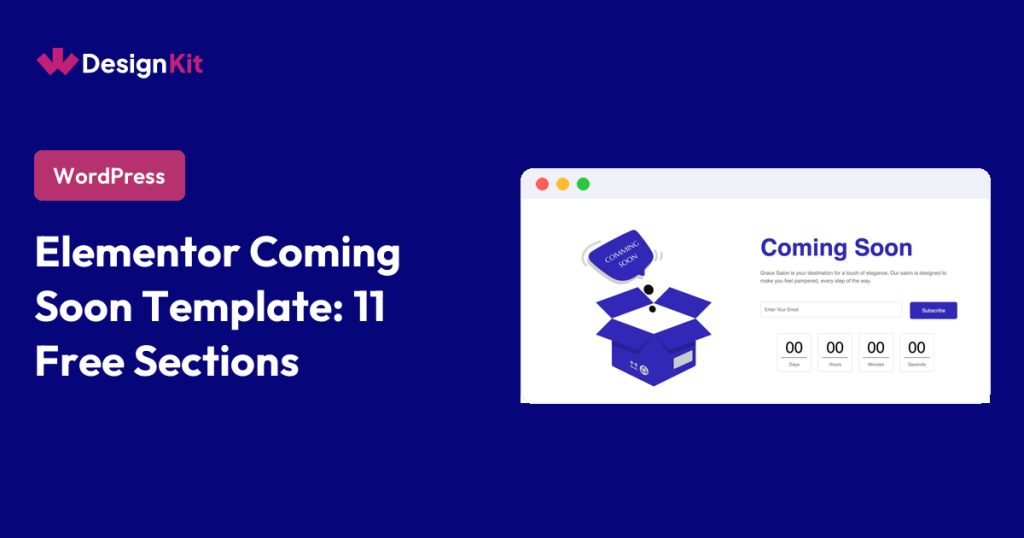
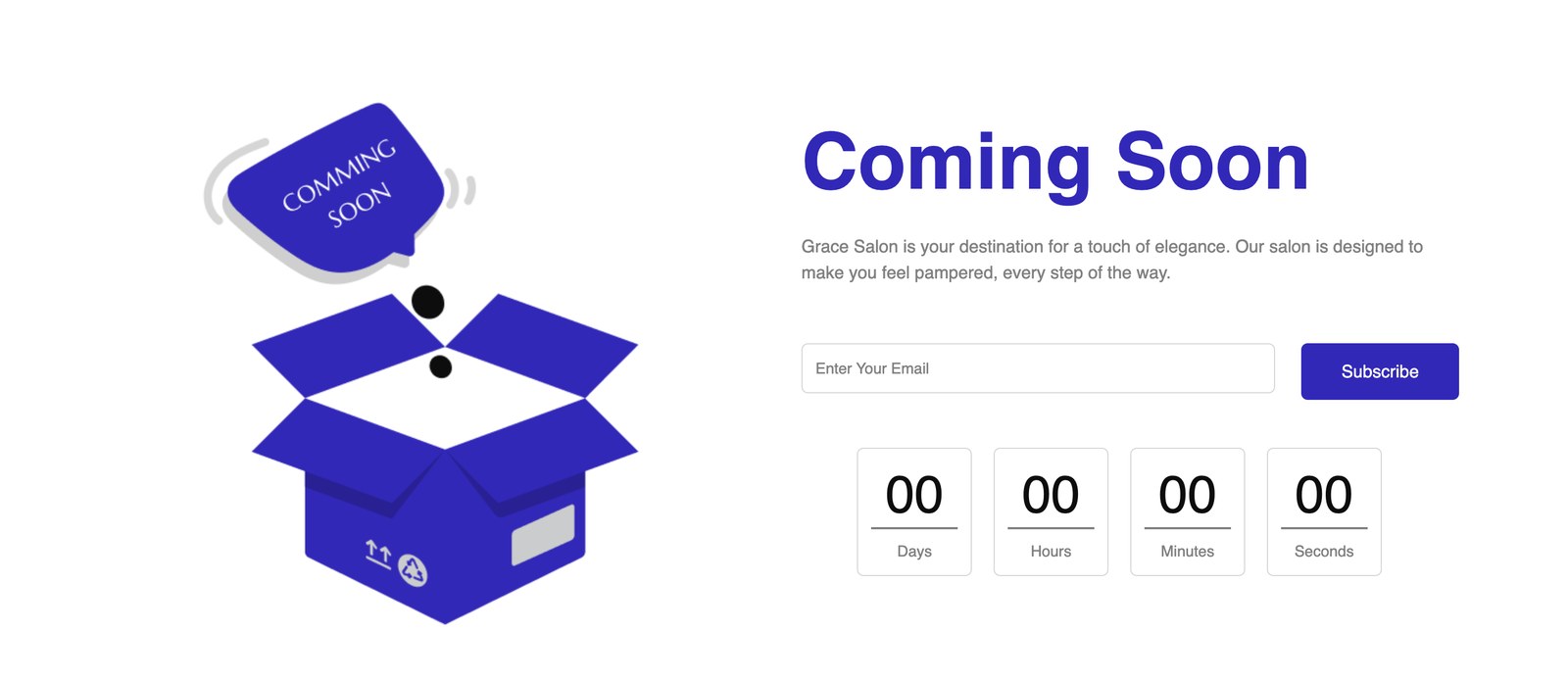
A blue illustration sits on the left. On the right are the headline, a two-line intro, an email field with a Subscribe button and four countdown boxes for days, hours, minutes and seconds. There is no photography. Best for: A brand with no images ready yet.
Coming Soon 2
A Coming Soon headline, the line “Our new website is on its way.” and a Contact Us card with email, phone and message fields and a Subscribe button, with a photo under the headline. There is no countdown in the first screen. Best for: A site where people mostly need to reach you.
Coming Soon 3
The logo, a Coming Soon headline, a countdown, a Newsletter block with an email field and a Subscribe button, and four portrait photos on the right. The demo text under the Newsletter heading is placeholder copy, so write your own. Best for: A newsletter-first launch with a date to announce.
Coming Soon 4
A digital-style countdown sits above the email field, with an email address and a phone number underneath and a photo on the right half of the page. The contact lines in the demo are placeholders. Best for: A local business that wants visitors to call or write.
Coming Soon 5
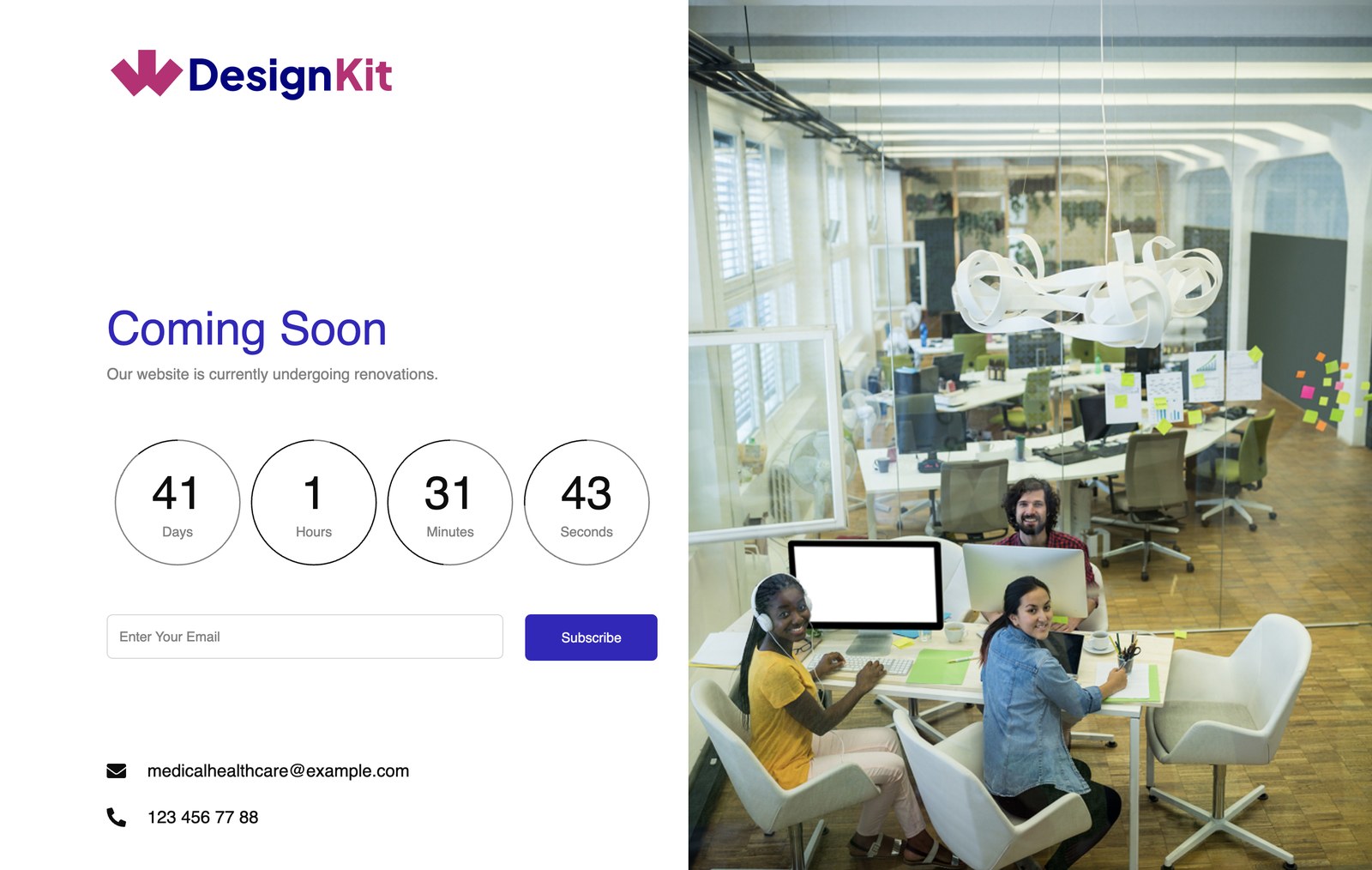
The left half holds the logo, the headline, one line of explanation, a circular countdown, the email field and an email address and phone number. The right half is a photo. The demo uses placeholder contact details, so replace them before you publish. Best for: The same job as layout 4, with a rounder look.
Coming Soon 6
The photo is on the left. The logo, a COMING SOON headline, the line “Get Ready for Something Amazing”, four countdown boxes and a Subscribe button are on the right. The first screen does not show an email field, so check the layout in the editor before you rely on it for sign-ups. Best for: A page where the photo carries the mood.
Coming Soon 7
A logo and a photo on the right, with the words “We are… Coming Soon” above a thin rule, then a support line with a phone number and an email address. There is no countdown or email field. Replace the contact details before you publish. Best for: A placeholder for a few days while you build the real site.
Coming Soon 8
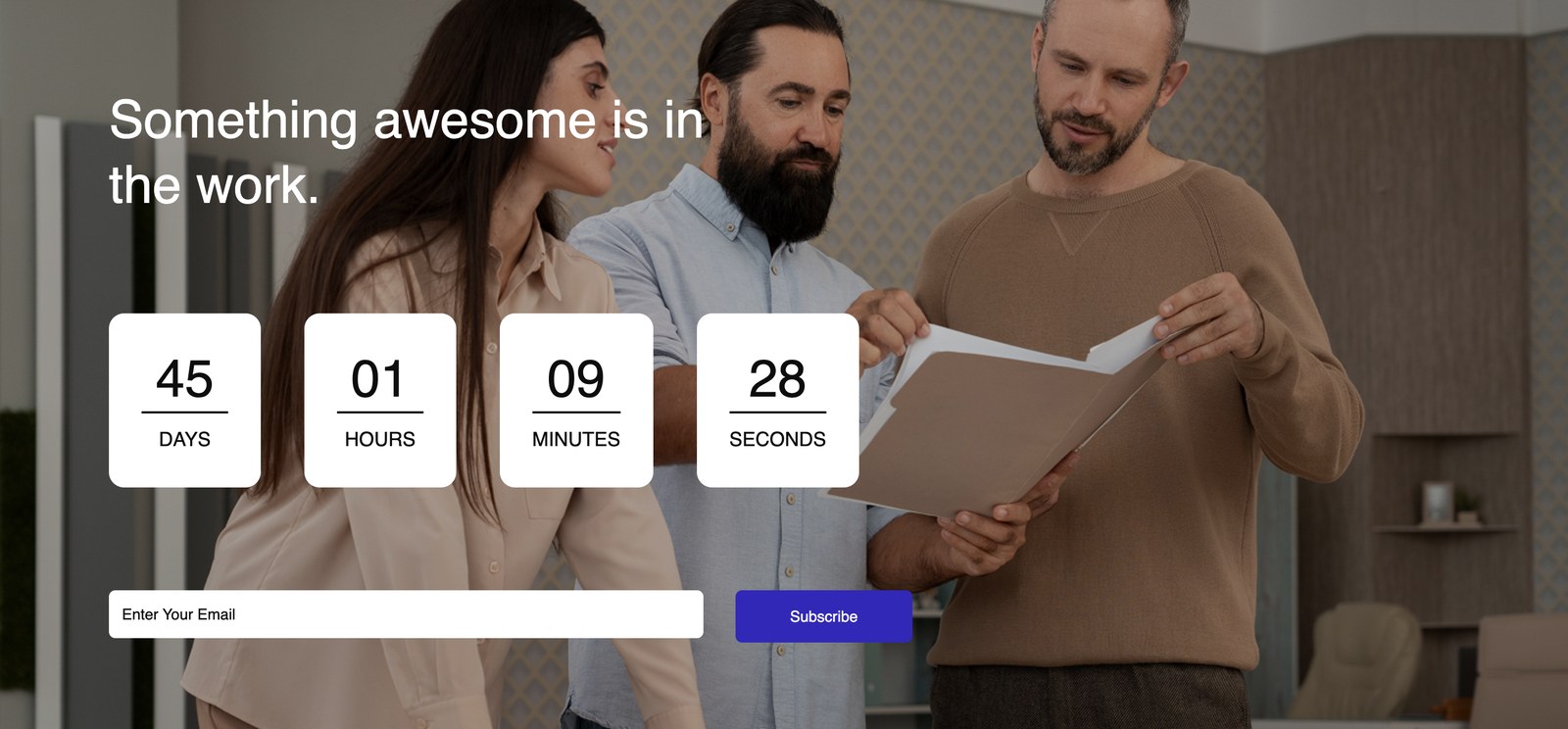
A full-width photo with the headline “Something awesome is in the work.”, four white countdown cards and an email field with a Subscribe button. Best for: A brand with one strong photo and a fixed launch date.
Coming Soon 9
A dark photo fills the top of the page with the headline over it, four white countdown cards and the email field underneath. It is the most photo-led of the set. Best for: A brand with a strong team or product photo.
Coming Soon 10
The logo is centred above a COMING SOON headline. The countdown shows four numbers separated by thin dividers, with an email field below and a line about subscribing to the mailing list or following on social media. Best for: A clean page that points people to your mailing list and social accounts.
Coming Soon 11
The countdown sits at the top, above a “We are COMING SOON” headline, a sentence about what you are preparing and the email field. The demo sentence mentions a blog magazine website, so edit it to match your site. Best for: A content site that wants a short explanation on the page.
Which layout to pick
This part is advice, not a measured result:
- No photos yet: Coming Soon 1, 10 or 11.
- Visitors may need to reach you: Coming Soon 4, 5 or 7, which show contact lines, or Coming Soon 2, which is a contact form.
- A launch date you want people to see: any layout with a countdown, which is every layout except 2 and 7.
- A strong brand photo: Coming Soon 6, 8 or 9.
- A logo, a photo and a short line: Coming Soon 7.
What to write on the page
Pick the layout first, then write the words that go in it. A few habits that help, again as advice:
- Say what is coming in one sentence. “A new portfolio for wedding photographers” tells a visitor more than “Something awesome is in the work.”
- Give a date if you have one, and if you do not, remove the countdown instead of leaving it at zero.
- Tell people what they get for subscribing, such as a launch discount or early access.
- Keep contact details real, because visitors may try them.
Free and Pro options
The 11 sections above are free. The library also lists three Pro coming soon pages, one in each of the BumpBlossom Heal, Cure and Plus Elementor kits, a beauty and wellness kit family. They need a Pro licence and The Plus Addons for Elementor Pro on top of the free plugins. If you are not sure which plan you need, the WDesignKit Free vs Pro guide lists what each tier includes.
How to import a coming soon section into Elementor
These steps follow the WDesignKit import flow and the troubleshooting checks described in our Elementor template kits guide.
- Install and activate Elementor and The Plus Addons for Elementor.
- In The Plus Addons for Elementor, go to ThePlus Settings, then Plus Widgets, and enable all widgets.
- In Elementor, go to Settings, then Features, and set Flexbox Container to Active, as the WDesignKit troubleshooting guide advises.
- Log in to your WDesignKit account from the plugin on your site.
- Open the page you want to use with Elementor. Click the WDesignKit icon, go to Templates, find the Coming Soon section you want and click its download icon.
- Replace the headline, logo, text and contact details with your own, and set the countdown to your launch date.
- Before you publish, look at the page on desktop, tablet and mobile.
If elements are missing after the import
The WDesignKit troubleshooting guide lists the usual causes: you are not logged in to your WDesignKit account from the plugin, a required plugin is not active, widgets are switched off in The Plus Addons for Elementor, or Flexbox Container is not active in Elementor. Work through them in that order and import again.
Make the section your own
Once the section is on a page, you edit it like any other Elementor layout. Click an element in the editor and change it in the panel. The parts worth changing first are the ones that identify the site:
- The headline and the line under it. Replace demo copy such as “Grace Salon is your destination for a touch of elegance”, which is the intro text in the Coming Soon 1 demo.
- The logo. Several layouts show the WDesignKit logo in the demo, so swap in your own.
- The photo, in layouts that use one. Use an image you own and compress it before you upload it, so the page loads quickly on mobile.
- The colours. The demos use a blue accent on the buttons and headline, so match them to your brand.
- The countdown date, or the countdown itself if you do not have a date yet.
Change one thing at a time and check the page after each change. If a section looks different from the demo after you edit it, undo the last change before you go further.
Set up the email field properly
A coming soon page that collects email addresses is only useful if those addresses end up somewhere you can use them. The layouts give you the field and the Subscribe button. Where the submissions go is up to you, so decide that before launch, not after. Send a test submission, confirm it arrives, and write down which tool holds the list.
It also helps to tell visitors what they will receive. One line next to the field, such as “We will email you once, on launch day”, sets the expectation and keeps your first message from feeling like a surprise.
Launch day: replacing the page
A coming soon page should go away the moment the real site is ready. Before launch, build the real pages in a draft state, review them on a phone, and keep the coming soon page live until the last check is done. Then switch. If you used a countdown, make sure the date is not still ticking after you have launched.
Keep the list you collected. Write the first email to those subscribers before launch day, not on it.
Mistakes to avoid
- Leaving the countdown at 00 days, 00 hours. It tells visitors the launch has already slipped.
- Publishing placeholder contact details from the demo.
- Using three different photo styles on one page.
- Adding a long menu. A coming soon page has one job, and every extra link competes with it.
Check these before you go live
- Remove every placeholder. The Coming Soon 4, 5 and 7 demos show example contact details, and Coming Soon 3 shows placeholder text.
- Find out where the email field sends submissions. The layout gives you the field and the button, and you connect it to your own email tool.
- Set the countdown date, then look at the page on a phone as well as a desktop.
- Log out and open the page the way a visitor would.
- Check that you can still reach your own admin area.
Where to go next
A coming soon page is one section. If you want a full set of pages for the launch, the template kits guide covers whole-site imports, and the best free Elementor templates roundup lists single pages. For header layouts, see the Elementor header templates guide. Questions about a specific layout are welcome in the WDesignKit Facebook group.
Frequently Asked Questions
Why is my coming soon page showing missing elements after I import it into Elementor?
Missing elements usually come from one of four setup problems: you are not logged in to your WDesignKit account from the plugin, a required plugin is inactive, widgets are switched off in The Plus Addons for Elementor, or Flexbox Container is not active in Elementor. WDesignKit Learning Center points to those checks in that order because they cover the most common import failures. If the page still looks wrong after that, re-importing without fixing the setup just repeats the same broken state.
Which free coming soon layout should I use if I need people to contact me instead of just waiting for launch?
Coming Soon 2 is the strongest fit when visitors need a way to reach you right away. Its first screen uses a Contact Us card with email, phone and message fields plus a Subscribe button, and it does not show a countdown up front. Coming Soon 4, 5 and 7 also surface contact details, but Coming Soon 2 is the only one built around a form, which makes it better for support-heavy or service-based launches.
Do these Elementor coming soon templates work without a Pro licence?
The 11 coming soon sections listed in WDesignKit are free and built for Elementor, and each one uses Elementor plus The Plus Addons for Elementor on their free plans. The Pro-only options are separate: three coming soon pages in the BumpBlossom Heal, Cure and Plus kits, which need a Pro licence and The Plus Addons for Elementor Pro. That split matters if you want to avoid paying before launch.
What should I put on a coming soon page so it actually does its job?
A good coming soon page answers three things fast: who you are, when you open, and how people can hear about it. The layouts in WDesignKit Learning Center are built around a headline, a countdown in most cases, an email field with Subscribe button in most cases, and sometimes a logo, photo or contact details. Short copy works best here because anything long competes with the launch message.
Which coming soon layout is best if I want a clean page with no photos yet?
Coming Soon 1, Coming Soon 10 and Coming Soon 11 are the safest picks when you do not have images ready. Coming Soon 1 uses an illustration instead of photography, while Coming Soon 10 and 11 keep the focus on logo, headline, countdown and email capture. That matters because a launch page with no strong visuals usually looks better when it stays simple rather than forcing placeholder imagery onto it.
Last reviewed: November 13, 2026
Author

Sagar is the Founder & CEO of POSIMYTH Innovations, with 10+ years building WordPress products trusted by 100,000+ websites globally. He has led the development of The Plus Addons for Elementor, Nexter, WDesignKit, and UiChemy, all built hands-on from concept to launch. His work focuses on making website building faster, more flexible, and accessible for creators and businesses worldwide.
Share this article