On this page
- Table of Contents
- What “Elementor WooCommerce Templates” Actually Covers
- What You Need Before You Start
- The Store Pages That Actually Need Styling
- Single Product Template
- Shop and Category Archive Template
- Cart and Checkout
- Why Checkout Deserves More Attention Than the Homepage
- Where WDesignKit Fits, and Where It Doesn’t Yet
- How to Set Up a Store With Elementor and WDesignKit
- What to Check on a Kit Page Before You Import
- A Pre-Launch Checklist for Elementor Store Templates
- If You Build Stores on Bricks Instead
- Honest Verdict
- Suggested Reading
- Frequently Asked Questions
Key Takeaways
- Elementor Pro’s WooCommerce Builder designs conditional Single Product and Product Archive templates, while imported marketplace kits usually cover only a homepage or landing page.
- WooCommerce runs the store at version 11.1.0 with more than 7,000,000 active installs, and Elementor’s WooCommerce Builder needs Elementor Pro 2.1 plus WooCommerce 3.4 or higher.
- Cart and Checkout use blocks by default in stores created after WooCommerce 8.3, released in November 2023, while older stores may still use the classic shortcodes [woocommerce_cart] and [woocommerce_checkout].
- Baymard Institute reports a 70.22% average cart abandonment rate across 50 studies, with extra costs at 40% and trust in card details at 19% among the top checkout problems.
- WDesignKit returns zero dedicated WooCommerce widgets out of 239 widgets, so it does not offer product card, variation swatch or checkout widgets; its role stays around homepage kits, pricing tables and mobile navigation.
Table of Contents
Search for Elementor WooCommerce templates and you mostly get two things: a marketplace bundle that calls itself a shop template but is really one homepage with a product grid attached, or an old roundup pointing at kits that no longer match how Elementor Pro builds store pages. Neither tells you what actually matters for a store: whether the layout handles a real product loop, a working cart, and a checkout that does not fight WooCommerce’s own markup.
This guide explains what a store built with Elementor genuinely needs, which of those pieces a template can give you and which need Elementor Pro’s WooCommerce Builder, why checkout deserves more attention than the homepage, and where WDesignKit fits into that build today. It also says plainly where WDesignKit does not fit yet, so you are not buying into a promise.
What “Elementor WooCommerce Templates” Actually Covers
Elementor Pro’s WooCommerce Builder is a theme builder feature, not a page template. It lets you design conditional templates once, for the single product page and for the shop and category archives, and those templates apply across the store. A WooCommerce template you import from a marketplace is almost always a homepage or landing page styled for a shop. It is not a replacement for those theme-level templates.
Confusing the two is the most common reason a beautiful shop template ships with a plain, unstyled product page underneath it. The homepage looks finished, a shopper clicks a product, and the design falls back to the theme’s default WooCommerce layout. Knowing which layer each template controls is the first step to avoiding that.
What You Need Before You Start
Three pieces of software do the work here, and each one has a clear job. WooCommerce runs the store itself: products, cart, checkout, orders and payments. It is at version 11.1.0 with more than 7,000,000 active installs on WordPress.org. Elementor handles the visual design, and Elementor Pro adds the Theme Builder and the WooCommerce Builder. Elementor’s documentation states that the WooCommerce Builder needs Elementor Pro 2.1 and WooCommerce 3.4 or higher, and that WooCommerce must be installed before any of its product widgets appear.
The third piece is optional but saves the most time: a template and widget library for the parts of the store that are not product pages. That is where WDesignKit comes in, covered in its own section below. At the time of writing, Elementor’s pricing page lists the Essential plan at $49 a year for one website with Theme Builder included, while WooCommerce and the free WDesignKit plugin cost nothing to install.
The Store Pages That Actually Need Styling
A working store is more than a homepage. These are the templates that decide whether the design holds together once a shopper starts clicking:
Single Product Template
This is the page where the buying decision happens, so it carries the most WooCommerce data. Elementor’s documentation maps each part of a product page to its own widget: Product Title, Product Price, Product Rating, Short Description, Product Stock, Add To Cart, Product Meta, Product Data Tabs, Product Images, Upsells, Product Related and Additional Information, plus WooCommerce Breadcrumbs and a Menu Cart widget that opens the cart in a window from any page. You create it under Templates, Theme Builder, Single Product, Add New, design it, publish it and choose a display condition.
One detail from the same documentation is worth knowing before you style a related products row: the Product Related widget uses WooCommerce’s related products function, which links products that share tags and categories, not the up-sells and cross-sells you set manually. If the related row looks wrong, the fix is usually your product tags, not the template.
Shop and Category Archive Template
The shop page and every product category page are archives. In Elementor Pro you build them under Templates, Theme Builder, Product Archive, Add New. This template controls the product grid, the number of columns, sorting, pagination and how each product card looks. A marketplace homepage kit does not touch it, which is why a store can look polished on the front page and generic one click later.
Cart and Checkout
Cart and checkout work differently from the rest of the store. According to WooCommerce’s documentation, stores created after WooCommerce 8.3, released in November 2023, use the Cart and Checkout blocks by default with no setup required. Older stores may still use the classic shortcodes, [woocommerce_cart] and [woocommerce_checkout].
The same documentation carries a warning that matters for anyone installing a checkout-related plugin: extensions that use hooks to add markup, such as custom checkout fields, usually need integration work to support the blocks. When an extension is incompatible, WooCommerce shows a warning and a button to switch to the Classic Checkout with one click. Test every payment gateway and checkout add-on on a staging copy before you style this page.
Why Checkout Deserves More Attention Than the Homepage
Templates sell on how the homepage looks, but revenue is lost further down the funnel. The Baymard Institute’s documented average online cart abandonment rate is 70.22%, calculated across 50 studies. Its research into why shoppers abandon during checkout points at things a store design can directly influence:
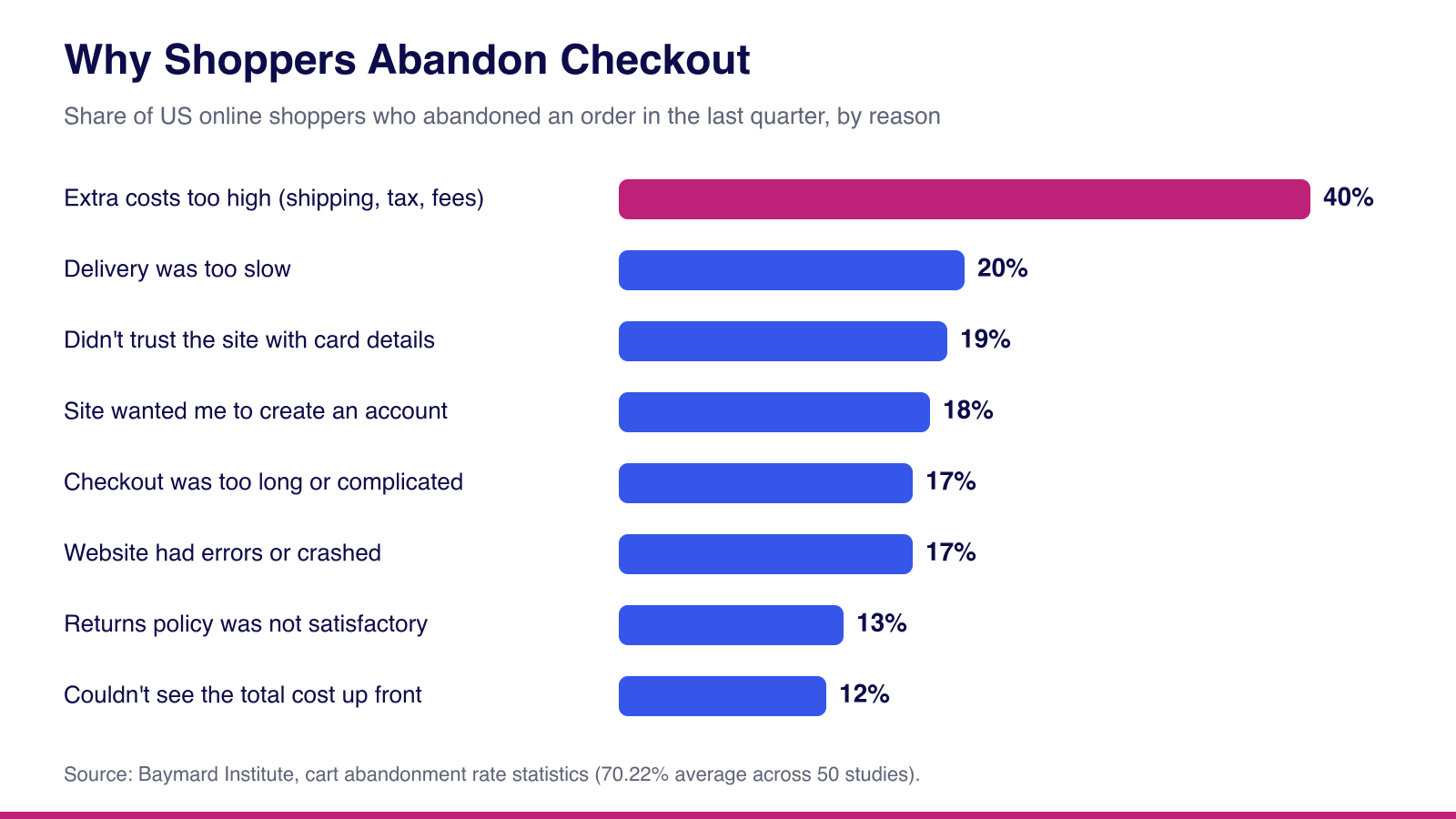
- 40% left because extra costs were too high. Show shipping estimates and taxes on the product or cart page instead of revealing them at the last step.
- 19% did not trust the site with card details. Place real payment logos and a clear returns link near the payment section, not only in the footer.
- 18% were asked to create an account. Keep guest checkout enabled in WooCommerce settings unless you have a strong reason not to.
- 17% found checkout too long or complicated. Remove optional fields and resist adding marketing blocks inside the checkout layout.
- 12% could not see the total order cost up front. A cart summary visible above the fold on mobile solves most of this.
The takeaway for template choice is simple. Judge a store template by how clearly it shows cost, trust and progress, not by how dramatic its homepage hero looks.
Where WDesignKit Fits, and Where It Doesn’t Yet
Checked live in the WDesignKit marketplace on 14 September 2026: searching the widget library for “woocommerce” returns zero dedicated widgets out of 239 widgets across Elementor, Gutenberg and Bricks. That is worth saying plainly rather than hiding behind a vague pitch. WDesignKit does not currently ship a product card, variation swatch or checkout widget, and the single product and archive templates should still be built with Elementor Pro’s WooCommerce Builder.
What WDesignKit does ship is the layer around the product pages, which is where a lot of store design time actually goes:
| Store need | What WDesignKit offers | Tier |
|---|---|---|
| Comparing plans, bundles or subscriptions | Toggle Pricing Features Table and Advanced Pricing With Toggle, each with more than 690 downloads on its Elementor listing | Free, Elementor and Bricks |
| Homepage and landing pages | 243 page kits, 2,401 full pages and 1,031 sections, split between 2,040 Elementor and 1,635 Gutenberg templates | 1,483 free, 2,192 pro |
| Mobile navigation for the store header | Toggle Menu, Mini Hamburger Menu and Full Screen Menu | Free |
| Product photography and promotions | Gallery, slider and card widgets in the wider widget library | Mixed |
| Product, cart and checkout templates | Not offered, use Elementor Pro’s WooCommerce Builder | Not applicable |
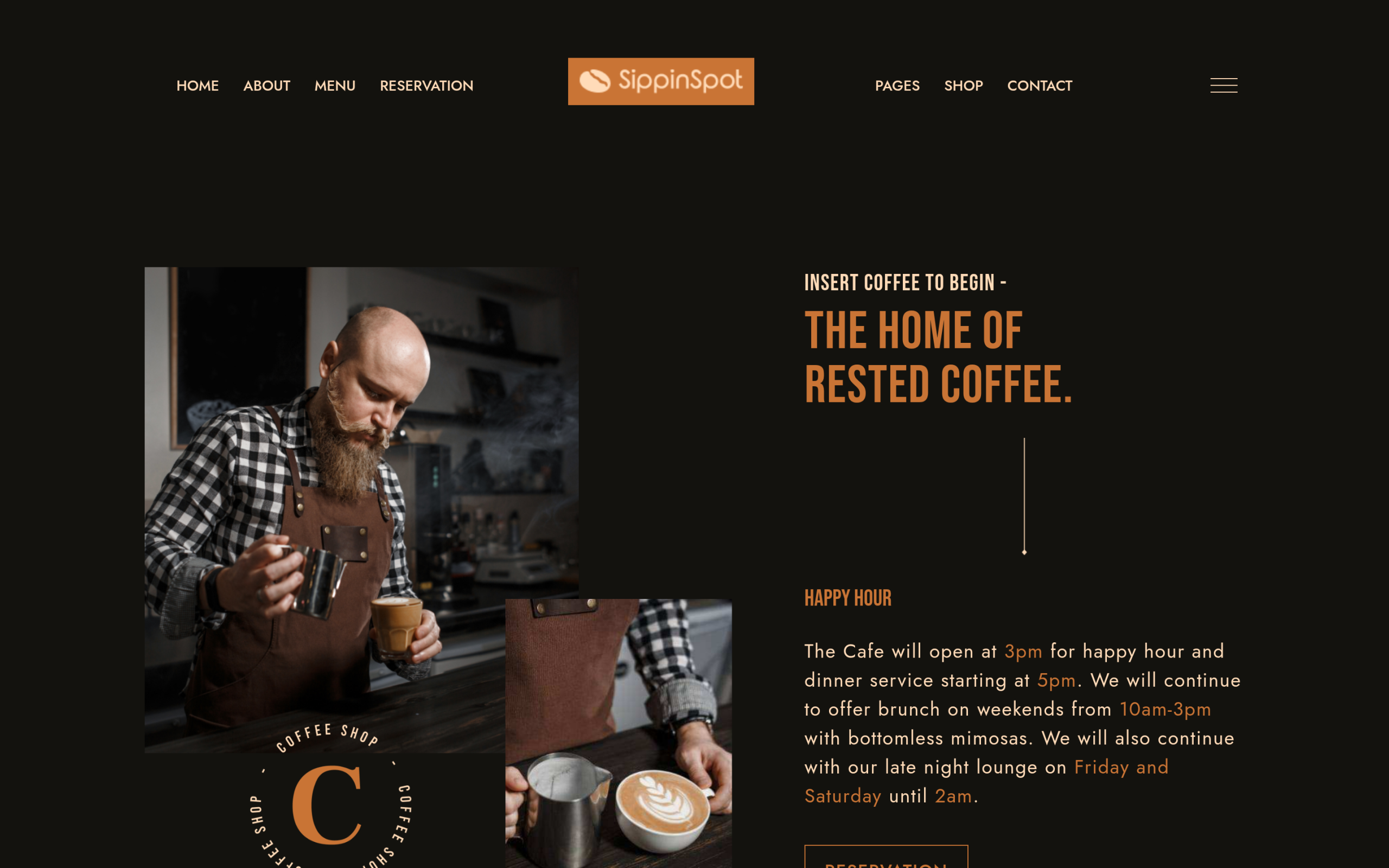
For food and hospitality stores, the SippinSpot kit is a good example of a storefront layer. It is a Pro coffee, fast food and restaurant kit available for both Elementor and Gutenberg, with a menu-forward homepage, and its feature notes mention online ordering through platforms such as WooCommerce. You import the kit for the homepage and landing pages, then connect real products and build the product templates in Elementor Pro.
Also Read: Restaurant Website Templates: 3 WordPress Kits Compared for a closer look at SippinSpot and two other food service kits.
How to Set Up a Store With Elementor and WDesignKit
- Install and activate WooCommerce first, run its setup, and add a few real products, including at least one variable product. The WooCommerce Builder widgets only appear once WooCommerce is active.
- Under Templates, Theme Builder, create a Single Product template and a Product Archive template, and set their display conditions so they apply to all products and all product archives.
- Open your homepage with WDesignKit active, browse the template library for a kit that matches your niche, and import it for the hero, featured categories and promotional sections.
- Swap the kit’s placeholder product sections for real WooCommerce content, such as a Products block or widget, so the grid pulls live inventory instead of static images.
- If you sell plans or bundles, add a pricing widget from the WDesignKit widget library and link each button to a real product or checkout URL.
- Run a full test order on mobile, from product page to thank you page, before launch. Most template-related store bugs show up at checkout, not on the pretty pages.
What to Check on a Kit Page Before You Import
Every kit in the WDesignKit library has its own page, and a few details on that page save you from importing the wrong thing into a live store:
- Page builder. Kit pages show the builder the kit was made for, and many also list other available versions, so a store running on the block editor can pick the Gutenberg version instead of forcing an Elementor kit into it.
- Plugins used. The page lists the plugins the design depends on. Install those first, or sections will import with missing pieces.
- Free or Pro. Pro kits need an active WDesignKit paid plan before they import, so check the label before you plan a launch around one.
- AI Compatible badge. Kits with this badge work with WDesignKit’s AI import, which rewrites the placeholder copy for your business details. With that filter switched on, the library showed 18 kits on 14 September 2026.
- Live preview. Open the preview on your phone before importing, because shoppers judge a storefront on mobile long before they see it on a desktop.
None of this replaces the product and archive templates, but it turns the homepage layer into a predictable, one-pass job instead of a trial-and-error import you have to undo.
A Pre-Launch Checklist for Elementor Store Templates
- A variable product shows its size or colour options and updates the price when an option changes.
- An out of stock product displays its stock status instead of a broken Add To Cart button.
- Sale prices show both the regular and sale price in a way shoppers can read at a glance.
- Related products make sense, because they are driven by shared tags and categories.
- The Add To Cart button is reachable without scrolling far on a phone.
- Every checkout extension and payment gateway works with the checkout type your store uses.
- Shipping costs and taxes are visible before the final checkout step.
If You Build Stores on Bricks Instead
Everything above assumes Elementor, but the same split between storefront layer and store templates applies to Bricks. The Bricks Academy lists dedicated WooCommerce elements, including Products, Products filter, Mini cart, Cart v2, Checkout v2, Product gallery and Add to cart, so the product and checkout templates are built natively in Bricks. Bricks is sold as a theme license, starting at $79 a year for one website on its pricing page. WDesignKit’s 91 Bricks widgets, including the free pricing tables listed above, cover the same surrounding layer there.
Also Read: Best Free Elementor Templates in 2026 (Tested) for the full free-tier breakdown outside of store-specific pieces.
Honest Verdict
If you want a download-and-go WooCommerce template, a single marketplace import will not get you there responsibly. The theme-level product and archive templates need Elementor Pro’s WooCommerce Builder regardless of which section library you use for the rest of the store, and checkout needs testing against your real extensions. WDesignKit’s role today is the surrounding layout: the homepage, category landing pages, pricing comparisons and the navigation around the product grid. That is a real gap worth knowing before you buy a WooCommerce template bundle expecting it to replace the theme builder step, and it is also where most of a store’s design hours go.
Suggested Reading
- Best Free Elementor Templates in 2026 (Tested)
- Business Website Templates: 3 WordPress Kits Compared
- Elementor Header Templates, Free and Ready to Import
- Restaurant Website Templates: 3 WordPress Kits Compared
Frequently Asked Questions
Why does a WooCommerce store built with Elementor sometimes look unfinished on product pages even when the homepage looks good?
That usually happens because the homepage template and the store templates are different layers. Elementor Pro’s WooCommerce Builder controls the single product page and the shop and category archives, while a marketplace shop template is often just a styled homepage. If those theme-level templates are missing, shoppers hit the default WooCommerce layout as soon as they click a product. The practical fix is to treat the homepage as one layer and build the product and archive templates separately.
What do I need before using Elementor WooCommerce templates on a real store?
The core stack is WooCommerce, Elementor, and Elementor Pro. WooCommerce runs products, cart, checkout, orders and payments, while Elementor Pro adds the Theme Builder and WooCommerce Builder. Elementor’s documentation says the WooCommerce Builder needs Elementor Pro 2.1 and WooCommerce 3.4 or higher, and WooCommerce has to be installed before its product widgets appear. WDesignKit Learning Center fits as an optional layer for homepage and surrounding sections, not for product or checkout templates.
Does WDesignKit replace Elementor Pro for WooCommerce product and archive templates?
No, it fills the surrounding storefront layer instead of replacing the theme builder. The page says WDesignKit does not currently ship a product card, variation swatch or checkout widget, and single product plus archive templates should still be built with Elementor Pro’s WooCommerce Builder. What it does offer is useful around those pages: homepage kits, landing pages, navigation widgets like Toggle Menu and Full Screen Menu, plus pricing widgets for plans or bundles.
Why is checkout more important than the homepage when choosing an Elementor store template?
Checkout is where revenue gets lost, so a pretty homepage does not matter much if the final step feels risky or confusing. The page cites Baymard Institute data showing a 70.22% average cart abandonment rate across 50 studies. The biggest reasons were extra costs too high at 40%, lack of trust at 19%, forced account creation at 18%, checkout being too long at 17%, and unclear total cost at 12%. That makes visible totals, trust signals and guest checkout more important than hero design.
What should I check before importing a WDesignKit kit for an Elementor store?
The kit page details matter because they tell you whether the import will actually fit your setup. Check the page builder version first, then the plugins used, whether it is Free or Pro, whether it has the AI Compatible badge, and how it looks in live preview on mobile. WDesignKit Learning Center points out that Pro kits need an active paid plan before import, and that mobile preview matters because shoppers judge storefronts there long before desktop.
Last reviewed: September 14, 2026
Author

Sagar is the Founder & CEO of POSIMYTH Innovations, with 10+ years building WordPress products trusted by 100,000+ websites globally. He has led the development of The Plus Addons for Elementor, Nexter, WDesignKit, and UiChemy, all built hands-on from concept to launch. His work focuses on making website building faster, more flexible, and accessible for creators and businesses worldwide.
Share this article