On this page
- Table of Contents
- Table of Contents
- What is an Elementor template kit?
- Kit vs full page vs section
- Why use a template kit instead of single templates?
- Find Elementor template kits in the WDesignKit library
- Use the filters
- Free and Pro template kits
- Preview the kit before you import
- Import an Elementor template kit step by step
- Step 1: Choose an import method
- Step 2: Add your website details
- Step 3: Pick fonts and colours
- Step 4: Choose features
- Step 5: Select images
- Step 6: Import
- Import one page or section instead of a whole kit
- Build your own template kit (Pagekit)
- Fix common template kit import problems
- Elements are missing after import
- An “Unauthorized Access” popup appears
- Tips for choosing the right template kit
- Elementor template kits: quick checklist
- Frequently Asked Questions
Key Takeaways
- WDesignKit imports a full Elementor template kit in one wizard, and it asks for business name, logo, fonts and colours before the site is created.
- Elementor template kits bundle core pages like home, about, services, pricing, contact and blog with shared typography, colour palette, button styles and spacing.
- WDesignKit’s library separates Page Kits, Full Pages and Sections, and the Page Kits view opens first under Templates in WordPress.
- The import wizard offers Dummy content, Wireframe layout only and AI-generated content, and AI-compatible kits can also generate starter blog posts.
- WDesignKit troubleshooting says all templates use Flexbox containers, inactive free plugins activate automatically, and premium plugins are not installed for you.
A single Elementor template gives you one page. Most client projects need five to ten: home, about, services, pricing, blog and contact, all sharing the same fonts, colours and spacing. Importing those pages one by one and restyling each one is where most of the build time goes.
Elementor template kits fix that by packaging a whole website’s pages into one set that you import together. WDesignKit’s template library is built around kits, and its import wizard goes further than a plain import: it asks for your business details, fonts and colours first, so the site arrives already branded.
This guide covers what an Elementor template kit is, how WDesignKit kits differ from single templates, how to find, preview and import one step by step, how to build your own kit for repeat projects and how to fix the most common import problems.
Table of Contents
Table of Contents
What is an Elementor template kit?
An Elementor template kit is a group of page and section templates designed as one website. Instead of mixing layouts from different designers, every page in a kit uses the same typography, colour palette, button styles and spacing, so the site looks consistent from the first import.
A typical kit includes:
- Core pages: home, about, services, pricing, contact and a blog page.
- Repeating sections: hero, features, testimonials, call to action and footer areas reused across pages.
- Shared design settings: one font pair and one colour palette for the whole site.
- Required plugins: the widgets the design depends on, such as Elementor and an addon plugin.
Kit vs full page vs section
WDesignKit sorts its whole library into three template types. Knowing the difference saves you importing more than you need.
| Template type | What you get | Use it when |
|---|---|---|
| Page Kits | A complete website kit with several pages | You are starting a new site or a full redesign |
| Full Pages | One complete page layout, such as a pricing page | You need one more page on an existing site |
| Sections | One block of a page, such as a hero or a testimonial row | You want to improve part of a page |
Kits exist for both Elementor and Gutenberg, and many are marked AI Compatible, which means WDesignKit can write the first draft of the copy for you during import.
Why use a template kit instead of single templates?
- Consistency. Fonts, colours and spacing match across every page because they were designed together.
- Speed. One import creates the pages, installs the plugins they need and applies the settings, instead of repeating the same steps per page.
- Branding at import. WDesignKit asks for your business name, logo, fonts and colours before it imports, so you are not replacing demo branding page by page afterwards.
- A clean starting point. Wireframe mode imports the layout only, with placeholder images, which suits client sites where real copy arrives later.
Find Elementor template kits in the WDesignKit library
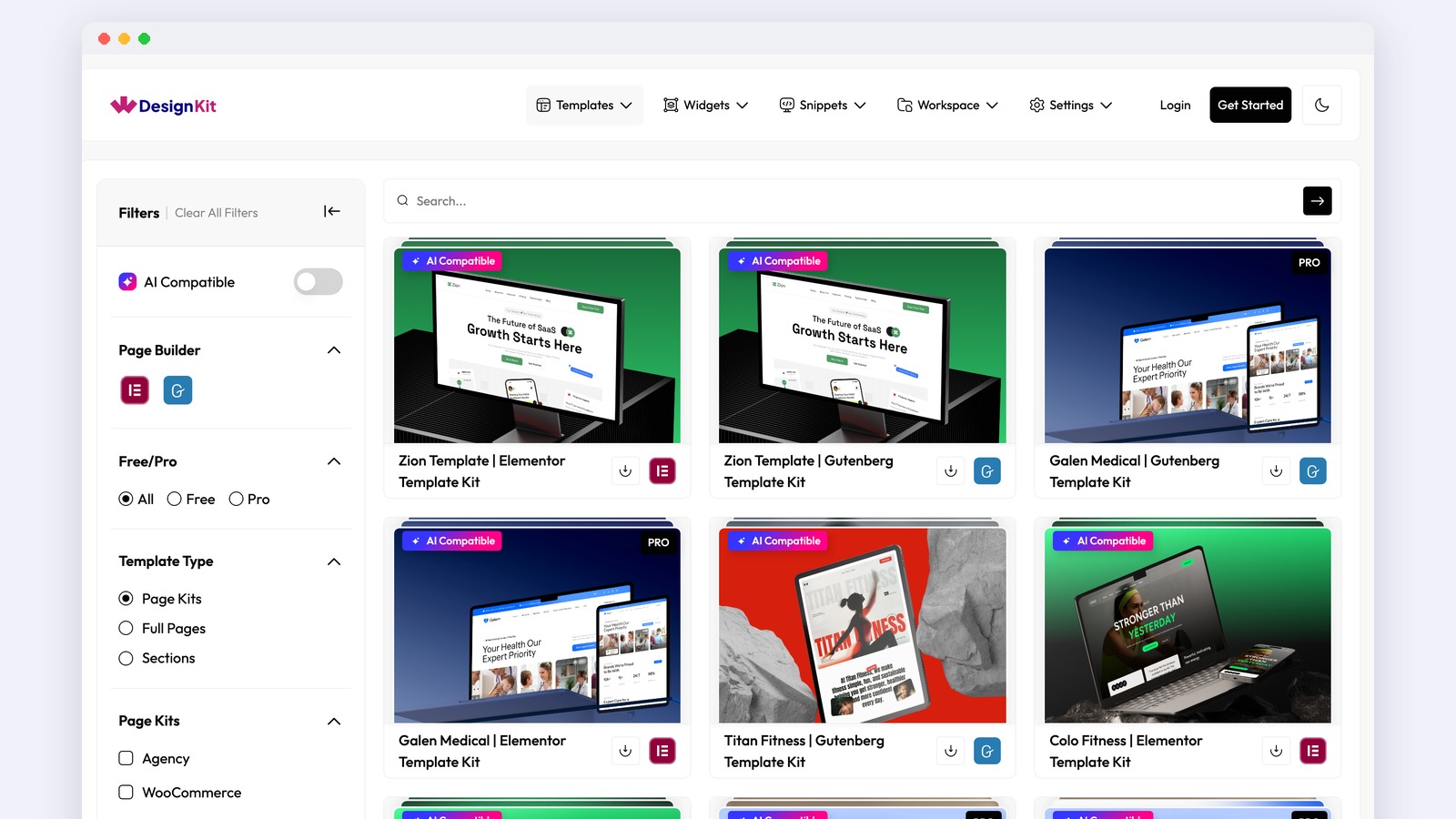
In WordPress, open WDesignKit and go to Templates. The library opens on Page Kits, so full website kits are the first thing you see.
Use the filters
The left panel narrows the list:
- AI Compatible: only kits that support AI-written content.
- Page Builder: Elementor or Gutenberg.
- Free/Pro: free kits, Pro kits or both. Pro kits carry a PRO badge on the card.
- Template Type: Page Kits, Full Pages or Sections.
- Page Kits category: Agency, WooCommerce, Creative Kit, Portfolio, Entertainment and Blog.
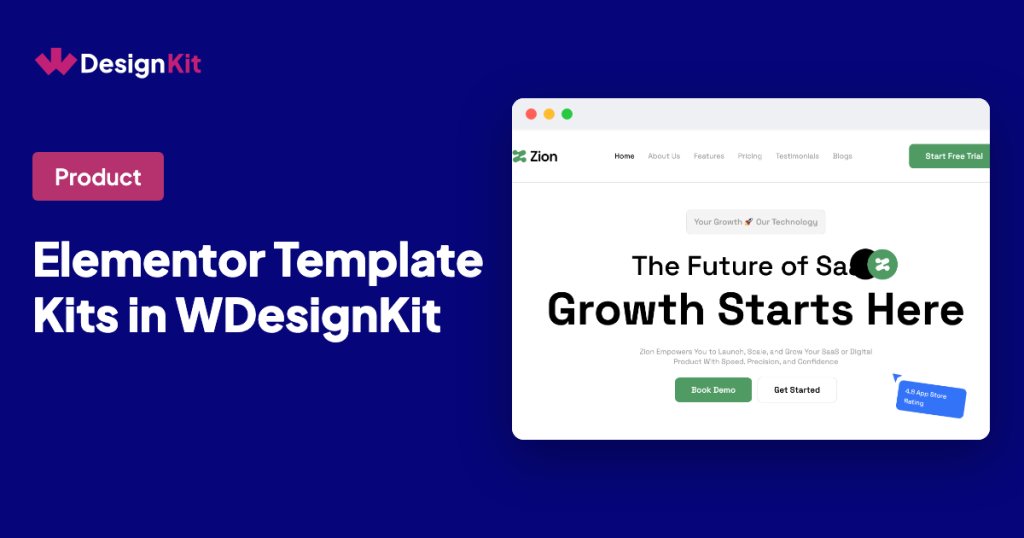
Each card shows the kit name and builder, for example “Zion Template | Elementor Template Kit” or “Galen Medical | Elementor Template Kit”, and a download icon that starts the import.
Free and Pro template kits
Searches such as “elementor template kits free” and “wordpress template kit free download” are among the most common around this topic. In WDesignKit, set the Free/Pro filter to Free to see only free kits. Pro kits need a WDesignKit Pro plan, and some depend on premium plugins. Our WDesignKit Free vs Pro guide explains what each plan includes.
Preview the kit before you import
Click the download icon on a kit. WDesignKit opens a full preview of the kit beside the import options:
- Page switcher: the dropdown at the top lists every page in the kit, such as “Landing Page | Zion Technology”.
- Device preview: the desktop, tablet and mobile icons show how each page responds.
- Import Method panel: where you choose how the content is created.
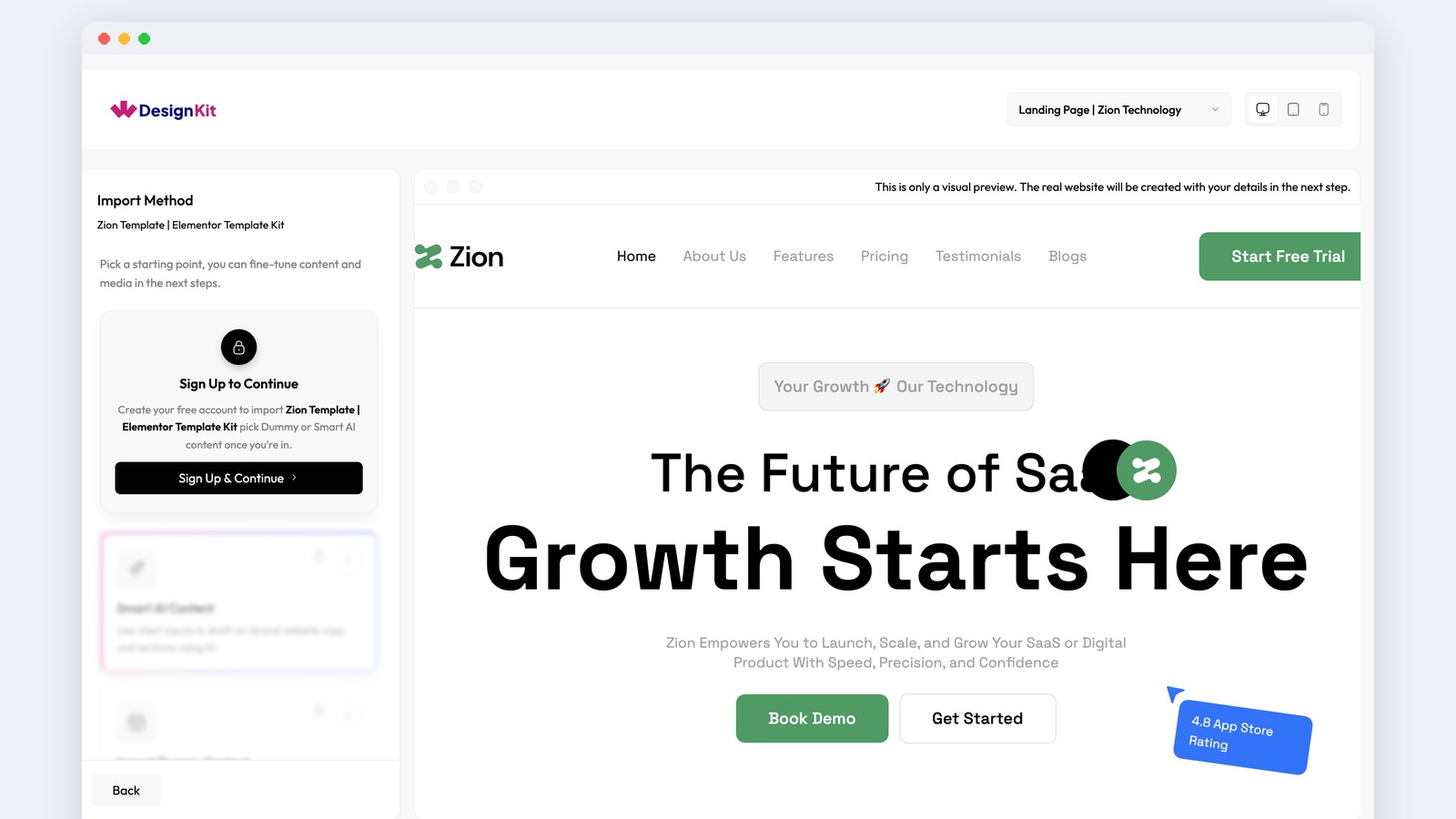
The preview is visual only. As the screen says, the real website is created with your details in the next step. To continue, sign in to a free WDesignKit account.
Import an Elementor template kit step by step
The WDesignKit import guide describes the full wizard after you pick a kit.
Step 1: Choose an import method
Pick how the content is created:
| Option | What it imports | Best for |
|---|---|---|
| Dummy content | Sample pages, text and media matching the demo | Seeing the full design as shown in the preview |
| Wireframe (layout only) | The page structure with placeholder images | Client sites where real copy comes later |
| AI-generated content | Copy written from your business details | A fast first draft you then edit |
AI-compatible kits can also generate starter blog posts. See our guide to WDesignKit AI templates for the AI options in detail.
Step 2: Add your website details
Enter the business name, tagline and logo. Address, email, phone number and social links are optional. WDesignKit uses these to fill the matching places across the kit, such as the header, footer and contact page.
Step 3: Pick fonts and colours
Choose a font pair for headings and body text and a colour palette, or add your own brand colours. Because the kit pages share one style, this single choice restyles the whole site.
Step 4: Choose features
Turn on only what the site needs: eCommerce for WooCommerce, dynamic content, performance optimisation, security tools, extras such as forms and popups, and the Nexter theme, which the docs recommend.
Step 5: Select images
Pick stock images, browse Lummi images or upload your own. Uploads can be PNG, JPEG, WebP or AVIF files up to 20 MB. Wireframe mode skips this step and uses placeholders.
Step 6: Import
WDesignKit then installs the plugins and theme, imports the content, sets up the pages and layout and finalises the settings. When it shows that your website is ready, every page is a normal Elementor page that you edit as usual.
One point from the docs to check first: inactive free plugins are activated automatically, but premium plugins are not installed for you. If a kit needs a Pro plugin you do not have, some elements may not display correctly.
Import one page or section instead of a whole kit
You do not have to import a full kit:
- From the library: switch Template Type to Full Pages or Sections and import a single layout. WDesignKit installs the plugins that layout needs, applies the settings and imports it.
- From the Elementor editor: open a page with Elementor, click the WDesignKit icon, go to Templates and click the download icon on the template you want.
- From the block editor: in Gutenberg, click Import Templates – WDesignKit at the top of the editor.
For more single-page ideas, see our roundup of the best free Elementor templates.
Build your own template kit (Pagekit)
Agencies often reuse the same set of pages across clients. WDesignKit’s Pagekit feature turns your own templates into a kit. The Create a Pagekit guide describes the flow:
- Save your pages and sections to My Templates.
- From the dashboard, go to Templates > Create New Kit.
- Add a title (required) and, optionally, a short introduction, description, features and demo URLs for Elementor, Gutenberg or Figma.
- In the Manage tab, choose the page builder, the plugins the kit needs and the section and page templates to include.
- Set visibility to Private (your workspace only, the default) or Public, add categories, tags and a featured image, then save.
The kit then appears under My Templates in the Kits tab, ready for the next project. Keep it private and share it with your team through a WDesignKit workspace.
Fix common template kit import problems
Elements are missing after import
The WDesignKit troubleshooting guide lists these checks:
- Log in to your WDesignKit account from the plugin on your site.
- Install and activate every plugin the template needs.
- Enable all widgets or blocks in those plugins. For The Plus Addons for Elementor, go to ThePlus Settings > Plus Widgets and enable all widgets.
- For Pro templates, make sure every Pro plugin licence is active on the site.
- Turn on Elementor’s Flexbox Container: go to Elementor > Settings > Features, set Flexbox Container to Active, save and import again. All WDesignKit templates use Flexbox containers.
An “Unauthorized Access” popup appears
On imported kits, this usually means a Popup Builder widget on the page has no template assigned. Edit the page with Elementor, select the Popup Builder widget, set Content Type to Template and pick a popup template labelled (container), not one labelled (page). Then update the page and test again.
Tips for choosing the right template kit
- Match the structure, not the colours. Fonts and colours change during import; the page list and section layout are harder to change later.
- Check the required plugins. Look for Pro plugins the kit depends on before you import.
- Use wireframe mode for client work so demo text never reaches a live site.
- Import on a staging or local site first if the site already has content.
- Preview on mobile. Use the device icons in the preview before you commit.
Elementor template kits: quick checklist
| Before import | After import |
|---|---|
| Pick Page Kits and Elementor in the filters | Replace placeholder or AI text with final copy |
| Preview every page on desktop and mobile | Check the header and footer on every page |
| Check required and Pro plugins | Test forms and popups on the front end |
| Decide on dummy, wireframe or AI content | Confirm Flexbox Container is active if anything looks broken |
Share the kits you build in the WDesignKit Facebook group.
Frequently Asked Questions
Why do Elementor template kits save so much time compared with importing single pages one by one?
The big win is consistency and setup speed. A template kit packages several pages together, so the fonts, colours, spacing, and shared sections are already aligned across the site. WDesignKit Learning Center also adds branding during import by asking for your business name, logo, fonts, and colours first. That means you spend less time restyling each page after import, which is where most of the build time usually disappears.
What’s the difference between a Page Kit, a Full Page, and a Section in WDesignKit?
Page Kits are for a complete website with several pages, Full Pages are for one complete page layout like a pricing page, and Sections are for one block such as a hero or testimonial row. That distinction matters because it keeps you from importing more than you need. WDesignKit Learning Center sorts the library this way so you can match the template type to the job instead of rebuilding or deleting extra content later.
Why are some elements missing after importing a template kit?
Missing elements usually point to a plugin or feature mismatch. The page says inactive free plugins are activated automatically, but premium plugins are not installed for you, so any Pro dependency has to already be available on the site. Another common issue is Elementor’s Flexbox Container setting being off. All WDesignKit templates use Flexbox containers, so if that feature is inactive, parts of the layout can break or disappear.
Can I import just one Elementor page or section instead of a whole kit?
That’s built into WDesignKit. From the library, switch Template Type to Full Pages or Sections and import only the layout you need. You can also do it inside Elementor by opening a page with Elementor and using the WDesignKit icon, or inside Gutenberg with Import Templates – WDesignKit at the top of the editor. This is useful when an existing site only needs one new page or one section refresh.
Last reviewed: November 5, 2026
Author

Sagar is the Founder & CEO of POSIMYTH Innovations, with 10+ years building WordPress products trusted by 100,000+ websites globally. He has led the development of The Plus Addons for Elementor, Nexter, WDesignKit, and UiChemy, all built hands-on from concept to launch. His work focuses on making website building faster, more flexible, and accessible for creators and businesses worldwide.
Share this article