On this page
- Why Elementor Sites Get Slow
- How to Actually Check Your Site’s Speed
- Fix 1–3: Hosting, Caching, and Image Compression
- Fix 4–5: Trim Unused Widgets and Lazy-Load Below the Fold
- Elementor-Specific Settings Worth Turning On
- Fix 6–7: Start From a Lightweight Template
- Hosting Checklist for Elementor Sites
- Common Speed Myths About Elementor
- What to Expect After Making These Changes
- A Simple Speed Audit You Can Run Today
- Frequently Asked Questions
- Suggested Reading
A slow Elementor site is almost never Elementor’s fault. It’s usually the hosting, the images, or a template that was never built with performance in mind. I’ve pulled a real PageSpeed Insights run on one of WDesignKit’s own live template demos below so this isn’t just theory: it’s what a properly optimized Elementor page actually scores. Here are the seven fixes that make the real difference, in the order I’d actually do them, plus how to check your own results before and after.

Why Elementor Sites Get Slow
Three things cause almost every slow Elementor site: cheap shared hosting with no server-side caching, uncompressed full-resolution images straight from a phone camera, and a template stacked with widgets, animations, and custom CSS the page doesn’t actually need. None of these are Elementor problems. They’re setup problems, and all three are fixable without touching a line of code. It’s worth saying plainly because Elementor gets blamed for slow sites constantly, usually by people comparing a heavily customized Elementor page against a bare-bones static HTML page, which was never a fair comparison to begin with. A well-built Elementor page, on good hosting, with compressed images, performs just as well as anything else on WordPress.
Also Read: Elementor Landing Page Templates for kits built with performance in mind from the start.
How to Actually Check Your Site’s Speed
Before changing anything, get a real baseline. Go to Google PageSpeed Insights, enter your page URL, and run the test on both mobile and desktop (mobile is the stricter, more important number since most traffic is mobile). Look at three numbers specifically: Largest Contentful Paint (LCP, how long the biggest visible element takes to load: aim under 2.5 seconds), Cumulative Layout Shift (CLS, how much the page jumps around while loading: aim near 0), and the overall Performance score out of 100. Run the test again after each fix below so you know which change actually moved the needle, rather than guessing.
Fix 1–3: Hosting, Caching, and Image Compression
- Hosting: shared hosting with no server-level caching is the single biggest cause of slow Time to First Byte on Elementor sites. A managed WordPress host or a VPS with object caching (Redis or Memcached) fixes this before you touch anything else, often cutting server response time by more than half on its own.
- Page caching: a caching plugin (or your host’s built-in cache) turns a PHP-rendered page into a static file for repeat visitors, and this alone can cut load time in half. Make sure the cache actually excludes logged-in users and cart/checkout pages if you run WooCommerce, so you don’t accidentally serve stale content.
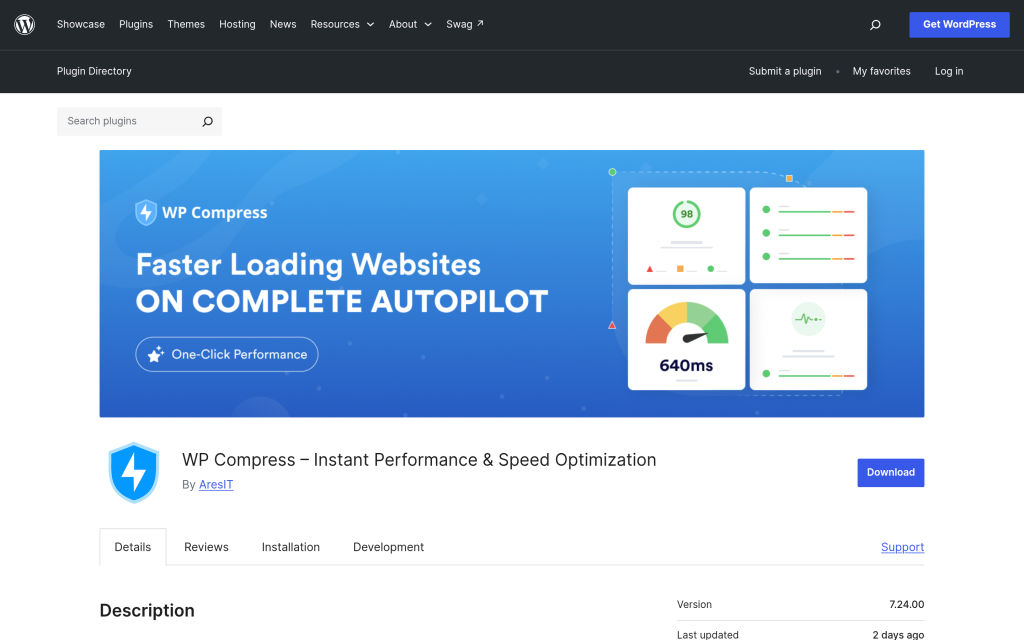
- Image compression: this is the one most people skip. A plugin like WP Compress automatically compresses and serves next-gen formats (WebP/AVIF) without you manually resizing every photo before upload. Uncompressed hero images are consistently the single largest file on a slow Elementor page, sometimes 5-10x larger than they need to be.
Fix 4–5: Trim Unused Widgets and Lazy-Load Below the Fold
Every Elementor widget you drop on a page loads its own CSS and JS, even if you use it once. Elementor’s own Experiments panel (Elementor → Settings → Experiments in your dashboard) lets you turn on “Improved CSS Loading” and “Improved Asset Loading” so only the widgets actually used on a page load their assets, instead of every widget in the whole plugin loading on every page. This alone can meaningfully cut page weight on widget-heavy pages. Pair that with lazy-loading every image below the fold (most modern themes and image-optimization plugins do this automatically now), and make sure background images and video embeds are lazy-loaded too, since those are easy to miss.
Elementor-Specific Settings Worth Turning On
- Improved CSS Loading: loads only the CSS a page actually needs instead of one large stylesheet everywhere.
- Improved Asset Loading: the same idea applied to JavaScript, per widget.
- Optimized Gutenberg Markup: reduces extra wrapper divs Elementor sometimes adds around native blocks.
- CSS Print Method: External File (under Elementor → Settings → Advanced): lets the browser cache your CSS separately instead of re-downloading it inline on every page.
- Lazy Load Background Images: often missed because background images are set via CSS, not a normal image tag, so standard lazy-load plugins can skip them entirely.
Fix 6–7: Start From a Lightweight Template
The fastest fix is the one you make before you start building: pick a template that wasn’t overbuilt in the first place. Here’s a real, live example: a Google PageSpeed Insights run (mobile) on WDesignKit’s own Titan Fitness Elementor demo, tested this week:
| Metric | Score / Value |
|---|---|
| Performance (mobile) | 99 / 100 |
| Largest Contentful Paint (LCP) | 1.12s |
| Cumulative Layout Shift (CLS) | 0 |
| Best Practices | 96 / 100 |
That’s not a cherry-picked marketing number: it’s what a genuinely lightweight template kit scores before you’ve added a single optimization plugin. Starting from a kit built like that, instead of a heavier general-purpose theme, means you’re not fighting the template itself just to hit a decent score. A heavy starter theme can easily add a full second of load time before you’ve placed a single widget, just from unused CSS and JS the theme ships with by default.
Hosting Checklist for Elementor Sites
- PHP 8.1 or newer (older PHP versions are measurably slower and often unsupported).
- Server-level object caching (Redis or Memcached), not just a page-caching plugin.
- A CDN in front of your images and static assets.
- HTTP/2 or HTTP/3 support (most modern hosts have this by default, but it’s worth confirming).
- A hosting plan with headroom, not one running at near-100% resource usage during normal traffic.
Also Read: Business Website Templates for more lightweight kits outside the fitness category.
Common Speed Myths About Elementor
A few claims come up constantly and are worth addressing directly. “Elementor is inherently slower than Gutenberg” is not really true once both pages are built with the same discipline: the gap people notice usually comes from a widget-heavy Elementor page being compared against a plain Gutenberg page with almost no design work, which is not a fair test. “You need a page builder with no visual editor to get a fast site” is also overstated: plenty of fast, high-scoring sites are built entirely in Elementor, including the Titan Fitness demo referenced above. And “caching plugins fix everything” is only half true: caching helps repeat visitors and logged-out traffic, but it does nothing for the first visit to an uncached page, which is exactly where image compression and lean templates matter most.
What to Expect After Making These Changes
Realistically, hosting and caching fixes tend to produce the biggest single jump in your PageSpeed score, often 20-40 points if you started on cheap shared hosting. Image compression is usually the second-biggest jump, especially on pages with several full-width photos. Trimming unused widgets and enabling Elementor’s asset-loading experiments produce a smaller but still meaningful improvement, typically single digits to low teens in score, and matter more on pages with a lot of widgets stacked on top of each other. None of these fixes are one-time either: new images get added, new widgets get dropped onto pages, and hosting plans get outgrown, so it’s worth re-running PageSpeed Insights every few months rather than treating a good score as permanent.
A Simple Speed Audit You Can Run Today
- Run PageSpeed Insights on your homepage and your busiest inner page, not just one page, since results can vary a lot between page types.
- Check your largest image’s file size in the media library; anything over 500KB for a hero image is worth compressing.
- Count the widgets on your slowest page. More than 15-20 widgets on one page is usually a sign it’s doing too much and could be split or trimmed.
- Ask your host directly whether you have object caching (Redis or Memcached) enabled. If they can’t answer clearly, that’s itself a signal to consider switching.
- Re-run the test after each change and keep a simple before/after log so you can see which fix actually moved your score.
None of this requires developer help. It’s the same checklist WDesignKit’s own team runs before publishing a new template kit demo, which is exactly how the Titan Fitness page referenced earlier ended up scoring 99 out of 100 on mobile.
One last thing worth saying plainly: speed is not a one-and-done project, and it is not purely a technical exercise either. A fast site that loads a confusing layout or a schedule nobody can find still loses the visitor, just more slowly than a slow site would have. Treat the fixes above as the foundation, not the finish line, and put the same attention into making sure the fast page actually says what you need it to say.
Frequently Asked Questions
Why is my Elementor site slow even when the design looks simple?
The usual culprits are cheap shared hosting with no server-side caching, uncompressed full-resolution images, and a template loaded with widgets, animations, and custom CSS the page does not need. WDesignKit Learning Center frames this as a setup problem, not an Elementor problem. The practical takeaway is that speed issues often come from what sits under the page, not from the page builder itself.
What should I fix first to speed up an Elementor website?
Hosting is the first place to look because shared hosting with no server-level caching is called out as the single biggest cause of slow Time to First Byte on Elementor sites. A managed WordPress host or a VPS with object caching addresses that before you touch layout work. That matters because if the server is slow, image tweaks and widget cleanup will not fully solve the bottleneck.
Does page caching actually help Elementor performance?
Page caching helps because it turns a PHP-rendered page into a static file for repeat visitors. The page says that alone can cut load time in half, which is why caching is one of the highest-impact fixes in the tutorial. If your host already includes cache, that can do the same job as a plugin for this part of the stack.
What is the easiest way to compress Elementor images without resizing everything manually?
A plugin like WP Compress handles automatic image compression and serves next-gen formats like WebP and AVIF. That matters because uncompressed phone-camera images are one of the biggest reasons Elementor pages get heavy. The real win here is removing manual prep work before upload, which makes image optimization much easier to keep up over time.
Should I start from a lightweight Elementor template or build from scratch for better speed?
Starting from a lightweight template is the fastest route if performance matters, because it avoids fighting an overbuilt design later. The page gives a real example: WDesignKit’s Titan Fitness Elementor demo scored 99/100 for Performance on mobile, with LCP at 1.12s and CLS at 0 in Google PageSpeed Insights. That kind of baseline means you begin with less weight before adding anything else.
Last reviewed: September 16, 2026
Suggested Reading
- Bricks Builder Templates
- Elementor to Bricks: Full Migration Guide
- How to Switch Page Builders in WordPress
- Best Free Elementor Templates
Author

Sagar is the Founder & CEO of POSIMYTH Innovations, with 10+ years building WordPress products trusted by 100,000+ websites globally. He has led the development of The Plus Addons for Elementor, Nexter, WDesignKit, and UiChemy, all built hands-on from concept to launch. His work focuses on making website building faster, more flexible, and accessible for creators and businesses worldwide.
Share this article