On this page
- Table of Contents
- 📌 This Month at a Glance
- 🎨 Why Start From an AI-Compatible Kit Instead of a Blank Page
- 🧩 The Widget Builder Works the Same Way, One Component at a Time
- 🎉 What Actually Shipped in August
- 📦 Release by Release: 2.6.3, 2.6.4 and 2.6.5
- 🔒 Security Hardening You Get Without Doing Anything
- 📊 Optional Data Sharing, Explained
- 🧰 Fixes Worth Knowing About
- 🤖 How the MCP Connection Actually Works
- ✅ How to Update Safely
- 🛠️ Tool of the Month: Photopea
- 👀 What’s Next
- 🚀 Try It This Week
- Frequently Asked Questions
Key Takeaways
- WDesignKit shipped 3 releases in August: 2.6.3, 2.6.4 and 2.6.5.
- The template library highlights 4 AI-compatible kits, each individually verified: Zion Template, Rome Technology, Colo Fitness and Taj Bakery.
- The template importer now automatically preserves globals such as button styles, radius, shadows and animations.
- The Widget Builder creates components via MCP from a natural-language description and works with Elementor, Gutenberg or Bricks.
- Version 2.6.4 adds optional data sharing, off by default, and it does not share personal data, the licence key or page content.
Table of Contents
Most builders don’t open WDesignKit’s settings page and read a changelog. They open it because they need a page built by Friday. So instead of a list of what shipped, here’s what actually changes about how you’d use WDesignKit this week, starting with the part most people underuse, and then a full release-by-release breakdown for anyone who wants the detail.
📌 This Month at a Glance
- 📦 3 releases shipped (2.6.3, 2.6.4, 2.6.5)
- 🎨 4 AI-compatible kits featured this month, each individually verified
- 🧩 4 widgets worth pulling into your next build
- ⚡ Widget loading now cached instead of scanned from disk on every request
- 🔒 Security hardening across widget import, image downloads and ability permissions
🎨 Why Start From an AI-Compatible Kit Instead of a Blank Page
Every kit in WDesignKit’s template library isn’t just a pre-designed layout, a subset of them are tagged AI Compatible, meaning they’re built to work with WDesignKit’s AI and MCP tooling as that side of the product keeps expanding. That’s a different starting point than picking a theme from scratch. The AI Compatible badge and browse filter arrived in version 2.6.2 at the end of July, and with that filter switched on, the library showed 18 kits in mid-September.
Here’s what that looks like with four kits from the library this month, each one checked individually on its own page to confirm it actually carries the “AI Compatible” badge:

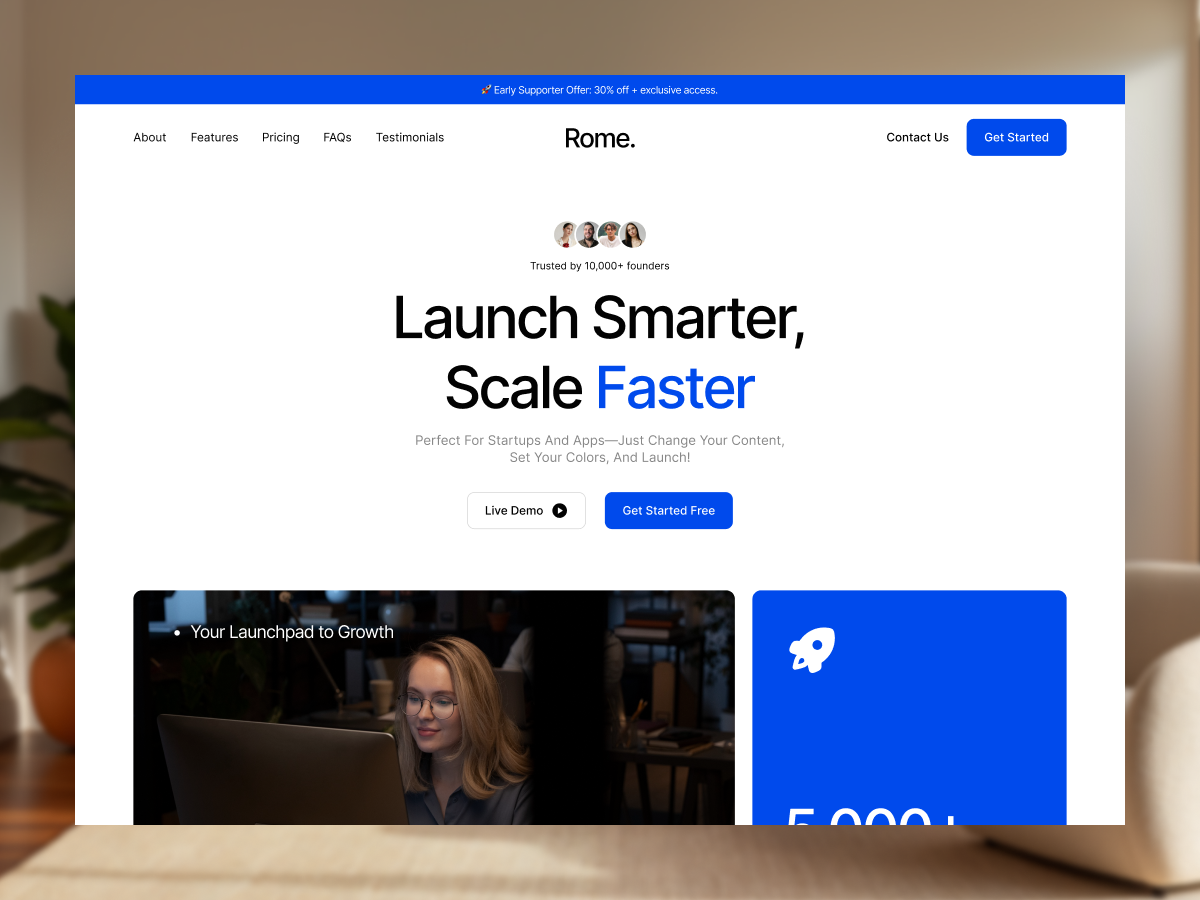
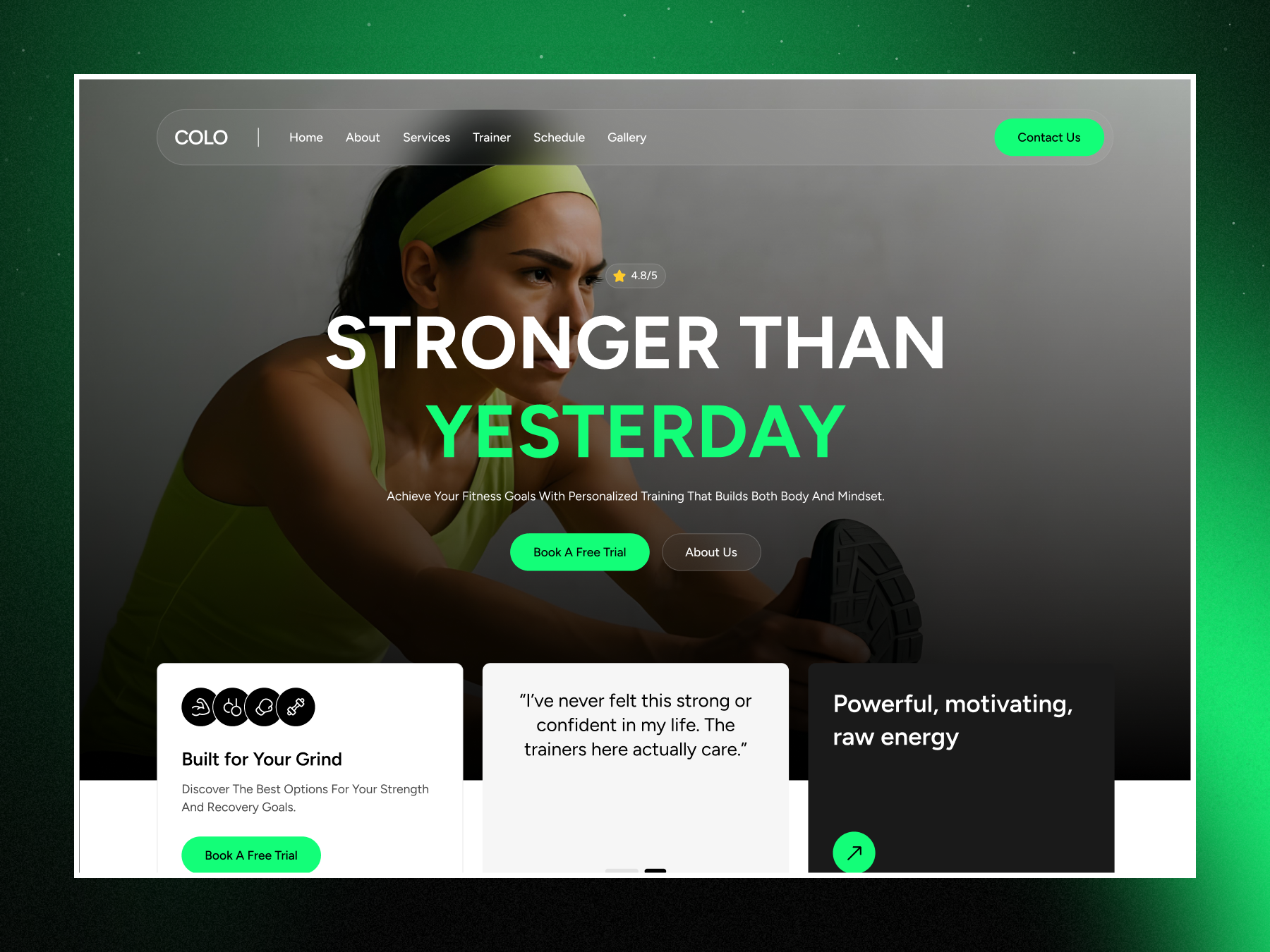
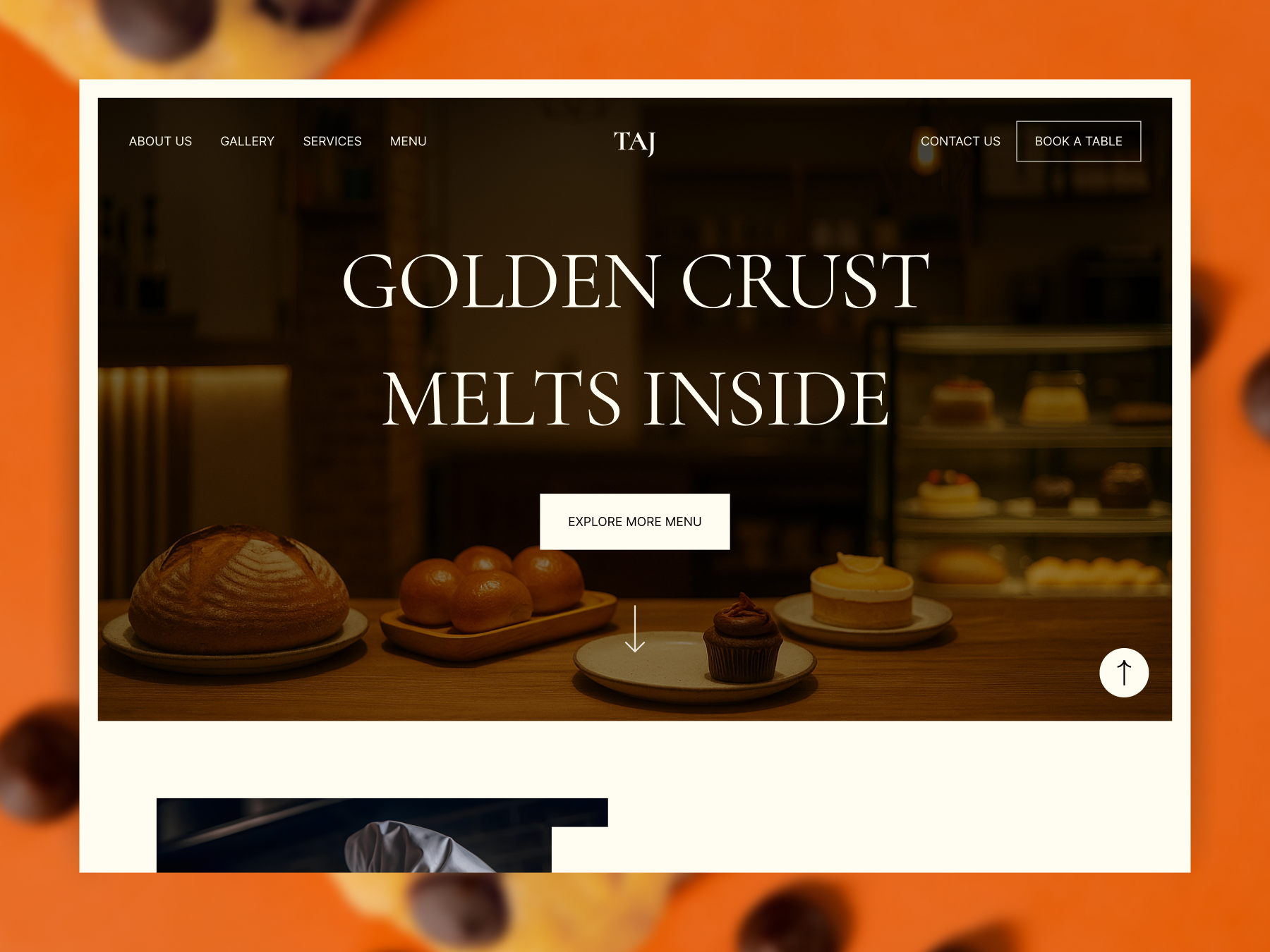
Zion Template is built for tech and SaaS positioning, the kind of layout you’d reach for if you’re building a landing page for a product launch and need the hero, feature grid, and pricing section to already make sense together. Rome Technology covers similar ground but leans more enterprise, more whitespace, more formal typography, useful when “startup energy” is the wrong tone for the client. Colo Fitness is built around class schedules, trainer bios, and membership CTAs, the actual structure a gym or studio site needs instead of a generic “about us” page reskinned. Taj Bakery handles the local food and bakery use case, menu-forward layout, ordering CTA up top.
Try it yourself: open the AI Template Library, pick one, and import it. The globals (button styles, radius, shadows, animations) now carry over automatically on import, so you’re not manually re-matching your brand styling after the fact, that part shipped this month and is covered below.
🧩 The Widget Builder Works the Same Way, One Component at a Time
Not every job needs a full kit. Sometimes you need one thing, a slider, a menu, a section, that doesn’t exist in the default library yet. That’s what the Widget Builder is for: describe what you need in plain English, and MCP builds it inside your workspace for whichever builder you’re using, Elementor, Gutenberg, or Bricks.
A few from the current library worth pulling into your next build:

Immersive Slider, built to feel less like a stock carousel

Side Off Canvas Menu, a cleaner mobile nav pattern

Marquee Section 3D, a scroll effect that gets noticed
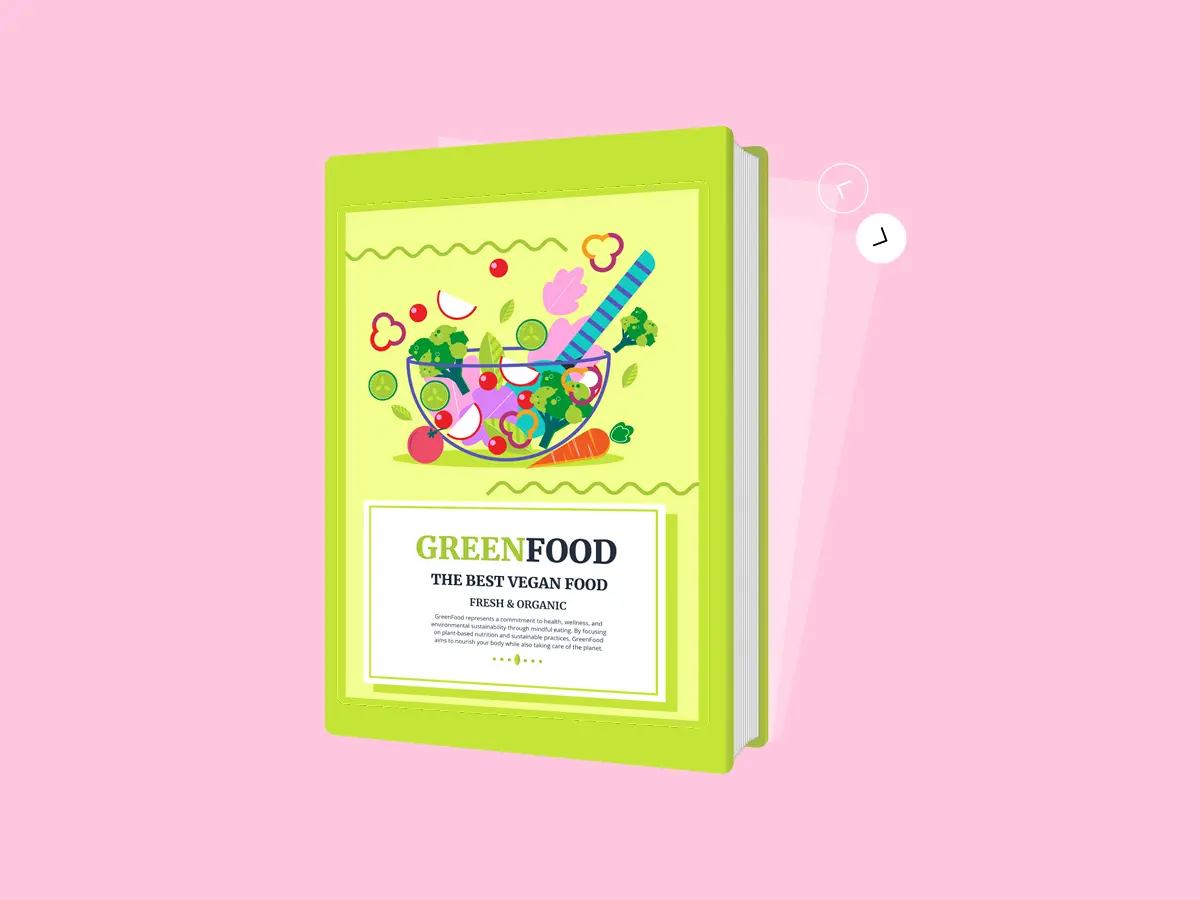
Book Shelf 3D, a genuinely different way to show a list
🎉 What Actually Shipped in August
Three releases went out this month. Here’s what each one changes in practice, not just what the changelog entry says:
MCP Abilities for WordPress 7.1. If you’re connecting an AI tool to WDesignKit, it can now filter which abilities it discovers by namespace, public exposure, and fields, instead of getting the full list every time. Permissions on rollback, data removal, and dependency install are also tighter, meaning the AI tool can do more without you having to trust it with more than it needs.
Template Abilities, expanded. Saving a full template now carries its globals with it, and you can list templates, repair broken template data, and set cross-builder, demo, and Figma links, all through MCP instead of clicking through the UI for each one.
Globals import flow. This is the one that fixes the annoyance from the section above, button styles, radius, shadows, and animations carry over automatically when you import a template, instead of resetting to defaults.
Site Info that remembers you. Kit import now keeps the business details you entered, and auto-fills them the next time you import a kit, so a second or third page kit for the same client doesn’t start from an empty form.
Widget loading, cached. Widget registration used to scan disk on every request. It’s cached now. You’ll feel this most on sites with a lot of widgets already in use, page loads in the builder itself get noticeably snappier.
New Widget and Snippet Abilities. Sync and pull widget code, set thumbnails, validate widgets, import code snippets, and delete a snippet everywhere it’s used, all newly exposed to MCP.
Full version-by-version detail is in the official changelog if you want the complete list.
📦 Release by Release: 2.6.3, 2.6.4 and 2.6.5
If you manage several client sites and want to know exactly which version introduced what, here’s the month in one table, taken from the WordPress.org changelog:
| Version | Released | Headline changes |
|---|---|---|
| 2.6.3 | 3 August 2026 | Abilities to sync and pull widget code, set widget thumbnails and validate widgets; abilities to import code snippets and delete a snippet everywhere it is used; security hardening across widget import and preview |
| 2.6.4 | 17 August 2026 | Template abilities that save globals, the globals import flow, Site Info persistence during kit import, optional data sharing, cached widget loading and a long list of fixes |
| 2.6.5 | 21 August 2026 | WordPress 7.1 Abilities API support, filterable ability discovery, hardened ability inputs and tighter permissions |
🔒 Security Hardening You Get Without Doing Anything
Security work rarely makes a highlights reel, but a lot of it landed this month, and all of it applies the moment you update:
- Safer widget import and preview. Version 2.6.3 added path-traversal protection and safer handling of external data.
- SSRF safeguards for image URLs, plus stricter ownership checks on workspace IDs, also in 2.6.3.
- One less open door. An unused unauthenticated AJAX registration was removed.
- Hardened file writes. Version 2.6.4 protected the widget builder directory, image downloads and export paths against unsafe file writes.
- Verified connections. Feedback is now sent over a verified SSL connection, and the Plugins screen no longer loads an external Google Fonts stylesheet.
- Tighter ability permissions. Version 2.6.5 hardened ability inputs and tightened permissions for rollback, data removal and dependency install.
📊 Optional Data Sharing, Explained
Version 2.6.4 introduced optional data sharing to help improve WDesignKit. Because anything involving data deserves a plain explanation, here’s exactly how it works according to the changelog:
- It’s off by default. You’re asked once, a couple of days after install, and nothing is sent until you turn it on.
- What’s shared when it’s on: how many widgets you’ve built for each builder and which are placed on your pages, which library widgets are installed, how many templates you’ve imported split by page kits and single templates, and your cloud storage and AI credit figures.
- What’s never shared: no personal data, no licence key and no page content.
- Clean exits. Deactivating the plugin removes its weekly background task, and uninstalling clears your data-sharing choice so a reinstall asks again.
🧰 Fixes Worth Knowing About
A few fixes in 2.6.4 solve problems you may have hit without realising they were bugs:
- The same widget could land in two different folders when it was created, duplicated or re-downloaded.
- Widget validation wrongly failed valid Bricks elements and Gutenberg blocks.
- AI import showed incorrect credits and resumed on the wrong step when you reopened a kit.
- The deactivation form never appeared on translated sites, because it was tied to an element id built from the translated plugin name.
- Choosing “Skip & Deactivate” no longer contacts WDesignKit’s servers.
- White-labelled installs no longer show the feedback form.
🤖 How the MCP Connection Actually Works
If you haven’t connected an AI tool to WDesignKit yet, here’s the mechanism in three steps:
- You describe what you want to your AI tool of choice (Claude, for example) in plain language, a widget, a template, even a full kit.
- The AI tool talks to WDesignKit through MCP, using the Abilities exposed this year (and expanded again this month) to actually build the thing inside your workspace, not just describe it back to you.
- You keep iterating from there. Because the connection is two-way, your AI tool can read what it built, edit it, and re-import changes, rather than a one-shot generation you’re stuck patching manually.
That’s the part that’s different from a typical “AI page builder” pitch, this isn’t a wrapper that generates once and hands you a static export. It’s a live connection to your actual workspace. See the full MCP Workflow →
Under the hood, this sits on WordPress’s own foundations. The Abilities API, introduced in WordPress 6.9, gives plugins a standard way to register what they can do, and the official WordPress MCP Adapter turns those abilities into tools an AI client can call, with each ability protected by a permission check. This month’s 2.6.5 release added support for the WordPress 7.1 Abilities API, which is why the discovery filters and tighter permissions above matter: they decide what an assistant can see and do.
✅ How to Update Safely
These releases are routine to install, but if you rely on custom widgets or MCP workflows, a two-minute check afterwards is worth it:
- Take a backup, and use a staging copy first if the site depends heavily on custom widgets.
- Update WDesignKit from the Plugins screen.
- Open your builder’s widget panel and confirm your custom widgets still appear, since widget registration is now cached.
- If you use AI import, check that your credit balance displays correctly after the fix in 2.6.4.
- Review the data-sharing setting and leave it off or turn it on, whichever you prefer.
- If an AI assistant is connected, have it list the available abilities again, since discovery can now be filtered.
If something does look wrong after an update, check the changelog first, since the fix you need may already be listed. WDesignKit also includes a rollback option that lists earlier stable versions from WordPress.org, leaving out beta, release candidate and development builds, so you can step back to a known good version while you report the issue. Version 2.6.5 tightened the permissions around rollback, so only users with the right capabilities can trigger it.
🛠️ Tool of the Month: Photopea
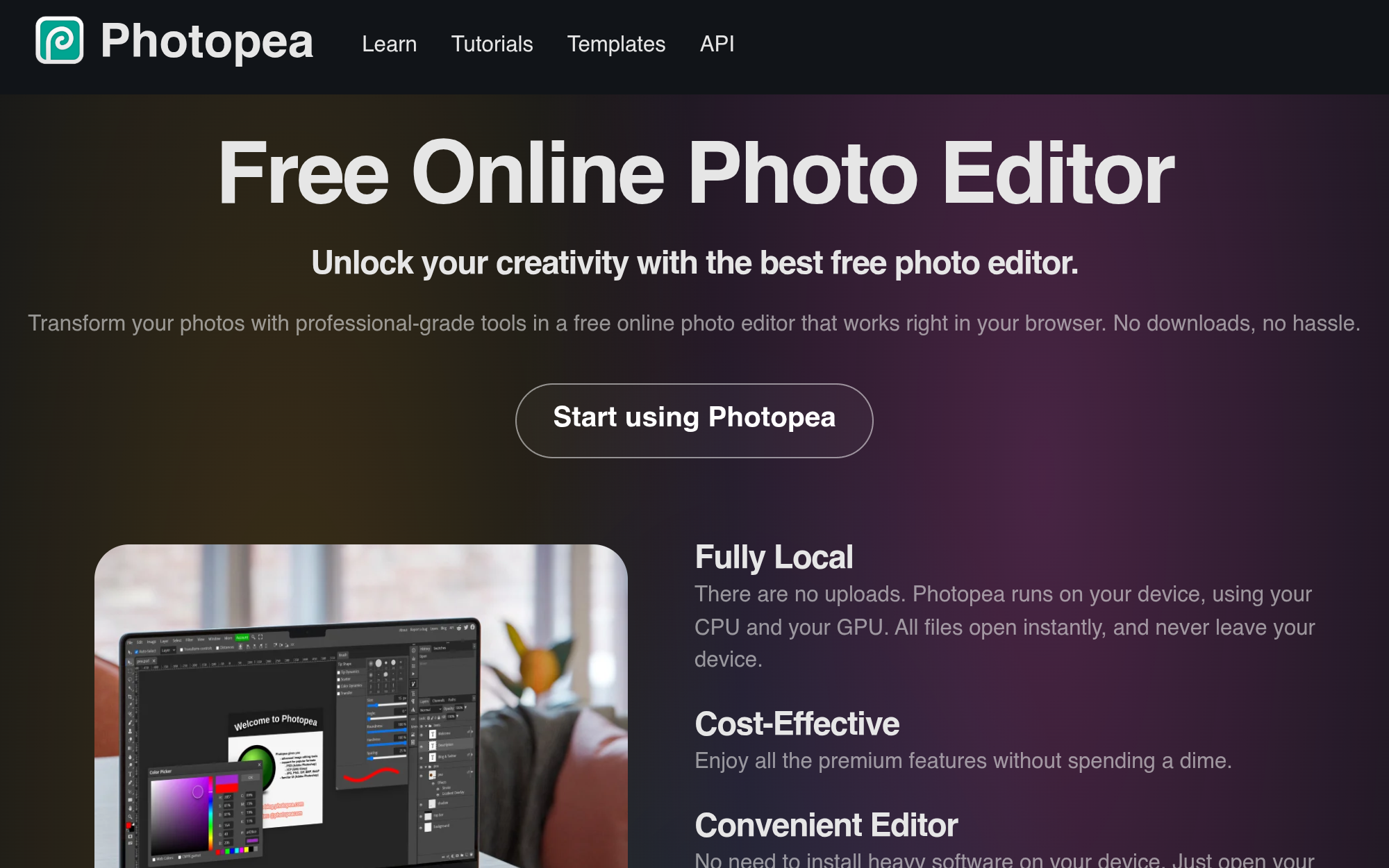
Not every task is inside WDesignKit. Photopea is a free, browser-based photo and design editor that opens PSD, XD, Sketch, and Figma files directly, no install, no account required. If a client sends you a layered PSD you need to pull assets from, or you need a quick edit and don’t want to open a paid app for it, this covers it.
👀 What’s Next
One more release has already landed since August. Version 2.6.6, released on 14 September 2026, makes Bricks widgets register out of the box the same way Elementor and Gutenberg widgets do, and fixes Bricks showing as off in the MCP settings ability even when it was on. Beyond that, a few things are in motion, worth knowing about even though none of it is dated or promised for a specific release:
- The AI Template flow is moving toward something more conversational: describing the site you want in a chat and getting a working, styled page back instead of picking from a static grid.
- That flow is also getting its own sandbox, a space to preview and tweak the AI-generated design before anything touches your live site.
- Live preview will run on the server inside that same sandbox, so what you see while building matches what actually ships.
- Past that, the team’s next stretch of work is aimed at new MCP Abilities, a PHP editor inside the builder itself, and continued MCP-driven AI design improvements.
We’ll cover each of these properly, with real detail, once they actually ship. Keep an eye on wdesignkit.com in the meantime.
🚀 Try It This Week
If you only do one thing from this post, pull an AI-compatible kit into a real project and see how much faster the globals-aware import gets you started compared to a blank canvas. Got a widget you wish existed? That’s exactly what the Widget Builder is for, describe it and see what comes back.
Previous: July 2026 Updates
Frequently Asked Questions
Why does the widget panel feel faster after this update?
Widget loading is cached now instead of scanning disk on every request, so the builder spends less time rediscovering widgets each time you open it. That matters most on sites with a lot of widgets already in use, where repeated disk scans add friction. WDesignKit Learning Center frames this as a practical speedup inside the builder itself, not a cosmetic change, so the improvement shows up where you actually work.
What’s the point of using an AI-compatible kit instead of starting from a blank page?
An AI-compatible kit gives you a layout that already matches a real use case, like tech SaaS, enterprise, fitness, or bakery sites, so you are not forcing a generic structure to fit later. This month’s examples include Zion Template, Rome Technology, Colo Fitness, and Taj Bakery. The useful part is that globals now carry over on import, which keeps button styles, radius, shadows, and animations aligned without extra cleanup.
Does the Widget Builder work with Elementor, Gutenberg, and Bricks?
The Widget Builder is described as working inside whichever builder you are using, including Elementor, Gutenberg, or Bricks. That makes it useful when you need one missing piece instead of a full kit, like a slider, menu, section, or other custom component. WDesignKit Learning Center positions MCP as the bridge here: you describe the widget in plain English and it gets built in your workspace.
What changed in WDesignKit August 2026 update for AI and MCP workflows?
The biggest change is that MCP abilities got much more specific. In 2.6.5, discovery can be filtered by namespace, public exposure, and fields instead of returning everything at once. Template abilities also expanded so full templates carry globals with them, and you can list templates, repair broken template data, and set cross-builder, demo, and Figma links through MCP.
Should I turn on optional data sharing in WDesignKit?
Optional data sharing is off by default and only starts if you enable it after being asked once a couple of days after install. What gets shared is limited to widget counts by builder, which widgets are placed on pages, installed library widgets, imported templates split by page kits and single templates, plus cloud storage and AI credit figures. No personal data, licence key, or page content is shared.
Last reviewed: September 29, 2026
Author

Sagar is the Founder & CEO of POSIMYTH Innovations, with 10+ years building WordPress products trusted by 100,000+ websites globally. He has led the development of The Plus Addons for Elementor, Nexter, WDesignKit, and UiChemy, all built hands-on from concept to launch. His work focuses on making website building faster, more flexible, and accessible for creators and businesses worldwide.
Share this article