On this page
- Table of Contents
- Why this matters
- What the WordPress MCP Adapter is, in plain words
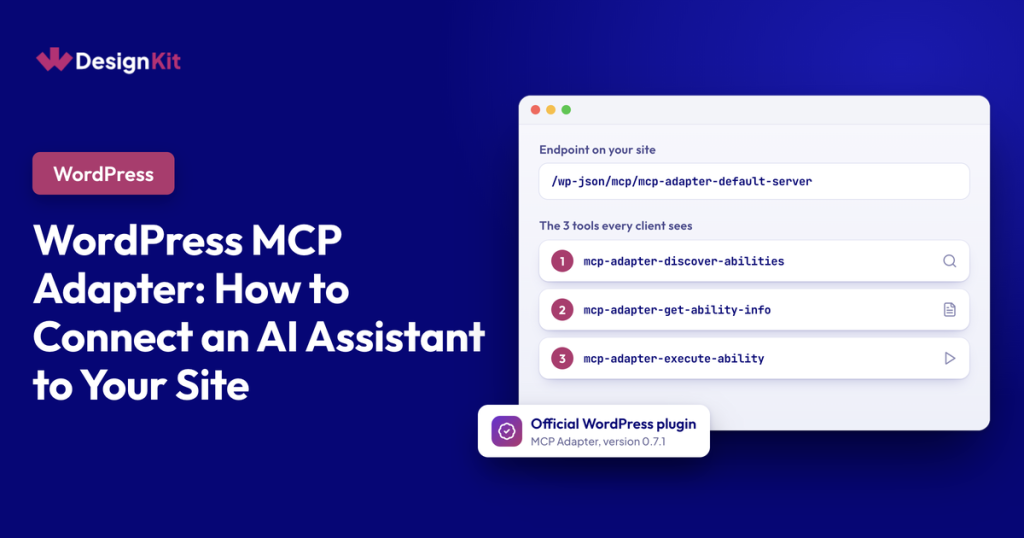
- The three things every assistant can do through the adapter
- What the adapter does not do
- What can you ask an AI to do?
- What you need before you start
- Application Passwords in plain words
- How to set up the WordPress MCP Adapter
- Who is allowed to do what
- Use the adapter safely
- Where WDesignKit fits
- What changed in versions 0.7.0 and 0.7.1
- Is the WordPress MCP Adapter right for you?
- For developers
- Connect Claude Desktop, Cursor or VS Code
- Connect Claude Code over HTTP
- Connect to a local site with WP-CLI over STDIO
- Register your own ability
- Role test detail
- Errors we hit and the fix
- Frequently Asked Questions
What if you could type “how many draft posts do I have?” to an AI assistant and get the real answer from your own WordPress site? That is what the WordPress MCP Adapter makes possible. It is the official plugin that lets an AI assistant such as Claude, or an editor such as Cursor, look at your site and do jobs on it when you ask.
The WordPress project publishes the adapter on WordPress.org. Version 0.7.1 came out on 15 October 2026, and the listing shows 70,000+ active installs on 16 November 2026.
Key Takeaways
- WordPress MCP Adapter is the official plugin that lets an AI assistant such as Claude, or an editor such as Cursor, look at a WordPress site and do jobs on it when asked.
- WordPress MCP Adapter exposes exactly three tools: mcp-adapter-discover-abilities, mcp-adapter-get-ability-info, and mcp-adapter-execute-ability.
- WordPress 6.9 or newer provides built-in abilities through the Abilities API, and plugins can add their own named jobs with descriptions and permission checks.
- Application Passwords are the required sign-in method for the adapter, and the post says Claude Desktop, Cursor, and VS Code use settings files with the site address, username, and password.
- WDesignKit version 2.7.2 and the current 2.8.2 release both register 96 abilities, and 92 of them are open to assistants.
Table of Contents
Why this matters
Normally, an AI assistant knows a lot about WordPress but cannot see your site. You paste text in, copy answers out and do the clicking yourself.
The adapter closes that gap. Once it is connected, the assistant can ask your site questions and, where you allow it, do small jobs. You stay in charge, because the assistant can only do what you permit.
This is useful if you run a site, design sites for clients or look after many sites for an agency. You do not need to write code to follow this guide. Anything that needs a developer sits in the last section.
We installed the adapter on a clean WordPress 7.1.4 site on 16 November 2026 and ran every step below, including the ones that failed.
What the WordPress MCP Adapter is, in plain words
Three ideas explain the whole thing.
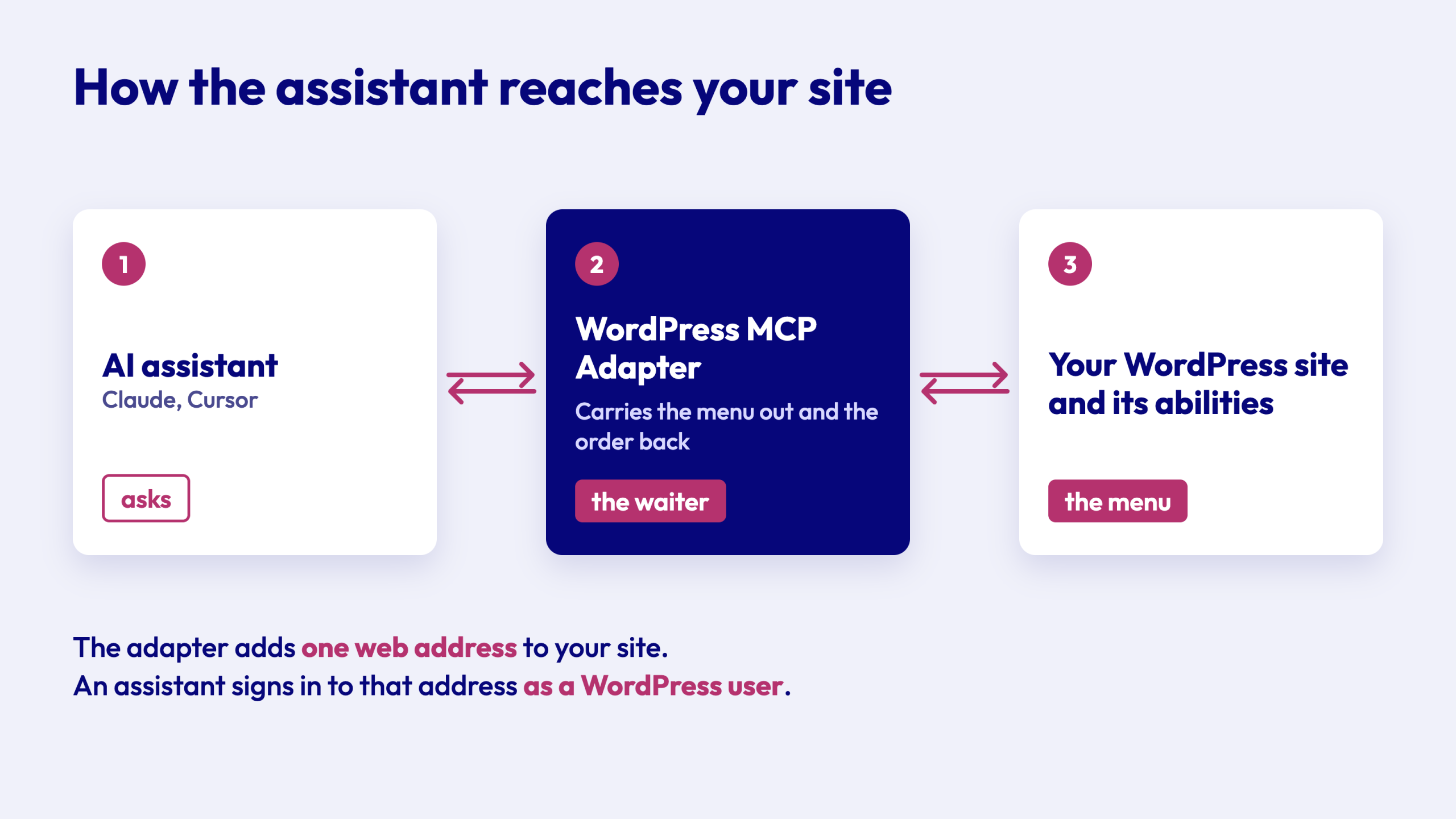
MCP is a standard plug. MCP stands for Model Context Protocol. Think of a USB-C socket: one shape that many devices agree to use. MCP is that shape for AI tools. An AI assistant that speaks MCP can talk to any site that offers an MCP socket.
Abilities are the menu. An “ability” is one named job your site can do, for example “tell me the site name” or “find a template”. Since version 6.9, WordPress has a built-in list of abilities (called the Abilities API), and plugins can add their own. Each ability comes with a description and a permission check, so WordPress knows who is allowed to ask for it.
The adapter is the waiter. The adapter carries the menu to the assistant and carries the order back to the kitchen. It does not cook anything. It adds no AI, no chat window and no screen in your dashboard. It adds one web address to your site, and an assistant signs in to that address as a WordPress user.
The three things every assistant can do through the adapter
Whatever your site offers, the assistant reaches it with these three tools.
| Tool | What it does for you |
|---|---|
| mcp-adapter-discover-abilities | Shows the assistant the list of jobs your site offers |
| mcp-adapter-get-ability-info | Explains one job in detail before it is used |
| mcp-adapter-execute-ability | Runs the job |
We checked this against the live site. The adapter returned exactly these three tools.
What the adapter does not do
- It does not include an AI model. The AI lives in the app you chat with.
- It does not include a sign-in with a button, called OAuth. You connect with an Application Password instead (more on that below).
- It does not decide what the assistant can do. WordPress itself and your plugins decide that.
The sign-in point has one practical effect. The web versions of Claude and ChatGPT add connections through a sign-in button and have no box for an Application Password. The adapter documentation says they cannot connect to it on their own today. Desktop apps and Claude Code can.
What can you ask an AI to do?
A fresh install is deliberately quiet. On our clean WordPress 7.1.4 site, six abilities existed. Three belonged to the adapter itself and stayed private. Three came from WordPress and were open to the assistant:
- Read the site settings, such as the name and version
- Read the profile of the signed-in user
- Read basic details about the site environment
So a fresh install lets an assistant read three things and change nothing. Every new job comes from a plugin that adds an ability and marks it as open. Here are three everyday examples.
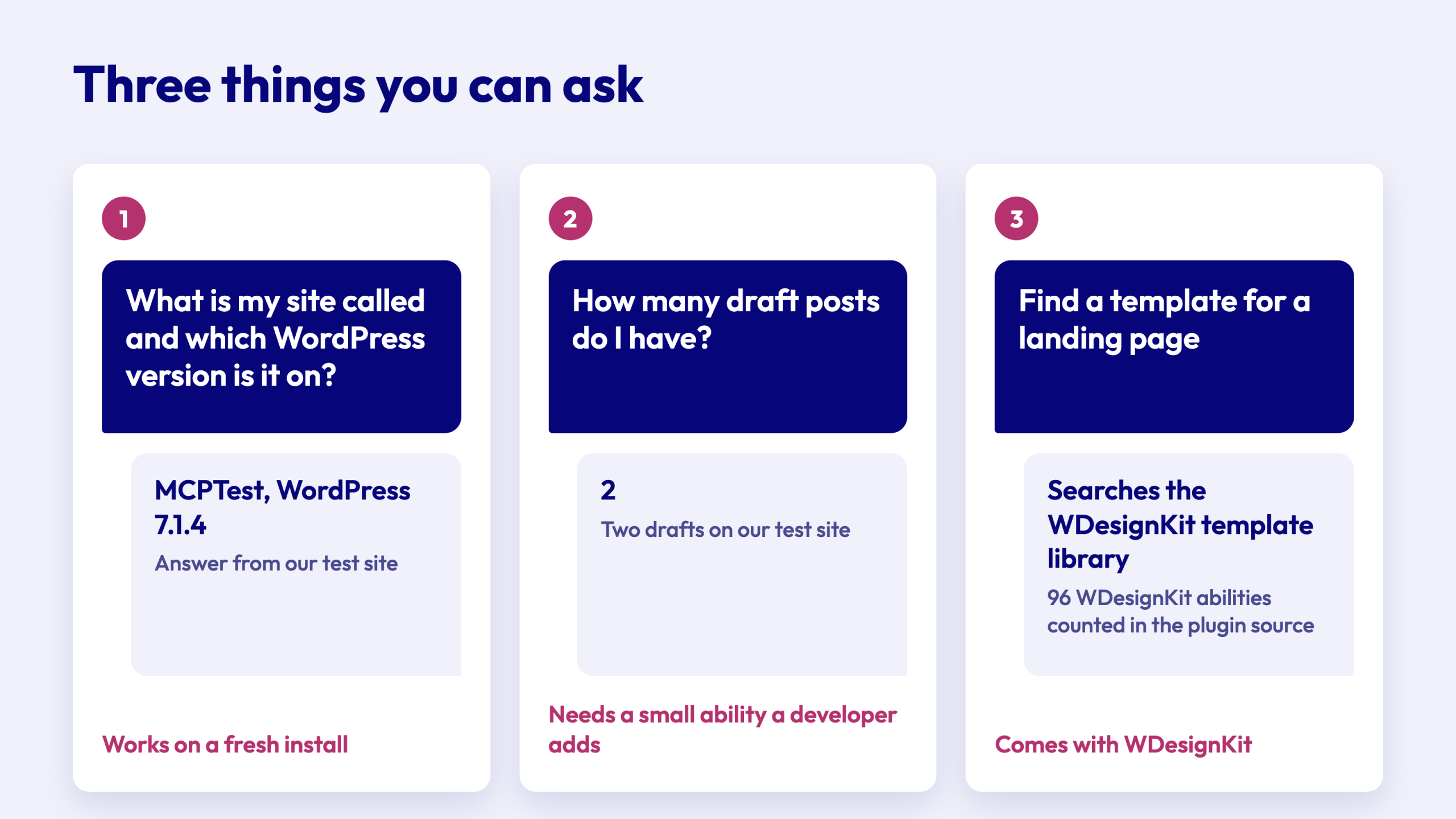
1. Ask a simple question about your site. “What is my site called and which WordPress version is it on?” We asked for those two fields and the site answered with its real name, MCPTest, and version 7.1.4. This works on a fresh install with no extra plugin.
2. Ask about your content. “How many draft posts do I have?” This needs a small ability that a developer adds. We wrote one for our test, with two drafts on the site, and the call returned 2. It worked for the Administrator and the Editor. If you work with a developer, this is a good first ability to request, because it only reads and changes nothing.
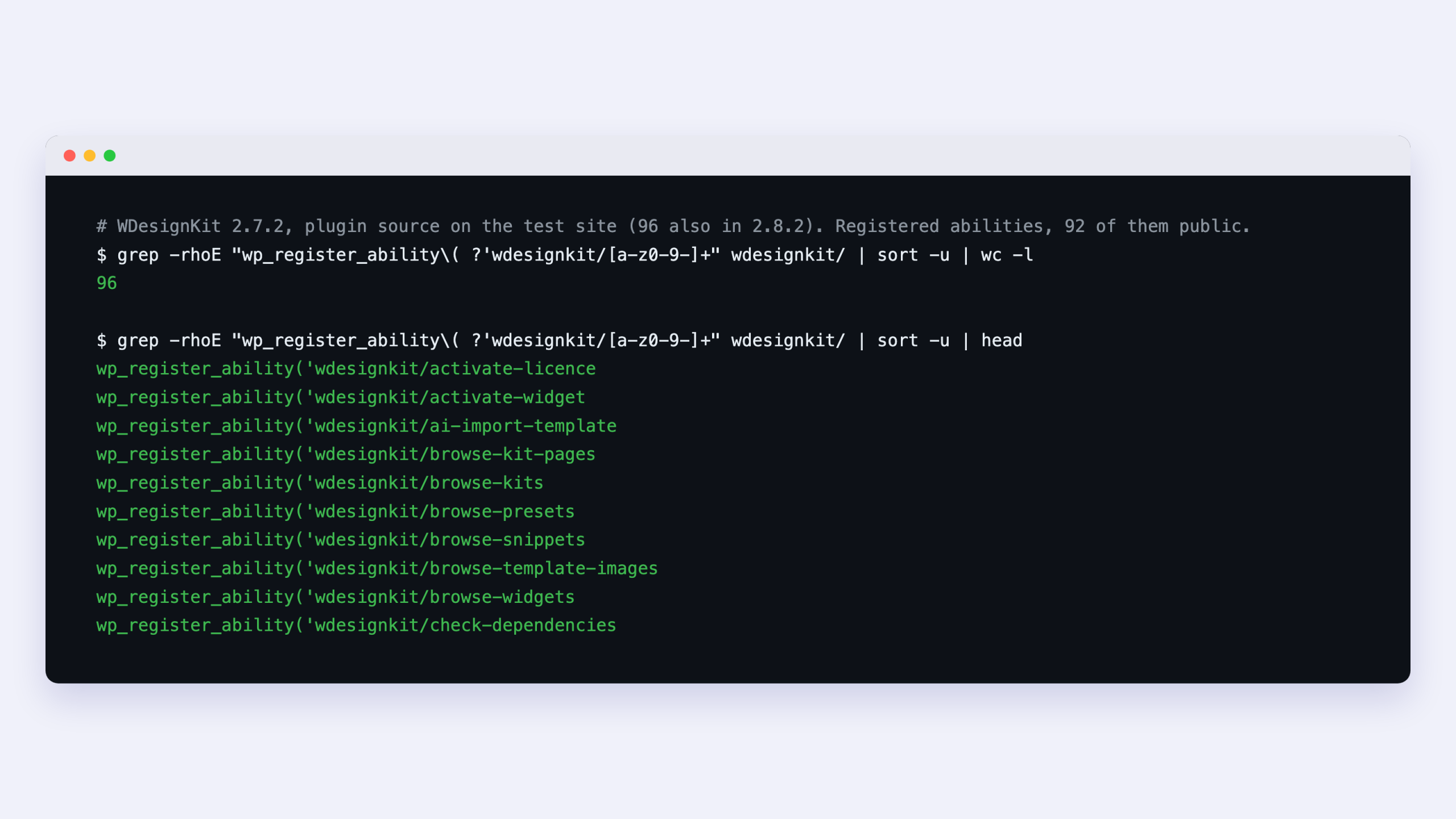
3. Work with WDesignKit. WDesignKit adds its own abilities to the menu. We counted them in the plugin source on 16 November 2026. Version 2.7.2 on our test site and the current 2.8.2 release from WordPress.org both register 96 abilities, and 92 of them are open to assistants. The names show the groups:
- Templates, for example
wdesignkit/find-templateandwdesignkit/import-template - Widgets, for example
wdesignkit/list-widgetsandwdesignkit/create-widget - Code snippets, for example
wdesignkit/browse-snippets - Workspaces, for example
wdesignkit/create-workspace
In plain terms, that means you can ask an assistant to look for a template, bring one in from the WDesignKit template library, list the widgets you have or browse code snippets, instead of clicking through each screen yourself. What your own site offers depends on your WDesignKit version and the plugins you run, so ask the assistant to list what it can use before you plan a job. Our WDesignKit MCP guide covers the supported tools and setup.
What you need before you start
| Requirement | Detail |
|---|---|
| WordPress | Version 6.9 or newer, with MCP Adapter installed and active (we tested up to 7.1.4) |
| PHP | Version 7.4 or newer (your host can tell you) |
| HTTPS | WordPress offers Application Passwords on HTTPS sites, with an exception for local development sites |
| A WordPress user | A separate user with the lowest role that can do the job |
| Node.js | Needed on your computer for the Claude Desktop or Cursor setup |
Application Passwords in plain words
An Application Password is a spare key for one app. It is a long password WordPress generates for a single purpose. You can see it in the list, see when it was last used and cancel it with one click, and your normal login stays untouched. If the assistant should stop, you cancel its key and it is locked out at once.
How to set up the WordPress MCP Adapter
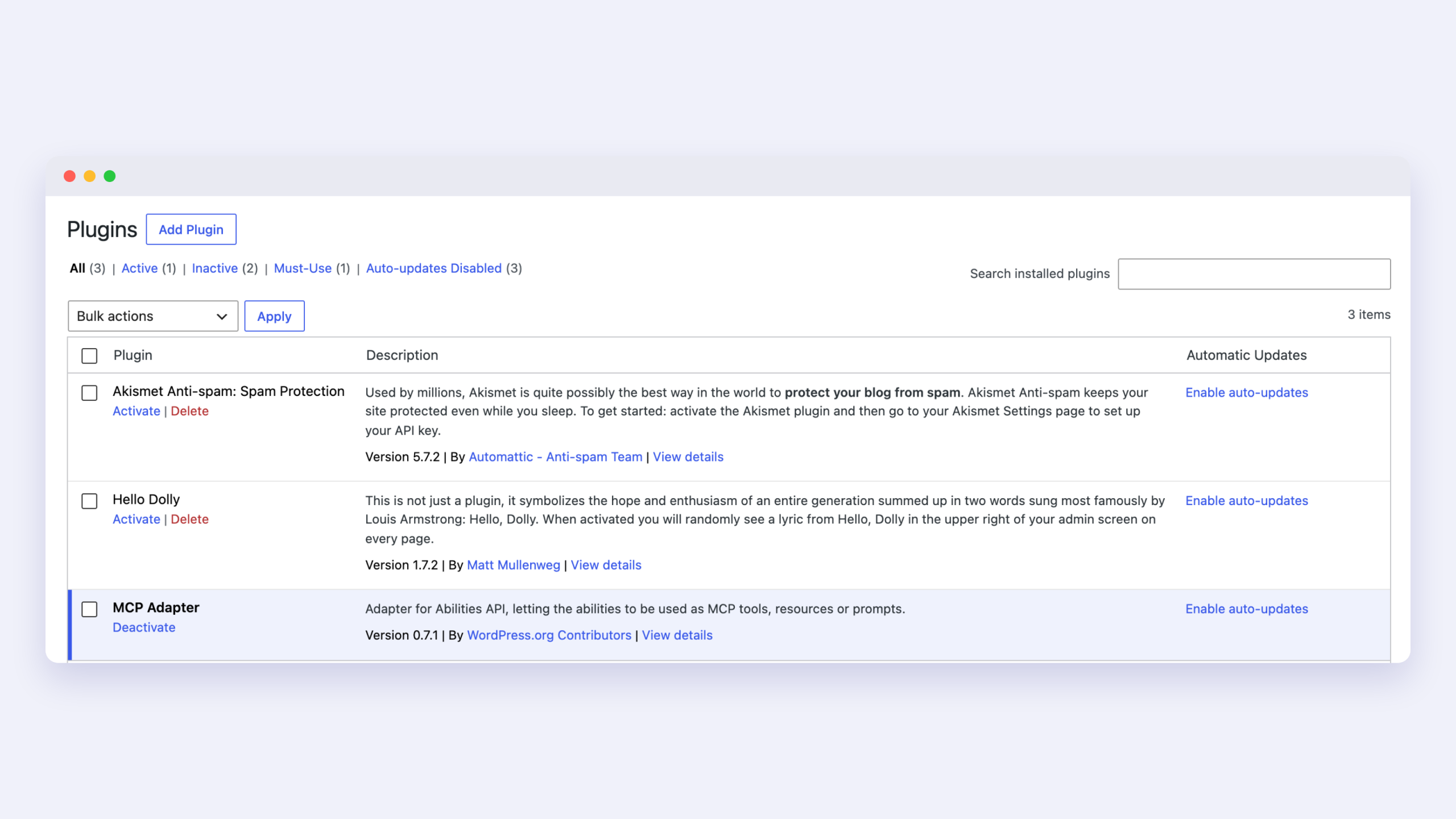
- Install and activate the plugin. Go to Plugins, then Add New, search for MCP Adapter, click Install Now and then Activate. We confirmed that the plugin showed version 0.7.1 as active.
- Create a user for the assistant. Give it the lowest role that can do the work, for example an Editor for content jobs. A separate user makes the assistant’s actions easy to tell apart and easy to switch off.
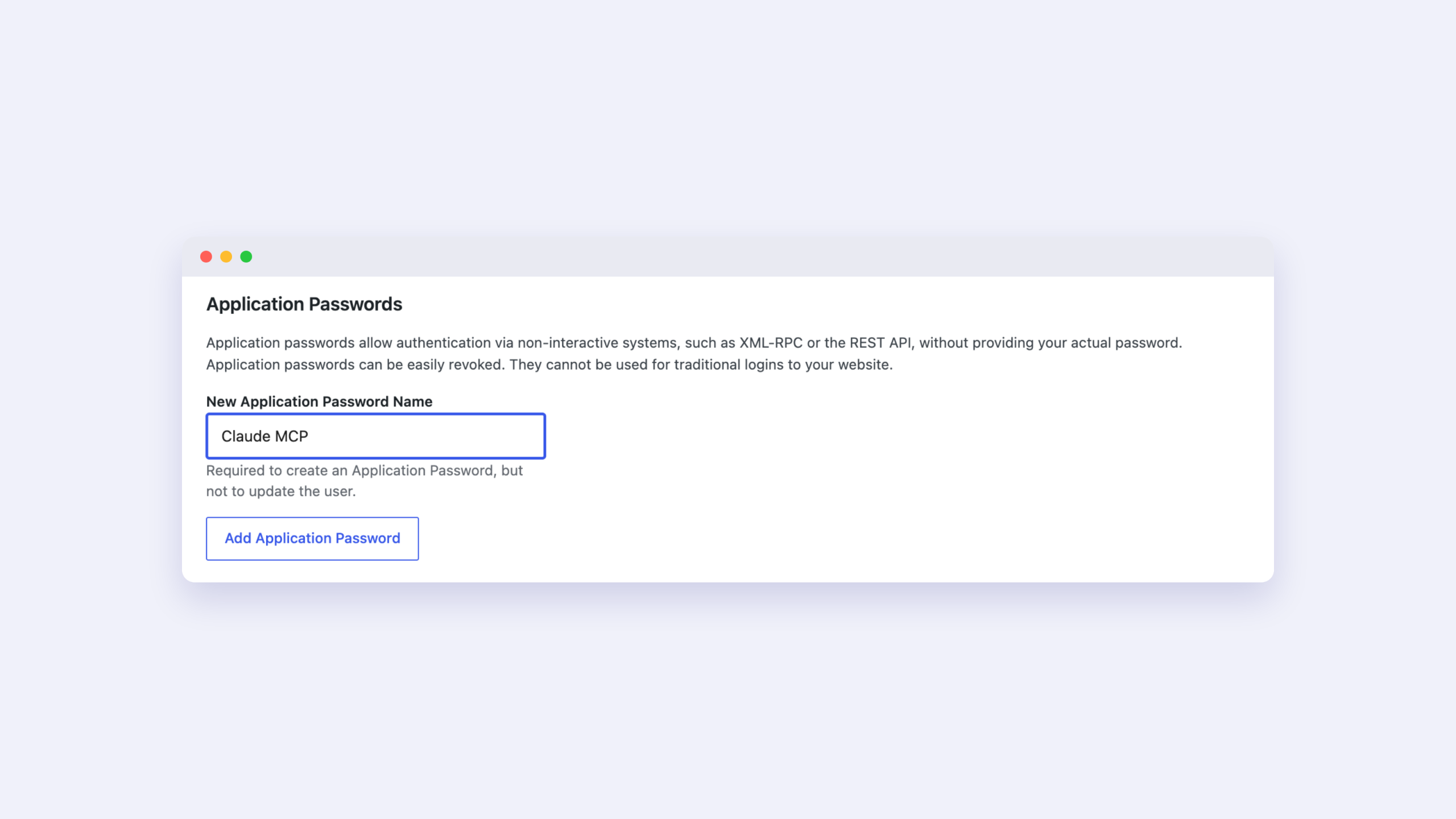
- Create an Application Password. Open Users, then Profile for that user and scroll to Application Passwords. Type a name such as “Claude on my laptop”, click Add Application Password and copy the password. WordPress shows it once.
- Note your site’s address. Your connection address is your Site Address (URL) from Settings, then General, followed by
/wp-json/mcp/mcp-adapter-default-server. If you open it with no sign-in, WordPress answers “Sorry, you are not allowed to do that.” That answer is good news, because the address exists and WordPress is asking for credentials. - Add the site to your assistant app. Claude Desktop, Cursor and VS Code each have a settings file for connections. Paste your address, username and Application Password there. The exact lines are in the “For developers” section at the end, so you can copy them or hand them to your developer. Restart the app afterwards.
- Test with one question. Start a new chat and ask the assistant to list the WordPress abilities it can use on your site. A list, even a short one, means the connection works.
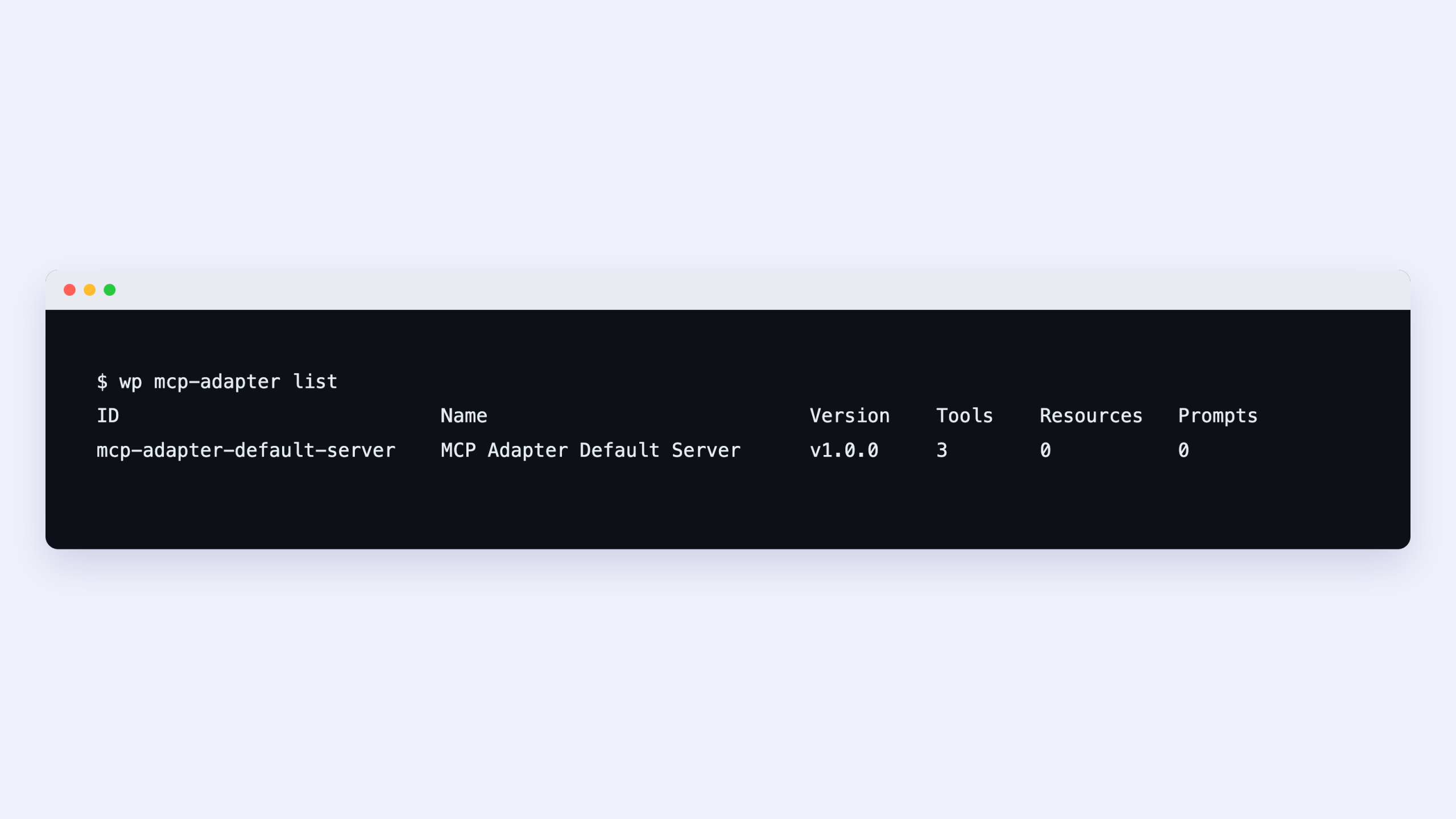
If you run your site on your own computer, there is a shortcut. The assistant can start the adapter through WP-CLI (a command line tool for WordPress) and needs no password. We ran wp mcp-adapter list. It showed one server with 3 tools, 0 resources and 0 prompts.
Who is allowed to do what
The adapter does not give an assistant extra power. The assistant acts as the WordPress user you connected, with the same permissions that user has in your dashboard. We tested this with three users, each with their own Application Password:
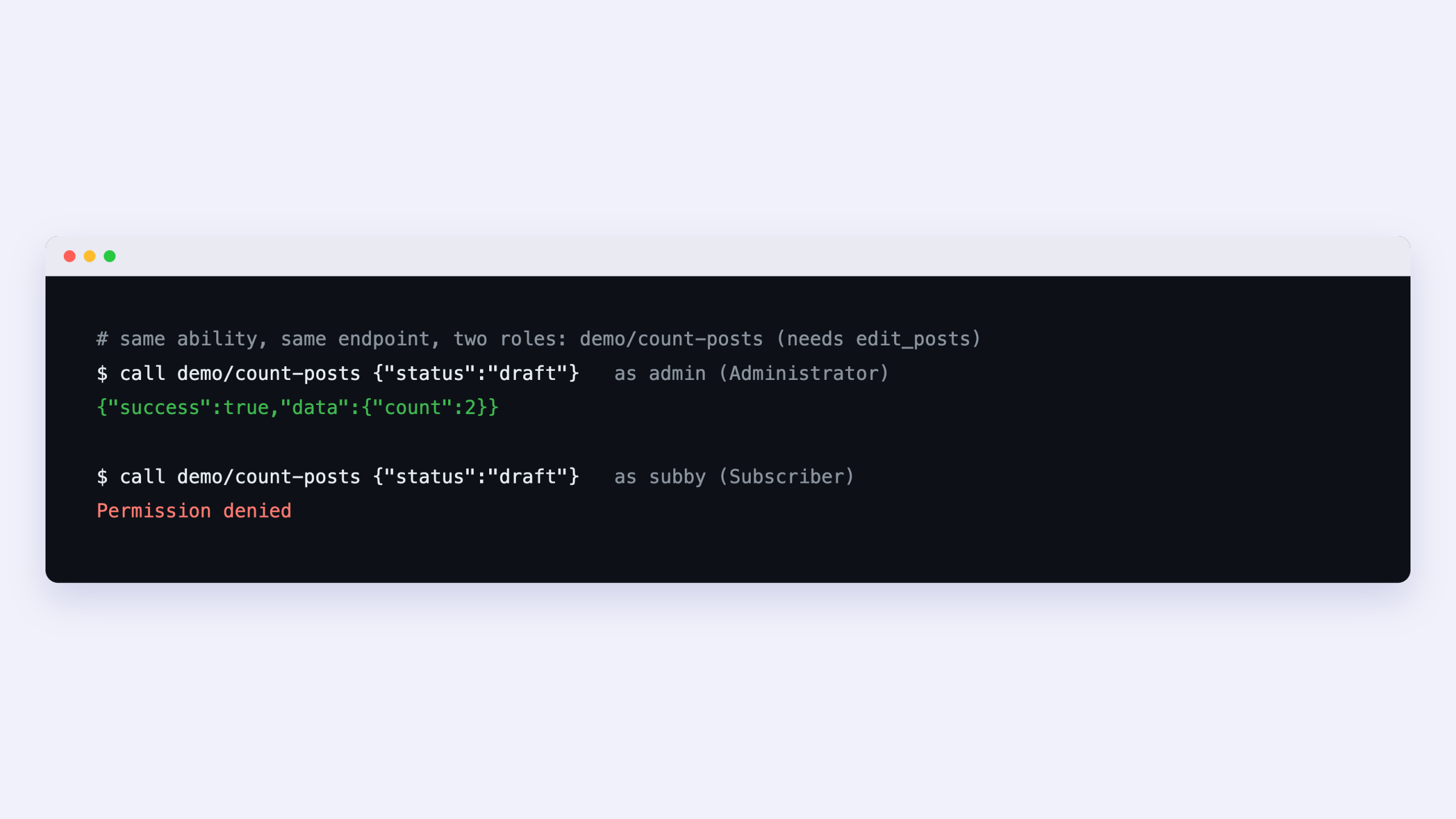
- The Administrator and the Editor could run the “count my drafts” ability and got the answer 2.
- The Subscriber, the lowest role, was told “Permission denied”.
- A second ability that we did not mark as open behaved as if it did not exist. All three users were told it was not found, and the Subscriber’s “Permission denied” appeared only on the open ability.
Two lessons follow. First, the list of abilities looks the same to every signed-in user. WordPress checks permission at the moment a job runs, so do not read an ability’s presence in the list as proof that your assistant’s user may run it. Second, a job a plugin has not opened to assistants cannot be reached at all. The 0.7.1 changelog documents this behavior: abilities registered but not exposed through MCP return the same “not found” reply as unknown names.
Use the adapter safely
A connected assistant can do whatever its WordPress user can do, and it works fast. These habits keep that safe.
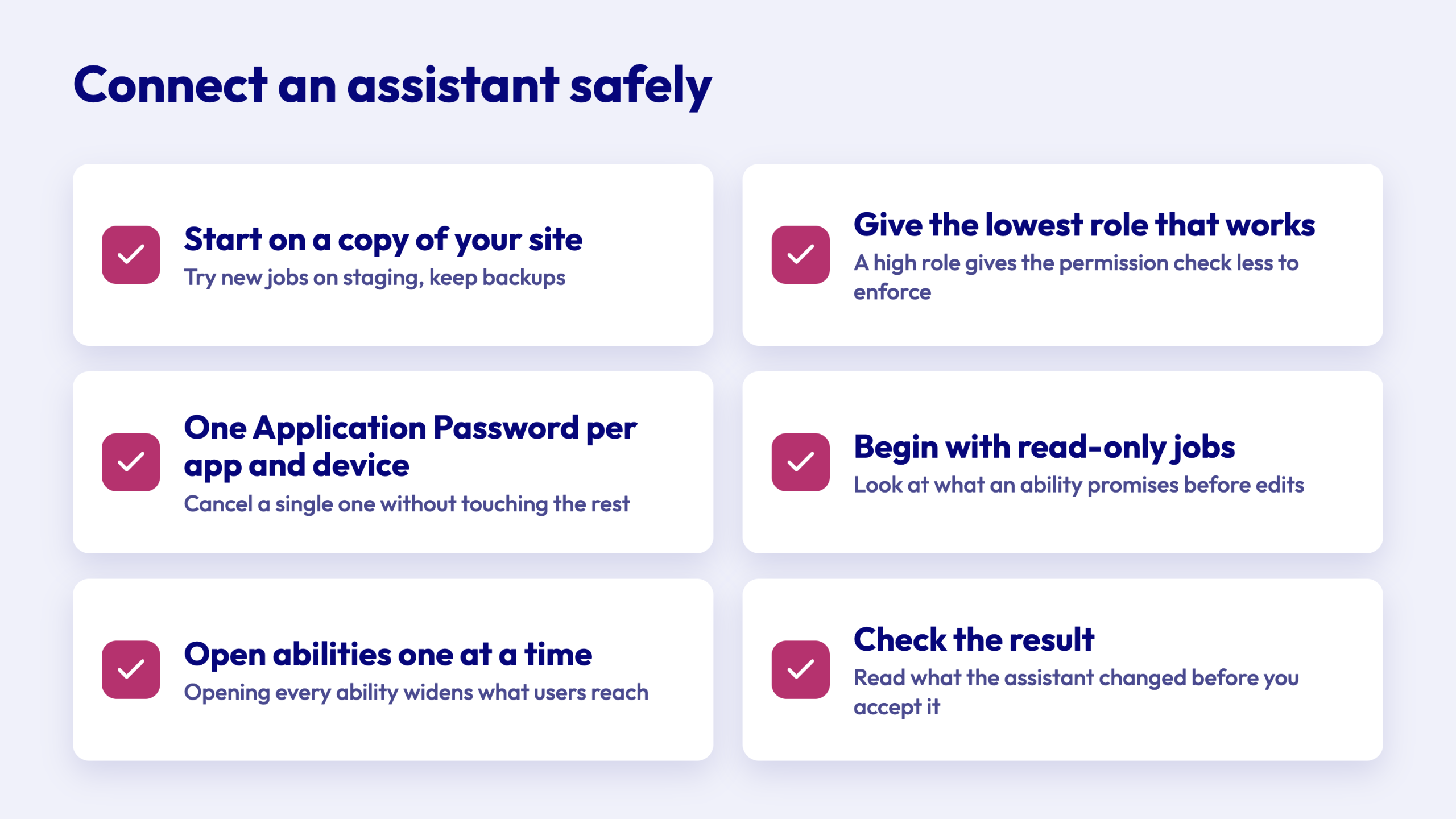
- Start on a copy of your site. A job run through the adapter changes your live site the same way an action in your dashboard does. Try new jobs on a staging site first and keep regular backups.
- Give the assistant the lowest role that works. Our Subscriber test shows the permission check does its job. A user with a high role gives that check less to enforce.
- Create one Application Password per app and device. Each one is listed under Users, then Profile, with its last-used time, and you can cancel a single one without touching the rest.
- Begin with read-only jobs. Look at what an ability promises before you allow edits. The adapter’s own “execute” tool is marked as able to change things (destructive), which tells an assistant to take care. Whether your app asks you before it runs such a tool depends on the app.
- Open abilities one at a time. A plugin that opens every ability widens what any connected user can reach.
- Check the result. Read a post, a setting or a template the assistant changed before you accept it.
Where WDesignKit fits
WDesignKit is one of the plugins that adds abilities to the menu, as described above. It lets you build with templates, widgets and snippets from one place, and the adapter lets an assistant reach those same jobs. Browse the WDesignKit templates to see what an assistant can search through. Our comparison of WordPress MCP server plugins shows how the adapter sits next to other options.
What changed in versions 0.7.0 and 0.7.1
If you upgrade from an older release, two versions changed behavior.
| Version | Date | What matters to a site owner |
|---|---|---|
| 0.7.0 | 2 October 2026 | The adapter serves MCP revisions 2025-11-25 and 2026-07-28. Apps that ask for 2025-06-18 or 2024-11-05 still connect. Using the adapter as a bundled library is deprecated, so install it as a plugin |
| 0.7.1 | 15 October 2026 | Clearer messages for unknown abilities, a connection guide for site owners, a 4 KiB limit on the data an app sends when it connects, and a one-time reconnect for apps whose oversized session data is cleared |
Is the WordPress MCP Adapter right for you?
It suits you if you want the official connection, you or your plugins add abilities and you are comfortable creating an Application Password. It runs on your own site, so requests go from your app to your site with no third-party relay in the path.
It is a poor fit if you need to connect from claude.ai or ChatGPT in the browser, because those apps need a sign-in button. In that case, look at a server plugin that offers one. Our comparison of WordPress MCP server plugins lists the main options with the details from each WordPress.org listing.
Trying the adapter on your own site? Tell us how it went in the WDesignKit Facebook group.
For developers
The code and the error detail live here, so the rest of the guide stays readable.
Connect Claude Desktop, Cursor or VS Code
These apps read a JSON file of MCP servers. The adapter documentation uses a helper package, @automattic/mcp-wordpress-remote, that runs on your computer and passes requests to your site. In Claude Desktop the file opens from Settings, then Developer, then Edit Config. In Cursor it is ~/.cursor/mcp.json.
{
  "mcpServers": {
    "my-wordpress-site": {
      "command": "npx",
      "args": ["-y", "@automattic/mcp-wordpress-remote@latest"],
      "env": {
        "WP_API_URL": "https://example.com/wp-json/mcp/mcp-adapter-default-server",
        "WP_API_USERNAME": "your-username",
        "WP_API_PASSWORD": "xxxx xxxx xxxx xxxx xxxx xxxx"
      }
    }
  }
}
Connect Claude Code over HTTP
Apps that accept a URL and a custom header can skip the helper. The header is Authorization: Basic followed by the username and Application Password, joined by a colon and base64 encoded as one line:
printf 'your-username:xxxx xxxx xxxx xxxx xxxx xxxx' | base64 | tr -d '\n'

claude mcp add --transport http my-wordpress-site \
  https://example.com/wp-json/mcp/mcp-adapter-default-server \
  --header "Authorization: Basic PASTE_THE_BASE64_HERE"
Connect to a local site with WP-CLI over STDIO
We piped an initialize request into wp mcp-adapter serve --server=mcp-adapter-default-server --user=admin and received a valid MCP response with protocol version 2025-11-25. With WP-CLI you can also install the plugin: wp plugin install mcp-adapter --activate.
Register your own ability
This short plugin registers a category and a read-only ability that counts posts by status. We saved it as a must-use plugin on the test site:
add_action( 'wp_abilities_api_categories_init', function () {
    wp_register_ability_category( 'demo', [
        'label'       => 'Demo',
        'description' => 'Demo abilities',
    ] );
} );

add_action( 'wp_abilities_api_init', function () {
    wp_register_ability( 'demo/count-posts', [
        'label'               => 'Count posts',
        'description'         => 'Returns how many posts exist for a status.',
        'category'            => 'demo',
        'input_schema'        => [
            'type'       => 'object',
            'properties' => [ 'status' => [ 'type' => 'string', 'enum' => [ 'publish', 'draft' ] ] ],
            'required'   => [ 'status' ],
        ],
        'output_schema'       => [
            'type'       => 'object',
            'properties' => [ 'count' => [ 'type' => 'integer' ] ],
        ],
        'execute_callback'    => function ( $input ) {
            $counts = wp_count_posts();
            $status = $input['status'];
            return [ 'count' => (int) $counts->$status ];
        },
        'permission_callback' => function () {
            return current_user_can( 'edit_posts' );
        },
        'meta'                => [ 'public' => true, 'annotations' => [ 'readonly' => true ] ],
    ] );
} );
permission_callback decides who may run the ability. meta.public (or meta.mcp.public) decides whether MCP clients can see it at all, and abilities are private by default. annotations.readonly tells a client the ability changes nothing. With two draft posts on the site, demo/count-posts with {"status":"draft"} returned {"success":true,"data":{"count":2}}. Running core/get-site-info with the fields name and version returned {"success":true,"data":{"name":"MCPTest","version":"7.1.4"}}.
Role test detail
| Call | Administrator | Editor | Subscriber |
|---|---|---|---|
| Discover abilities | Lists the 3 core abilities and demo/count-posts | Same list | Same list |
Run demo/count-posts | Count of 2 | Count of 2 | Permission denied |
Run demo/delete-all-drafts (not public) | “not found” error | Same error | Same error |
The private ability returned: “Ability ‘demo/delete-all-drafts’ not found on this WordPress site, and no ability you can call has a similar name.”
Errors we hit and the fix
| What we saw | Cause | Fix |
|---|---|---|
rest_forbidden, status 401, on the first request | No credentials sent | Send the Authorization: Basic header with the user and Application Password |
Invalid Request: MCP-Protocol-Version header is required for a 2025-11-25 session | A hand-written client skipped the version header after initialize | Send MCP-Protocol-Version and Mcp-Session-Id on every request after initialize |
parameters is a required property of input | The execute tool was called without a parameters object | Always pass ability_name and a parameters object, even an empty one |
Permission denied | The connected user’s role lacks the capability the ability checks | Connect with a user whose role allows the action |
| A web page instead of JSON at the endpoint | Plain permalinks or missing rewrite rules | Use /?rest_route=/mcp/mcp-adapter-default-server, or save Settings, then Permalinks again |
The second error only affects people writing their own client. Claude Desktop, Cursor and Claude Code send the headers for you. With curl, send initialize, read the Mcp-Session-Id response header and send it back on every later request. Plugin developers who depend on the adapter can add Requires Plugins: mcp-adapter to their plugin header, as the WordPress.org listing recommends. The adapter’s source is at github.com/WordPress/mcp-adapter.
Frequently Asked Questions
Why does the WordPress MCP Adapter return permission denied for some users?
The adapter uses the permissions of the WordPress user you connected, so it cannot do anything that user is not allowed to do. In the test, the Administrator and Editor could run the draft-count ability and got 2, while the Subscriber got “Permission denied.” That matters because ability names can still appear in the list even when a role cannot run them. WDesignKit Learning Center shows this as a role check, not an adapter bug.
Can I connect the WordPress MCP Adapter from Claude in the browser or ChatGPT on the web?
Browser-based Claude and ChatGPT are a poor fit here because they rely on a sign-in button and do not have a place for an Application Password. The adapter uses Application Passwords instead of OAuth, so desktop apps and Claude Code are the supported path in this guide. That difference matters because the connection is made directly to your site at /wp-json/mcp/mcp-adapter-default-server, not through a third-party relay.
How do I know if the WordPress MCP Adapter connection worked?
A working connection shows up as a list of abilities when you ask the assistant to enumerate what it can use on your site. On our test site, that meant seeing three core abilities from WordPress plus any open abilities from plugins. Another quick check is opening the endpoint without signing in and getting “Sorry, you are not allowed to do that.” That response means the route exists and WordPress is asking for credentials.
What is the safest way to use an AI assistant with my WordPress site?
The safest setup starts with a staging copy, a low-privilege user, and read-only abilities first. The adapter can change your live site just like dashboard actions can, so testing on a copy avoids accidental edits. WDesignKit Learning Center recommends one Application Password per app or device, which makes revoking access simple if something goes wrong. Open abilities one at a time so you do not widen access more than needed.
What can I ask an AI to do with WDesignKit through the WordPress MCP Adapter?
WDesignKit adds its own abilities to the menu, so an assistant can work with templates, widgets, code snippets, and workspaces instead of only reading site info. On version 2.8.2, WDesignKit registered 96 abilities and 92 were open to assistants. Examples include wdesignkit/find-template, wdesignkit/import-template, wdesignkit/list-widgets, wdesignkit/create-widget, and wdesignkit/browse-snippets. That makes it useful for searching or bringing in assets without clicking through each screen.
Last reviewed: November 17, 2026
Author

Sagar is the Founder & CEO of POSIMYTH Innovations, with 10+ years building WordPress products trusted by 100,000+ websites globally. He has led the development of The Plus Addons for Elementor, Nexter, WDesignKit, and UiChemy, all built hands-on from concept to launch. His work focuses on making website building faster, more flexible, and accessible for creators and businesses worldwide.
Share this article