
How to Convert a Figma Design to WordPress
Contents
- Table of Contents
- Why Figma Designs Die in Development
- Three Ways to Turn a Figma File Into WordPress
- Manual Rebuild
- Generic Figma-to-HTML Exporters
- A Dedicated Figma-to-WordPress Converter
- Prepare Your Figma File for Conversion
- Step-by-Step: Converting a Figma File to WordPress With UiChemy
- 1. Design in Figma Following the Guidelines
- 2. Run the UiChemy Figma Plugin
- 3. Connect Your WordPress Site
- 4. Import and Check Every Breakpoint
- What Transfers Cleanly vs. What You Will Still Adjust
- Where WDesignKit Fits: Figma Kits and Ready WordPress Templates
- Common Figma-to-WordPress Mistakes to Avoid
- Accessibility Checks Designers Often Miss
- Figma-to-WordPress Checklist Before You Launch
- Suggested Reading
- Frequently Asked Questions
- Author
Key Takeaways
- UiChemy converts designs into native Elementor, Gutenberg and Bricks content, with support for more than 50 widgets, global style sync and a responsive output manager.
- The structure of the Figma file decides conversion quality, and Auto Layout, clear layer names, reusable components and colour and text styles make mapping easier.
- The UiChemy workflow follows four steps: design in Figma, run the UiChemy plugin, connect the WordPress site, then import and review every breakpoint.
- WDesignKit offers 60 Figma files, 3,675 WordPress templates and 239 widgets, and its Figma kits are built with Auto Layout and are UiChemy compatible.
- Conversion carries colours, typography and Auto Layout sections across well, but prototype interactions, dynamic content and WooCommerce data still need manual work.
Table of Contents
A design that only lives in Figma is not a website. Somebody still has to turn every frame, Auto Layout section and type style into markup a browser can render and a client can edit without reopening Figma. Do that by hand often enough and you start looking for a faster path, which is exactly why people search for ways to convert a Figma design to WordPress.
This guide covers the three realistic ways to get from Figma to WordPress, how to prepare a Figma file so conversion goes smoothly, the conversion steps with UiChemy, what transfers cleanly and what still needs a person, and where WDesignKit’s Figma kits and WordPress templates fit into the workflow. Facts about each tool come from its own site or WordPress.org listing, checked in September 2026.
Why Figma Designs Die in Development
A Figma file is a set of vector shapes, text layers and layout rules. None of that is HTML, CSS or a WordPress block. Getting from one to the other has always meant a developer re-measuring spacing, re-picking fonts and rebuilding every component by eye, which is slow and leaves plenty of room for the build to drift from the design.
The handoff usually breaks in one of three places: the design was never built with responsive behaviour in mind, so mobile is guessed rather than translated; the components in Figma have no equivalent in the target page builder, so the developer improvises; or the project runs out of budget for pixel-perfect rebuilding and ships a rough approximation. None of these are rare. They are the default outcome of treating “convert this design” as a purely manual task.
Three Ways to Turn a Figma File Into WordPress
Manual Rebuild
A developer opens the Figma file, reads off colours, spacing and type values, and rebuilds the layout as custom theme code or inside a page builder from scratch. It gives full control and it is the most time-consuming option by a wide margin, and every future design change means repeating part of the process.
Generic Figma-to-HTML Exporters
Plugins that export a Figma frame straight to static HTML and CSS solve the “get something on screen fast” problem, but the output is usually a flat snapshot with little real responsiveness and no connection to WordPress’s editor. You get a page that looks right on the screen you exported from, and it needs its own rebuild before a client can edit it.
A Dedicated Figma-to-WordPress Converter
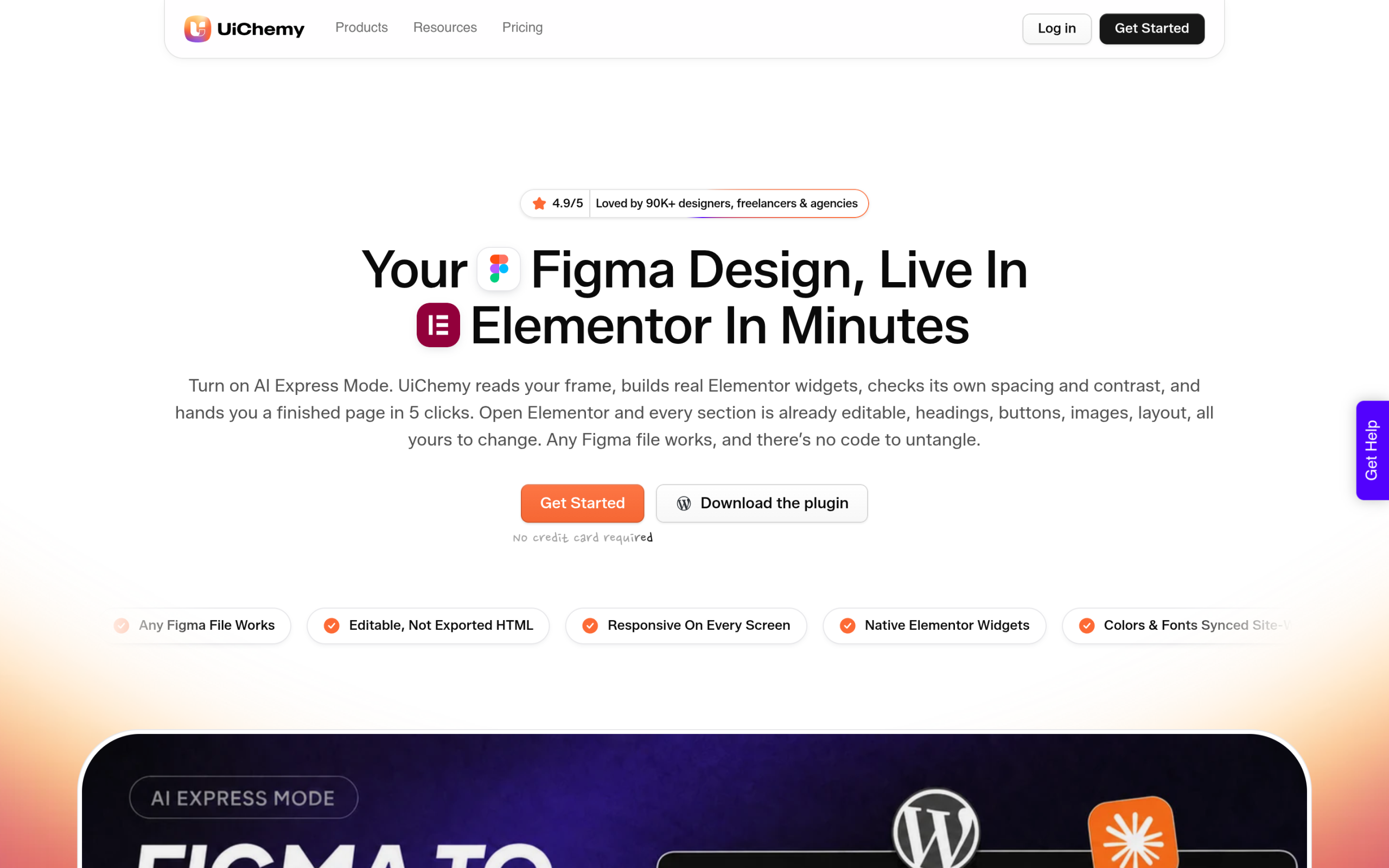
This is the category UiChemy sits in. Its WordPress.org listing describes converting designs into real Elementor widgets, Gutenberg blocks and Bricks elements rather than HTML or code, with support for more than 50 widgets, global style sync and a responsive output manager. The plugin has more than 8,000 active installs and a 100 out of 100 rating from 15 reviews. UiChemy is a separate POSIMYTH product from WDesignKit, built specifically to close this gap, which is why WDesignKit points its Figma kit users to UiChemy rather than shipping a competing converter.
Prepare Your Figma File for Conversion
Conversion quality depends far more on how the Figma file is built than on the converter. UiChemy’s listing says it reads your design structure, meaning frames, layers, Auto Layout and hierarchy, so a clean structure produces clean widgets. These are the habits that matter most:
- Use Auto Layout for every section. Figma’s Auto Layout guide describes frames that arrange their contents by direction, which can be vertical, horizontal or grid, with padding for the space inside the frame and gap for the space between items. That is the same information a page builder container needs.
- Set resizing on purpose. Auto Layout’s hug contents, fill container and fixed options tell a converter which elements should stretch and which should stay put when the screen gets narrower.
- Name layers clearly. “Hero”, “Pricing Card” and “Footer Links” are easier to map and review than “Frame 482”.
- Turn repeated elements into components. Cards, buttons and testimonial blocks should exist once and repeat, so they convert consistently.
- Define colour and text styles. Styles give a converter something to sync into the builder’s global settings instead of one-off values on every element.
- Keep images at sensible sizes. A 5,000 pixel hero exported from Figma will slow the finished page, so size images for how they will be displayed.
Step-by-Step: Converting a Figma File to WordPress With UiChemy
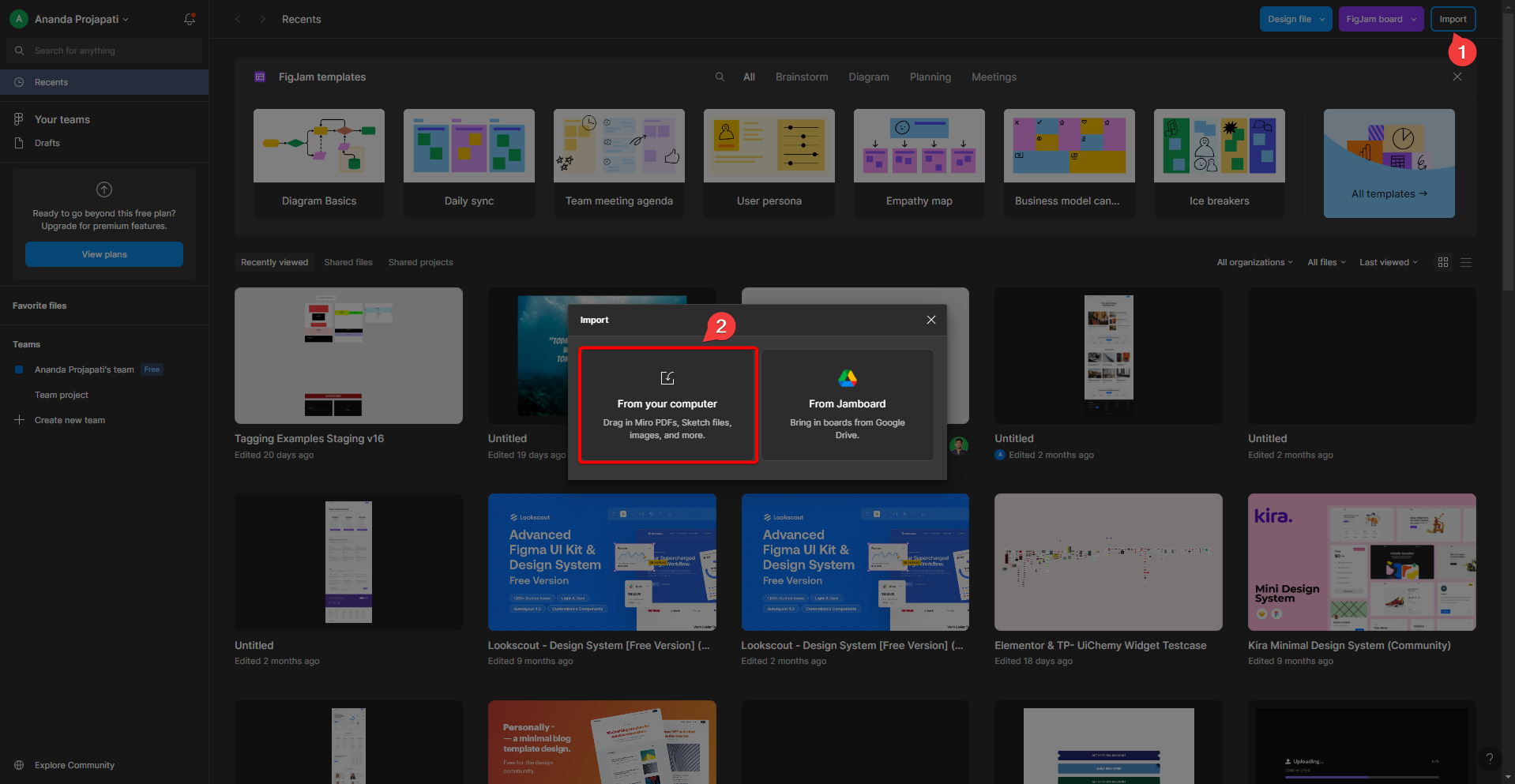
UiChemy’s WordPress.org listing summarises the process in four steps. Here is what each involves and what to watch for.
1. Design in Figma Following the Guidelines
Build or adjust your layout following UiChemy’s design guidelines, which is mostly the preparation list above. If you are starting from scratch rather than an existing brand file, a kit that is already built with Auto Layout saves the restructuring step, which is covered in the WDesignKit section below.
2. Run the UiChemy Figma Plugin
Install the UiChemy plugin inside Figma and use it to export your design. UiChemy’s site describes two ways of working: a classic mode where you map every layer to native Elementor, Gutenberg or Bricks widgets by hand for full control, and an AI Express Mode for Elementor that reads the frame, builds real widgets and checks its own spacing and contrast before handing you a page.
3. Connect Your WordPress Site
Activate the UiChemy WordPress plugin on your site and link your domain, so the Figma plugin can send designs straight to WordPress instead of you downloading and uploading files. For Elementor users, the listing notes support for more than 30 native Elementor widgets, Elementor v4 atomic elements including global classes and variables, and global style sync for typography, colours and spacing.
4. Import and Check Every Breakpoint
Hit import and the design arrives as an editable WordPress page. Because it is native builder content rather than an iframe or embedded code, you can click into any element and edit it like something you built by hand. Then check tablet and mobile views carefully. A well-structured Auto Layout file converts far more predictably than a free-floating one, but a manual pass on breakpoints is still worth the time before you call the page finished.
What Transfers Cleanly vs. What You Will Still Adjust
Worth being precise here, because “converts to editable WordPress” is easy to misread as “finished”.
| Element | Transfers well? | Why |
|---|---|---|
| Colours and typography | Yes | Global style sync carries Figma styles into the builder’s own settings |
| Auto Layout sections | Yes | Direction, padding and gap map naturally onto builder containers |
| Components mapped to supported widgets | Yes | They become real widgets instead of generic blocks |
| Free-floating or unstructured layers | Partial | Without layout rules, the converter has to guess |
| Prototype interactions and animation | No | Figma prototyping links are design-only, not conversion targets |
| Dynamic or CMS-bound content | No | Posts, forms and WooCommerce data are connected in WordPress after import |
Read that as a division of labour rather than a limitation. The repetitive, error-prone part, measuring and rebuilding a static layout, is what the converter should be doing. The part that needs a person, connecting the page to real content and interactions, was always going to need one.
Where WDesignKit Fits: Figma Kits and Ready WordPress Templates
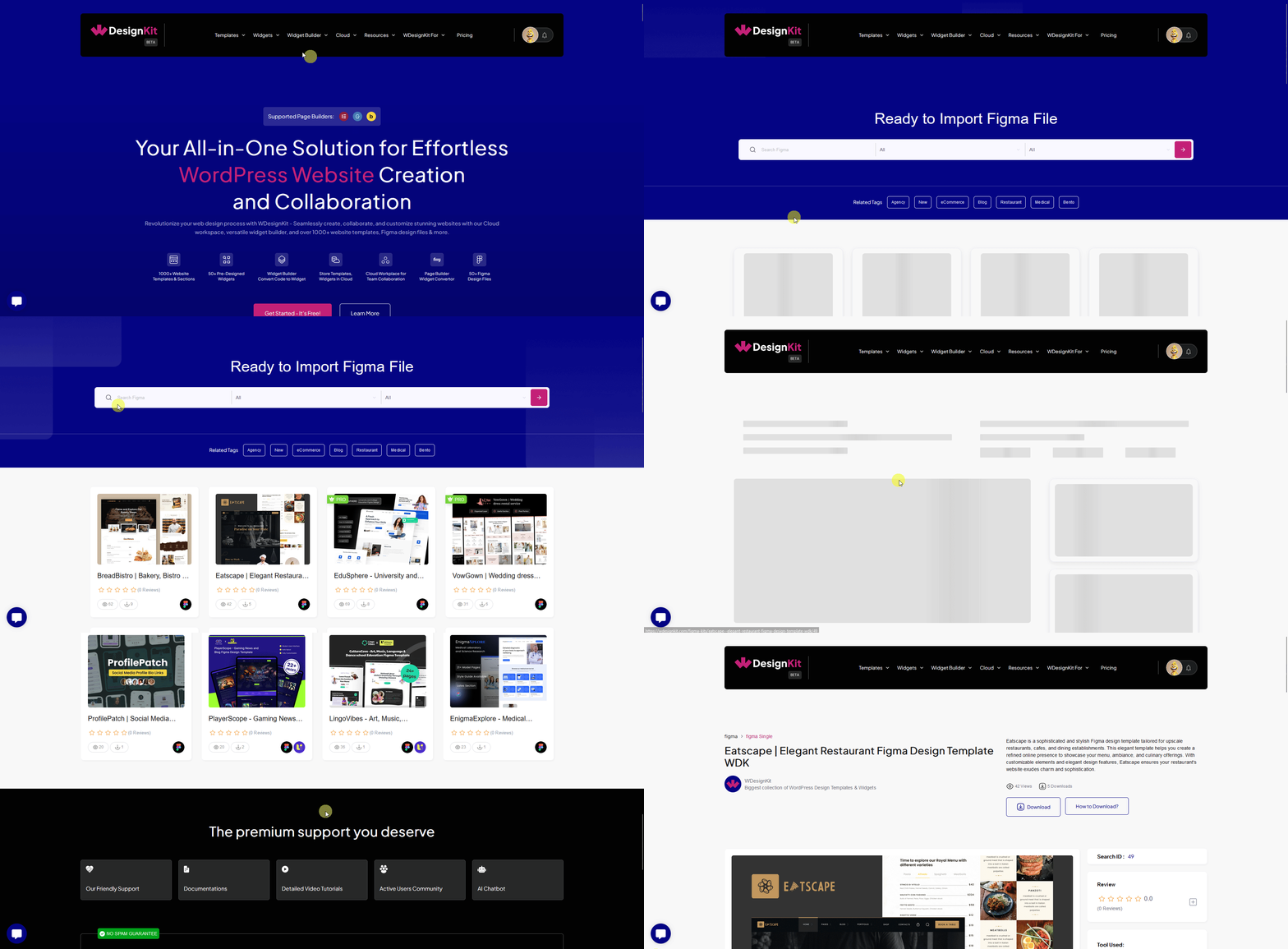
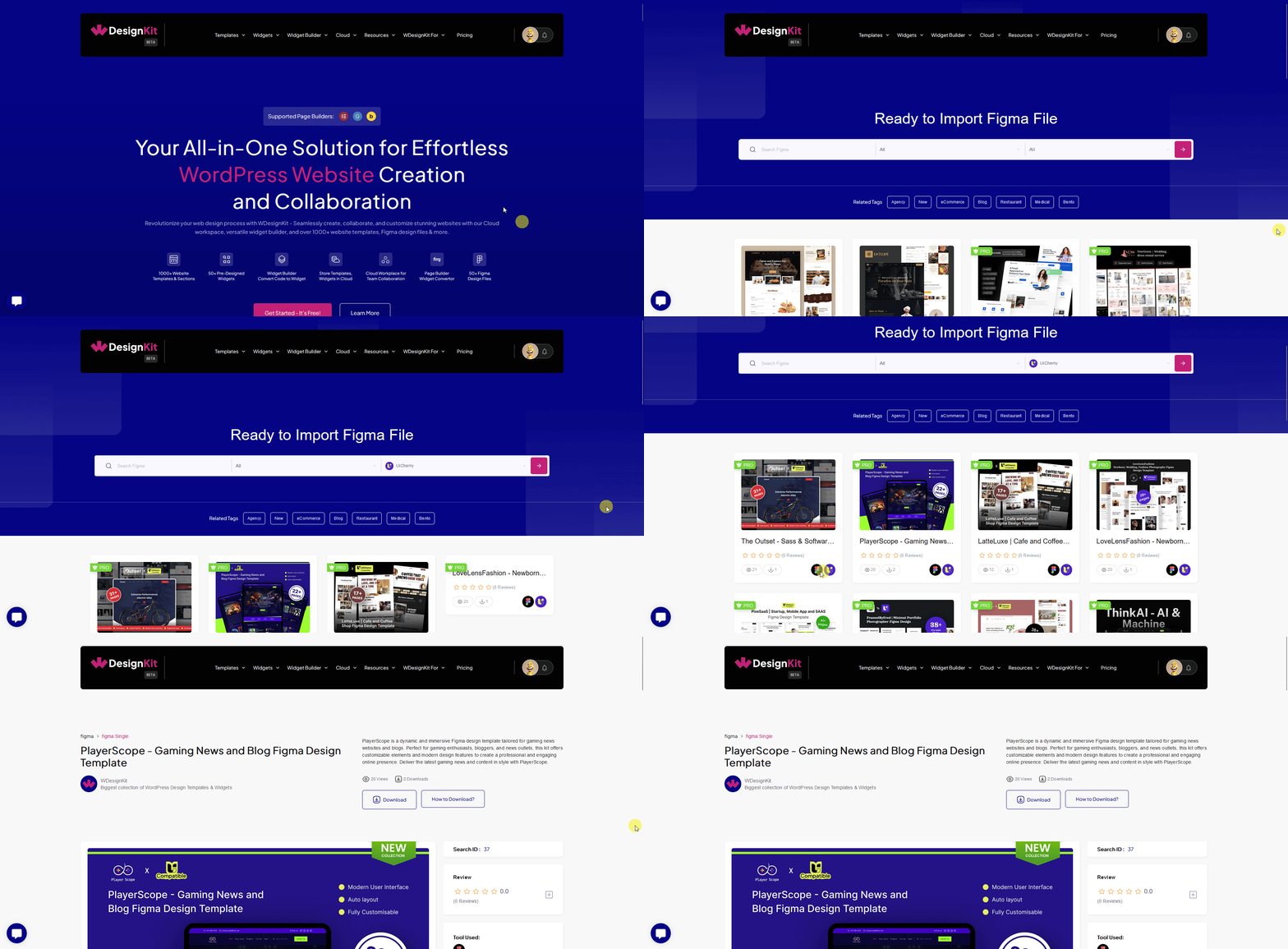
WDesignKit comes into this workflow at both ends. At the design end, its Figma library currently lists 60 Figma files, 20 free and 40 pro. When WDesignKit launched its Figma templates, it described them as built with Auto Layout, designed with desktop, tablet and mobile views in mind, and UiChemy compatible, so you can take a kit from Figma to Elementor or Gutenberg without restructuring the file first.
At the WordPress end, not every project needs a custom Figma design at all. If a client is happy to start from a proven layout, WDesignKit’s template library of 3,675 templates, including 2,040 for Elementor, 1,635 for Gutenberg and 243 full page kits, skips the Figma step entirely. And after a converted page is live, WDesignKit’s 239 widgets, 91 of them for Bricks, add interactive pieces such as sliders, menus and pricing tables that a static Figma design rarely specifies.
| Situation | Fastest route |
|---|---|
| You have a custom Figma design from a designer | Prepare it with Auto Layout, then convert with UiChemy |
| You want to design in Figma but not from a blank canvas | Start from a WDesignKit Figma kit, customise, then convert with UiChemy |
| The client just needs a good site quickly | Skip Figma and import a WDesignKit template kit directly |
| The converted page needs interactive extras | Add WDesignKit widgets for Elementor, Gutenberg or Bricks |
On cost, UiChemy’s pricing page lists Designer at $9 a month, Studio at $29 a month and Agency at $49 a month, with a 14-day refund guarantee and two months free on annual billing. It does not list a free plan. WDesignKit’s free Figma files and free WordPress templates are available on its Free plan.
Common Figma-to-WordPress Mistakes to Avoid
- Designing only the desktop frame. Without tablet and mobile frames, the converter and the developer both have to guess how sections should stack on smaller screens.
- Using text styles for looks instead of structure. A large bold paragraph in Figma still needs to become a real H2 or H3 in WordPress, or the page outline stops making sense to readers and search engines.
- Grouping layers instead of using Auto Layout. Groups keep elements together but carry no spacing rules, so they convert far less predictably than Auto Layout frames.
- Exporting every image at the highest resolution. Figma makes large exports easy, but most sections do not need that weight on a live page.
- Forgetting interactive states. Hover, focus and active states for buttons and links are often missing from design files, so agree on them before import rather than after launch.
- Treating the first import as final. Plan a review pass for spacing, breakpoints and content wiring from the start, so it is scheduled work instead of a surprise.
Accessibility Checks Designers Often Miss
A converted page inherits every accessibility decision made in Figma, good or bad, so it is worth a dedicated pass. Check that heading levels follow the meaning of the content rather than just the visual size of the text. Check colour contrast on text placed over images or tinted backgrounds; UiChemy’s site says its AI Express Mode checks its own spacing and contrast, but your brand colours still deserve a manual look. Add alt text to every meaningful image in WordPress, since design files rarely carry it. Make sure buttons and links are large enough to tap comfortably on a phone and have a visible focus style for keyboard users. And once forms are connected, confirm every field has a proper label rather than placeholder text alone.
None of these are difficult to fix at this stage. They are much harder to fix after a client has approved the page and moved on.
Figma-to-WordPress Checklist Before You Launch
- Confirm the Figma file uses Auto Layout, not free-floating positioned elements
- Map every component you want as a specific widget, rather than leaving layers to be guessed
- Check the converted page at tablet and mobile breakpoints, not just desktop
- Verify global colours and typography landed in the builder’s own settings, not as one-off inline styles
- Wire up any dynamic content, such as posts, forms or WooCommerce data, after import
- Add alt text to every image, since design files rarely carry it
- Re-check page speed after import, and compress heavy source images rather than carrying them over at full size
A converter removes most of the rebuilding, but launch quality still comes from this final pass. Ten minutes here is the difference between a page that looks like the design and a page that works like a website.
Suggested Reading
- What Are Template Kits, Sections and Full Pages in the WDesignKit Library
- Introducing WDesignKit’s Figma Templates
- Switching Page Builders in WordPress Without Losing Your Design
- Best Free Elementor Templates in 2026 (Tested)
Frequently Asked Questions
How to convert Figma to WordPress for free?
WDesignKit Learning Center points to a low-cost path, but the page does not describe a fully free Figma-to-WordPress converter. It says WDesignKit has free Figma files and free WordPress templates on its Free plan, while UiChemy’s pricing starts at $9 a month. The practical takeaway is that you can reduce design and template costs, but the conversion tool itself is listed as a paid product.
What is the best way to turn a Figma file into WordPress?
A dedicated Figma-to-WordPress converter is the strongest option on this page because it turns the design into editable native builder content instead of static HTML. UiChemy outputs Elementor, Gutenberg and Bricks content, with more than 50 widgets, global style sync and a responsive output manager. That matters when you want the page to stay editable in WordPress instead of becoming a one-off export.
Why does my Figma design break during WordPress development?
The usual failure point is that Figma is made of vector shapes, text layers and layout rules, not HTML or CSS. The page says handoff breaks when responsive behavior was never designed, when components have no equivalent in the target builder, or when budget forces a rough rebuild. In practice, that is why clean Auto Layout structure and clear component naming matter before conversion starts.
What should I fix in Figma before converting to WordPress?
Auto Layout, layer naming, components and styles are the big ones. The page says UiChemy reads design structure such as frames, layers, Auto Layout and hierarchy, so clean files convert better. Use Auto Layout for sections, set resizing intentionally with hug contents or fill container, name layers clearly like Hero or Pricing Card, and define colour and text styles so global settings can sync cleanly.
Does UiChemy work with Elementor, Gutenberg and Bricks?
UiChemy is described on the page as converting designs into native Elementor widgets, Gutenberg blocks and Bricks elements rather than HTML or code. For Elementor users, the listing also mentions support for more than 30 native Elementor widgets plus Elementor v4 atomic elements including global classes and variables. That makes it useful when you want editable builder content instead of an embedded snapshot.
What parts of a Figma design still need manual work after import?
Dynamic content and interactions still need attention after import. The page says colours, typography and Auto Layout sections transfer well, but prototype interactions, animation and CMS-bound content do not. Posts, forms and WooCommerce data are connected in WordPress after import, so the smart workflow is to treat conversion as layout transfer first and content wiring second.
Last reviewed: September 14, 2026
Author

Sagar is the Founder & CEO of POSIMYTH Innovations, with 10+ years building WordPress products trusted by 100,000+ websites globally. He has led the development of The Plus Addons for Elementor, Nexter, WDesignKit, and UiChemy, all built hands-on from concept to launch. His work focuses on making website building faster, more flexible, and accessible for creators and businesses worldwide.
Keep reading
Elementor Header Templates, Free and Ready to Import
Elementor header templates explained: what needs Pro, how to make a header sticky, and the free and Pro WDesignKit menu widgets for Elementor and Bricks.
13 min read
Elementor WooCommerce Templates: Free Store Page Layouts
Elementor WooCommerce templates explained: which store pages need Elementor Pro’s WooCommerce Builder, why checkout matters most, and where WDesignKit fits.
13 min read
AI Website Builder for WordPress: What It Actually Means
AI website builder for WordPress explained: hosted builders, AI inside templates, and AI agents via MCP, plus where WDesignKit’s AI kit import and MCP fit.
13 min read